
Module · AI assistant
Where to find it in the app
- Turn it on/off: your business name (top-left) → Settings → Modules → Assistant → AI assistant
Plan: Business · Module group: Assistant · Navigation: the sparkle (✨) button in the top-right toolbar, next to Help and notifications
1. Overview
Purpose. The AI assistant answers plain-English questions about your business and helps you get things done faster. You can ask what needs your attention today, how the month is tracking for money, or how to set something up, and it will draft messages for you and point you to the right screen with a one-tap take-me-there button.
Two important guarantees:
- It only uses your own data. The assistant is given a small, private summary of your business (counts and first names only, never customer emails, phone numbers or surnames) and answers from that. When you ask something specific it can also look it up in your own internal notes (handover notes, notes on a customer's profile, past announcements, form submissions) and answer from the matching excerpts. It only ever reads your business's records, and only sources you've switched on, see AI, data & privacy.
- It only acts with your confirmation. The assistant can do a handful of things for you. It can post a team announcement, mark a booking paid, create a booking, approve a request, reschedule a booking, add tasks to the to-do list, set up a membership plan, or set up a bookable experience, but only by proposing them. Nothing happens until you click Confirm. Every action is reversible (an Undo button), recorded in an action log, and re-checks your permission. If an action would email the customer (e.g. a booking confirmation, an approval, or a reschedule notice), the confirmation card says so plainly, so you're approving that too. For everything else it just reads, tells you, and takes you to the right place, and you stay in control.
2. When to use it
- Start of day: "What needs my attention today?"
- Money check: "How's this month looking for money?"
- How-to / where-is: "Where do I set up what customers can book?", "How do I turn on guest invitations?"
- Drafting: "Draft a text to today's bookings reminding them we open at 9."
- Looking something up: "What did yesterday's handover note say?", "What's noted on Mia's profile?", "Did we announce anything about Saturday?"
- Invoices: "Which invoices did I send between 1 August and 30 September, with a breakdown of each?", "What's still owing on INV-0026?". It lists them with their dates, status, amounts and lines, from the same figures as Invoicing, for anyone whose role can view invoices.
3. Required permissions
- Use the AI assistant (
assistant.use).
By default this is available to roles with management access. Grant it to other
roles on Team → Staff list.
4. Navigation path
Assistant is the sparkle icon in the top-right toolbar, next to Help
and notifications. It only appears when the module is on and your role has Use
the AI assistant.
5. What you'll see
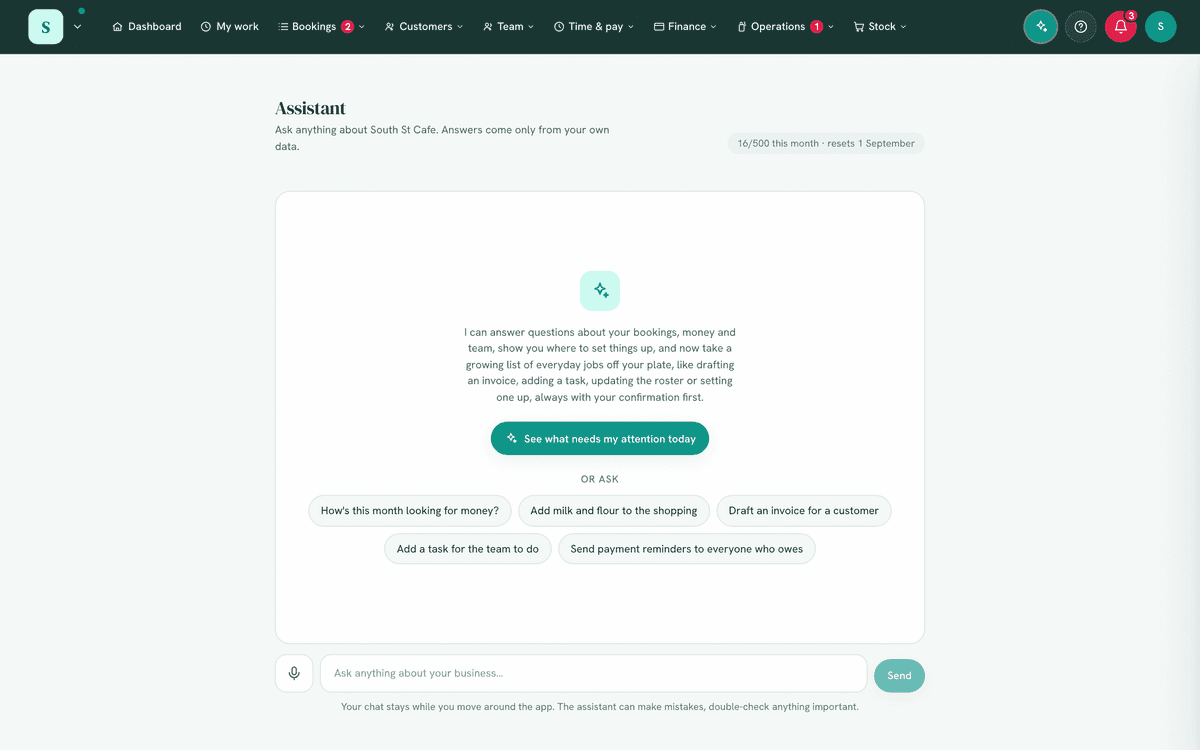
- A header with your business name and a usage counter (e.g. "12/300 this month") when a monthly limit applies.
- A conversation area. Before you start, it shows a short intro and a few suggested questions you can tap.
- A message box at the bottom, type a question and press Enter (or Send).
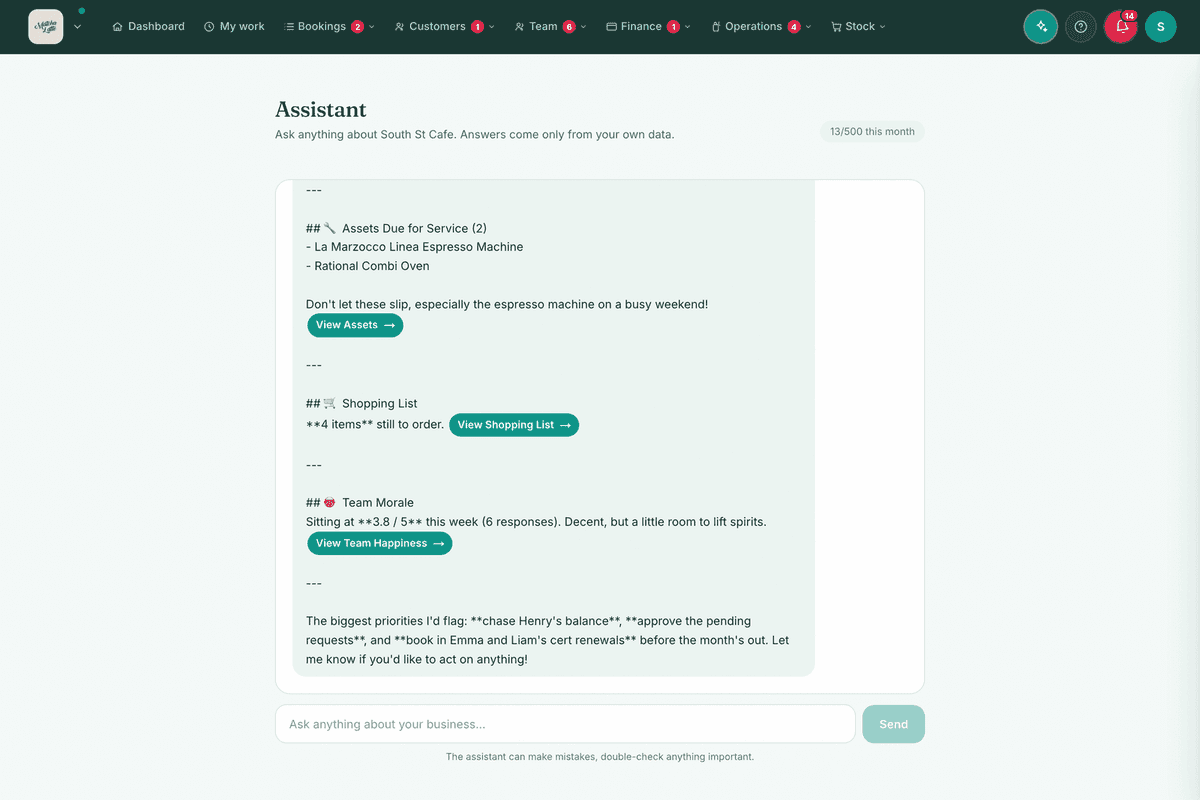
- Assistant replies appear as text, and any "go here" suggestions render as accent buttons that jump you straight to the right page.
- A reminder under the box: "The assistant can make mistakes, double-check anything important."
6. Turning it on
- Go to
Settings → Modules. - Under Assistant, switch on AI assistant. (This module is part of the
Business plan; if it's locked, upgrade on
Plan & billing.) - Open
Assistant.
If you ever see a message that the assistant "isn't set up on the server yet," that's a provider-side configuration item, contact support; there's nothing to fix in your settings.
Choose what it may read. On Settings → Modules, under "What the AI
assistant may read," switch each internal-note source (team announcements,
handover notes, customer notes, form submissions, safety/maintenance notes, leave
reasons) on or off for the assistant.
Anything switched off there is never searched, even though you keep using that
module yourself. By default the assistant may read all of them.
7. Step-by-step tasks
7a. Ask a question
- Open
Assistant. - Tap a suggested question, or type your own in the box.
- Press Enter or Send. (Shift+Enter adds a new line without sending.)
- Read the reply. If it includes a button, tap it to go straight to that screen.
7b. Get guided to a setting
- Ask where/how, e.g. "Where do I set up what customers can book?"
- The assistant replies with short numbered steps and a button such as Experiences → or Open settings →.
- Tap the button to be taken there.
The assistant checks which tools you've switched on. If you ask about a feature that's currently off, it will tell you and point you to Settings to enable it first.
7c. Draft a message
- Ask it to draft, e.g. "Draft a friendly reminder for tomorrow's appointments."
- It writes a ready-to-send message.
- Copy the text into the relevant tool (Messages, Marketing, Comms) and send it yourself. Drafting is copy-only: the assistant hands you the words and doesn't send this message for you. (Its confirm-first actions are separate. A few confirmed actions, such as approving a booking, do email the customer, and the confirmation card always warns you first. See section 1.)
8. Examples
Beginner. A new owner opens the assistant and taps "What needs my attention today?" It lists the booking requests to approve and any unpaid balances, each with a button to the right screen.
Real-world business. A salon manager asks "How's this month looking for money?" and gets collected-vs-outstanding figures drawn from their own invoices, plus a note on what's still owed.
Year end. A sole trader asks "What can I claim for the van?" The assistant says that is a question for their registered tax agent, tells them how many kilometres are on record this financial year and whether a vehicle is still missing its registration or engine capacity, and links Vehicle trips and Equipment costs (the asset register) as the records to hand over. It never quotes a rate or a deduction, because working those out is not the app's job or the assistant's.
Advanced. Before a busy weekend, an owner asks "Draft an announcement for the team about Saturday's big function and where to find the run-sheet." The assistant writes the announcement and links the Run-sheet page; the owner pastes it into Team comms and posts it.
9. Reports & exports
None, the assistant is conversational. It reads your live data each time you ask; there is nothing to export.
10. Usage limits & cost
- Each plan includes a monthly question allowance, shown in the header (e.g. "X/300 this month"). The allowance resets at the start of each month.
- When you reach the limit, the box is disabled and a notice explains it resets next month (or suggests upgrading).
- This cap protects you from unexpected cost.
11. Common mistakes
- Treating answers as final. It can make mistakes, verify anything that matters (especially numbers and drafts) before acting.
- Assuming it acts silently. It never changes anything on its own. Some requests it can carry out, but only by proposing them on a confirmation card you have to approve first, and a few confirmed actions email the customer (the card warns you). Every change is logged with an Undo. For anything outside that short list it just guides and drafts, so follow its button and finish the task yourself.
- Asking about a switched-off tool. It will tell you the tool is off, turn it on in Settings, then ask again.
- Pasting sensitive info into the question. You don't need to, it already has a safe summary of your data. Avoid typing customer personal details into the chat.
11b. Running out, and paying as you go
Every AI feature in the app draws from one shared monthly allowance for the
whole business, not a separate quota per tool. You can see where you are at any
time on Plan & billing, and the assistant shows it under the message box.
By default AI simply stops when the allowance is gone, and starts again on the 1st of your local month. Nothing is lost and nothing is charged.
You are told before it runs out. At 80% of the month's allowance, and again when it is used up, the owner is emailed ("Your HappierBiz AI is 80% used this month") and the bell tells whoever looks after Plan & billing. Each is sent once a month, and says what is open to you: pay as you go, a bigger plan, or a word with us.
If your plan offers it, an owner can turn on pay as you go at any time, on
Plan & billing beside the AI use meter or in Settings → AI, under Keep
working past your AI limit. It needs a paid plan and Manage plan & billing:
- Extra uses are charged at a fixed price each and added to your next HappierBiz invoice. There is never a separate charge and never a separate card payment.
- When you are actually charged depends on how you pay:
- Monthly plan: at your next monthly renewal. Anything used in August appears on your 1 September invoice.
- Yearly plan: at your yearly renewal, which may be months away. It keeps
accumulating until then and arrives as one line.
Plan & billingalways names the exact date, so it is never a surprise.
- You set the monthly ceiling. A use is only allowed if it fits under it, so the limit you type is the most that month can ever cost.
- What you have used so far this month is shown on
Plan & billingand in the settings card, before anything is invoiced. - Lowering the ceiling stops any further use straight away. It does not undo what the month has already used, and the screen says so at the time.
- Turning it on or off, and changing the ceiling, is recorded in
Settings → Activity log.
Only someone with Manage plan & billing can turn it on or change the limit.
12. Troubleshooting & error messages
| Message / symptom | Meaning & what to do |
|---|---|
| "The assistant isn't set up on the server yet." | Provider-side configuration is missing, contact support. |
| "The AI assistant isn't switched on for this business." | The module is off, enable it in Settings → Modules. |
| "The AI assistant isn't included on your current plan." | Upgrade on Plan & billing. |
| "You've reached this month's AI limit (N)." | You've used your monthly allowance. It resets on the 1st of your local month. The message names whichever way forward is actually open to you: a bigger plan if one exists, pay as you go if your plan offers it, or a word with us if neither. |
| "You've hit the $X monthly limit you set for extra AI." | Pay as you go is on and you have reached your own ceiling. Raise it in Settings → Keep working past your AI limit, or wait for the reset. |
| "That's a bit long, please shorten your question." | Your question exceeded the length limit, trim it. |
| "You don't have access to this business." | You're not a member of this workspace, or your session expired, sign in again. |
| "The assistant had trouble answering just then. Please try again." | A temporary glitch, retry. |
| A suggested link shows as plain text, not a button | The assistant referenced a place that isn't a real page; ignore that link and navigate manually. |
Data & privacy: for exactly what the AI sends, what's stored, and what the AI provider does with it, see AI, data & privacy.
Related: The dashboard & navigation · AI, data & privacy · Team comms · Marketing