Module · Marketing
Where to find it in the app
- Use it: Customers → Marketing
- Turn it on/off: your business name (top-left) → Settings → Modules → Customers → Marketing
Plan: Solo and Business · Module group: Bookings & schedule · Navigation:
Customers → Marketing
1. Overview
Purpose. Email your customers, win-back offers, top-spender perks, seasonal news, and grow your opt-in list. HappierBiz only ever emails people who have opted in, and every email carries an Unsubscribe link at the bottom, under your business name and contact details (your address as you chose to show it in Settings → Invoicing & tax). You cannot remove it. It opens a page with one button, Unsubscribe me, and the customer's consent is switched off straight away on every customer record with that email address, so the next campaign does not reach them. The same page lets them change their mind. Inboxes that support it (Gmail, Yahoo, Apple Mail) also show their own unsubscribe button beside your name, which works in one click.
Compliance first. This module is built around the Australian Spam Act: no sending to people without consent, no pre-ticked opt-ins, and an unsubscribe in every message. See also Customers for how consent is recorded.
2. When to use it
- To re-engage lapsed customers with an offer.
- To reward or update your best customers.
- To send seasonal or news announcements to people who asked to hear from you.
3. Required permissions
- View campaigns & audiences (
marketing.view). - Send marketing campaigns (
marketing.send).
4. Navigation path
Customers → Marketing
5. What you'll see
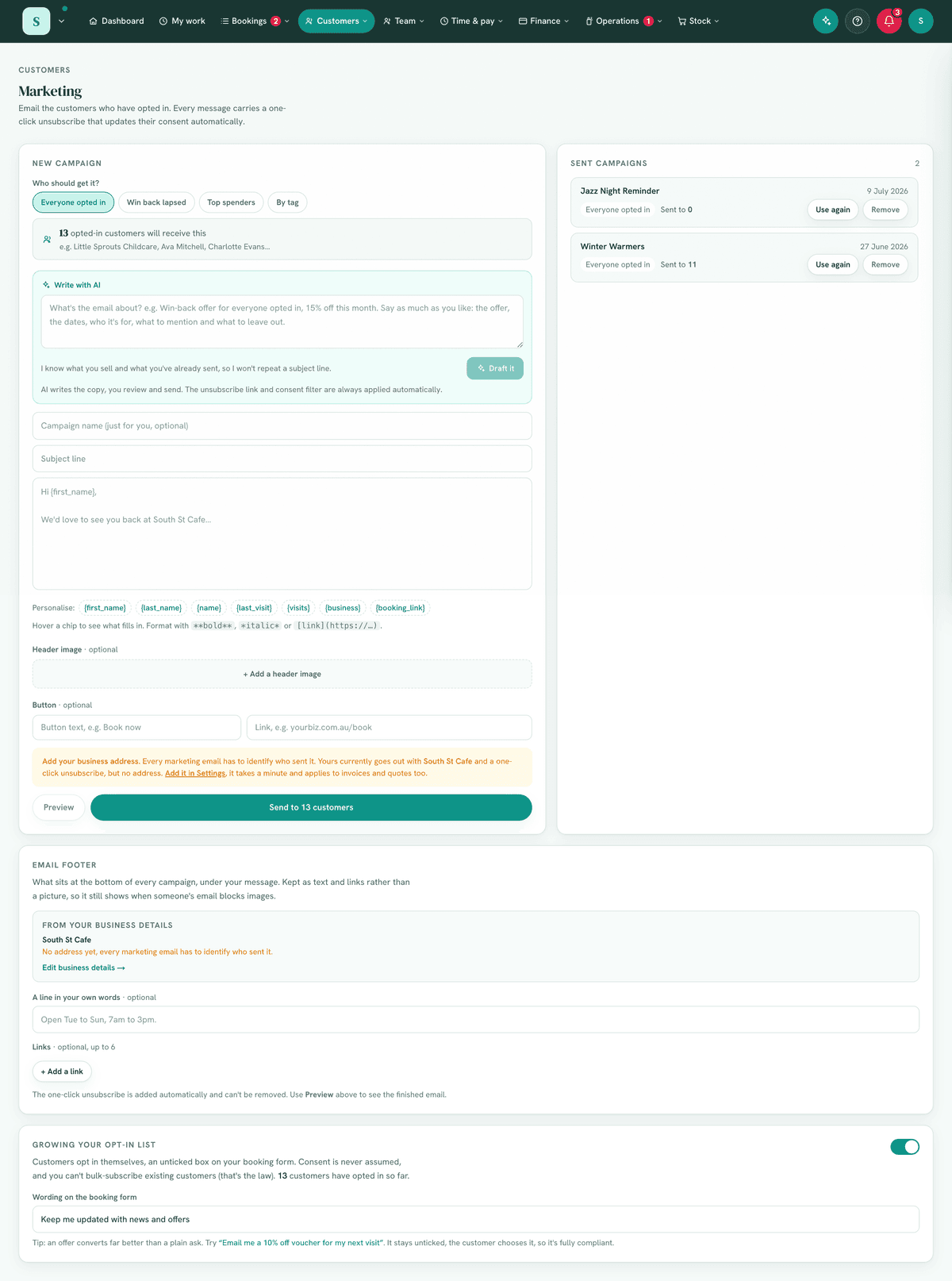
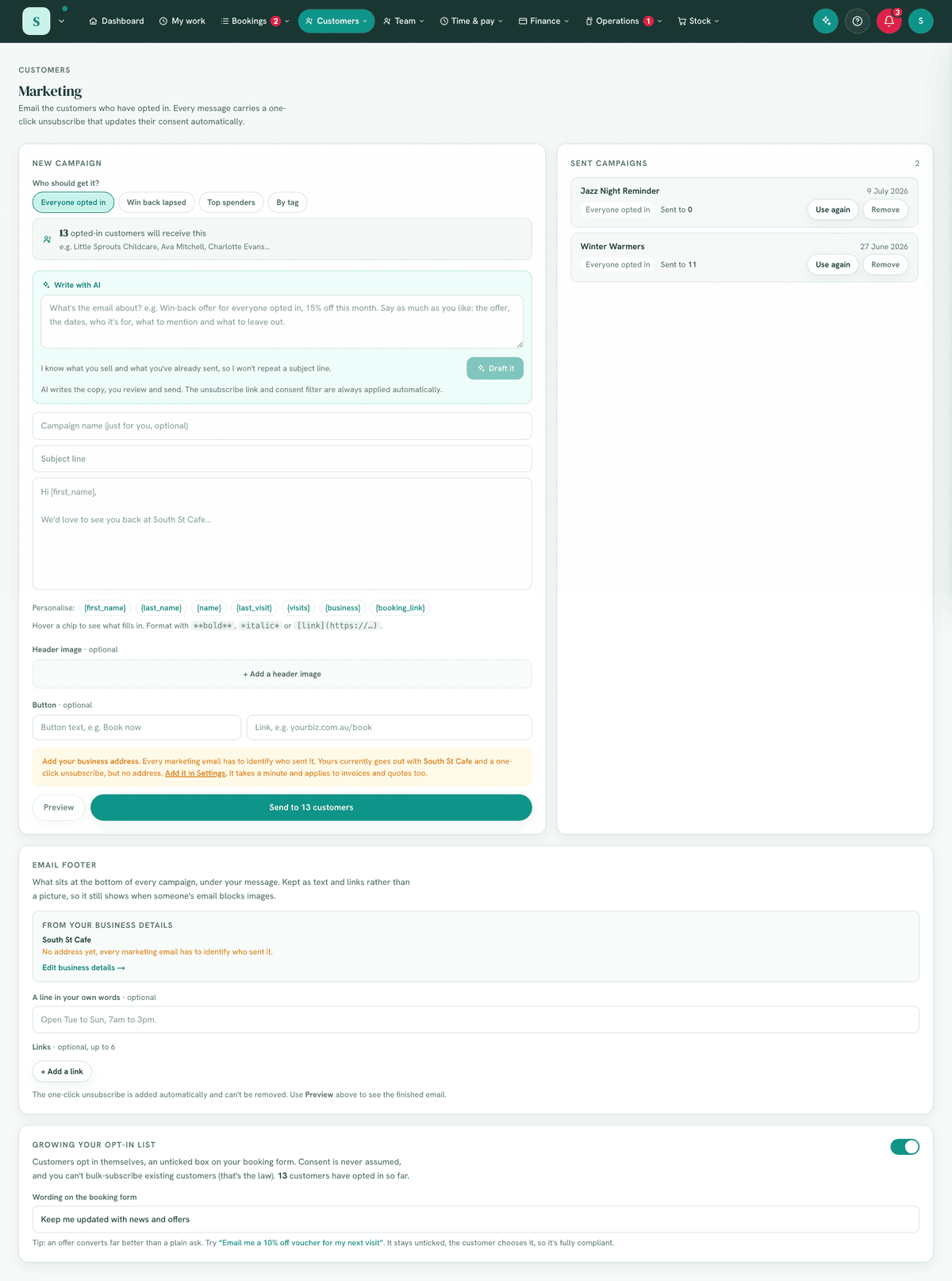
A New campaign builder: campaign name (just for you), subject, and a body that supports merge tokens, bold/italic/links, an optional banner image, and a call-to-action button (label + link).
Personalise chips under the message, one click each, with a hover note saying exactly what fills in:
Chip Fills in If we don't have it {first_name}Their first name "there" {last_name}Their surname Their first name {name}Their full name "there" {last_visit}The date they last came in, e.g. 12 June 2026 "a while back" {visits}How many visits they've had 0 {business}Your business name always known {booking_link}Your public booking page, as a clickable link only shown if you take bookings Anything else you type in curly braces gets flagged in red before you send, because we can't fill it and it would reach the customer with the braces still in it. You'll also see a heads-up like "2 people have no surname on file, they'll get their first name instead" for the list you're about to email.
A Write with AI panel above the builder: describe the email in as much detail as you like (the offer, the dates, what to mention and what to leave out) and it drafts the subject, the body and the button. It knows what you actually sell, what your prices are, where your booking page is, and which subject lines you've already used, so it won't repeat itself or invent an offering you don't have. It also tells you anything it assumed or left out. One-tap Improve buttons (Friendlier, Shorter, More formal, Subject ideas) rewrite it. You review and send.
An audience selector with preset segments (e.g. everyone opted-in, win-back lapsed, top spenders, by tag) and a live audience preview (count + sample names).
A Sent campaigns list (audience size, number sent, status, date), each with a Use again button to reload it into the composer as a Send again.
A Growing your opt-in list panel to customise the booking opt-in prompt.
6. Turning it on
Settings → Modules → Bookings & schedule → Marketing. It draws its
audience from Customers (consent), so that module is needed too.
7. Step-by-step tasks
7a. Send a campaign
- Open
Customers → Marketing. - (Optional) Name the campaign for your own reference.
- Write the subject and body. Use
{first_name}to personalise; add a banner image and a CTA button if you like. - Choose an audience segment. Watch the live preview, it shows how many opted-in customers match and a few sample names.
- Select Send. You'll be asked to confirm, e.g. "Send to N opted-in customers? Everyone gets a one-click unsubscribe. Customers who opted out are never included."
- Confirm. The campaign appears under Sent campaigns.
7b. Grow your opt-in list
- In Growing your opt-in list, switch the booking opt-in on.
- Customise the prompt text. An incentive converts best (e.g. "Email me a 10% off voucher for my next visit").
- The opt-in always stays unticked, the customer chooses it, so it's fully compliant. Save.
7c. Write a campaign with AI
- In Write with AI, type a short brief (e.g. "Win-back offer for lapsed customers, 15% off this month") and choose Draft it.
- It fills in the subject and body. Edit anything you like.
- Use the Improve buttons (Friendlier, Shorter, More formal, Subject ideas) to rewrite the draft. The AI writes the copy only. You review and send, and the unsubscribe link and consent filter are always applied for you.
7d. Send a past campaign again
- In Sent campaigns, choose Use again on a past send. It reloads that campaign into the composer under a Send again heading (choose Start fresh to clear it and start over).
- Under Who should get it, pick Only new people to skip everyone who already received it (it shows how many haven't had it yet), or Everyone again to send to the whole audience.
- Send as usual. If everyone has already had it, sending is blocked with "Everyone in this audience has already had this one."
8. Examples
- Beginner (café): send a "We miss you, 15% off this week" to the win-back lapsed segment.
- Real-world (salon): email top spenders a loyalty perk with a Book now CTA linking to your booking page.
- Advanced (studio): tag customers by interest and send a class-specific
campaign to a by tag segment, personalised with
{first_name}.
9. Reports & exports
The Sent campaigns list records each send's audience size, number sent and status. The opt-in count is shown in Customers.
10. Common mistakes
- Expecting to email everyone. Only customers who have opted in are ever included, and only those with a visit on record or who were added to your customer list by hand. The audience preview reflects this.
- Manually adding people who didn't opt in, don't; rely on genuine consent.
- A plain opt-in ask, an offer converts far better, while still staying unticked and compliant.
- Forgetting the merge token, use
{first_name}for a personal touch (it falls back gracefully if unknown). - Inventing your own token, only the chips under the message actually fill
in. Something like
{discount_code}arrives in the customer's inbox exactly like that, so the composer flags it in red before you can send.
11. Troubleshooting
| Problem | Fix |
|---|---|
| "No one matches this audience yet" | Your opted-in list for that segment is empty, grow opt-ins, or pick a broader segment. |
| A customer didn't receive an email | They haven't opted in, or they have no visit on record and weren't added to your list by hand, or they unsubscribed. |
| Can't send | You need Send marketing campaigns. |
| Unsubscribes | Are automatic and update the customer's consent, no action needed. |
12. Error messages
Sending shows a confirmation dialog with the exact opted-in count and the unsubscribe assurance. Attempting to send to an empty audience is blocked with "No one matches this audience yet."
Related: Customers · Marketing consent stance (compliance) · Team comms