
Module · Shift requests
Where to find it in the app
- Use it: Time & pay → Time off & shifts
- Turn it on/off: your business name (top-left) → Settings → Modules → Time & pay → Shift requests
Plan: Solo and Business · Module group: Your team · Navigation:
Time & pay → Time off & shifts(Shift swaps tab)
1. Overview
Purpose. Staff swap shifts, give shifts away and call in unavailable (sick), and managers approve it all in one inbox. Open shifts can be claimed by anyone free. It keeps shift changes off group chats and in one auditable place.
Where a "Can't make it" shows. The moment a staff member says they can't make a rostered shift, that shift is tagged Needs cover on the roster (or Can't make it, pending while it awaits a manager's acknowledgement), it drops out of the Calendar's staff lanes, and whoever approves requests gets a bell line that opens the right week, as well as the email. Nothing about the shift is changed until you act on it.
Nothing moves until a swap is approved. A swap goes through four states: asked (waiting for the coworker), accepted (waiting for a manager), swapped (approved, and the roster changed), or it ends as declined, withdrawn or cancelled. Until the moment a manager approves it, the person who asked is still on the shift, and every screen says so: the shift on the roster carries Swap asked or Swap needs approval, the shift on the person's own list says where the swap has got to, and both people's requests read "You're still on this shift until a manager approves it." If your business lets swaps go through without a manager, accepting is the moment it moves.
2. When to use it
- When a staff member can't make a rostered shift.
- To let the team self-organise cover, with manager sign-off.
3. Required permissions
- View shift requests (
requests.view). - Approve swaps (
requests.approve).
4. Navigation path
Time & pay → Time off & shifts (Shift swaps tab)
5. What you'll see
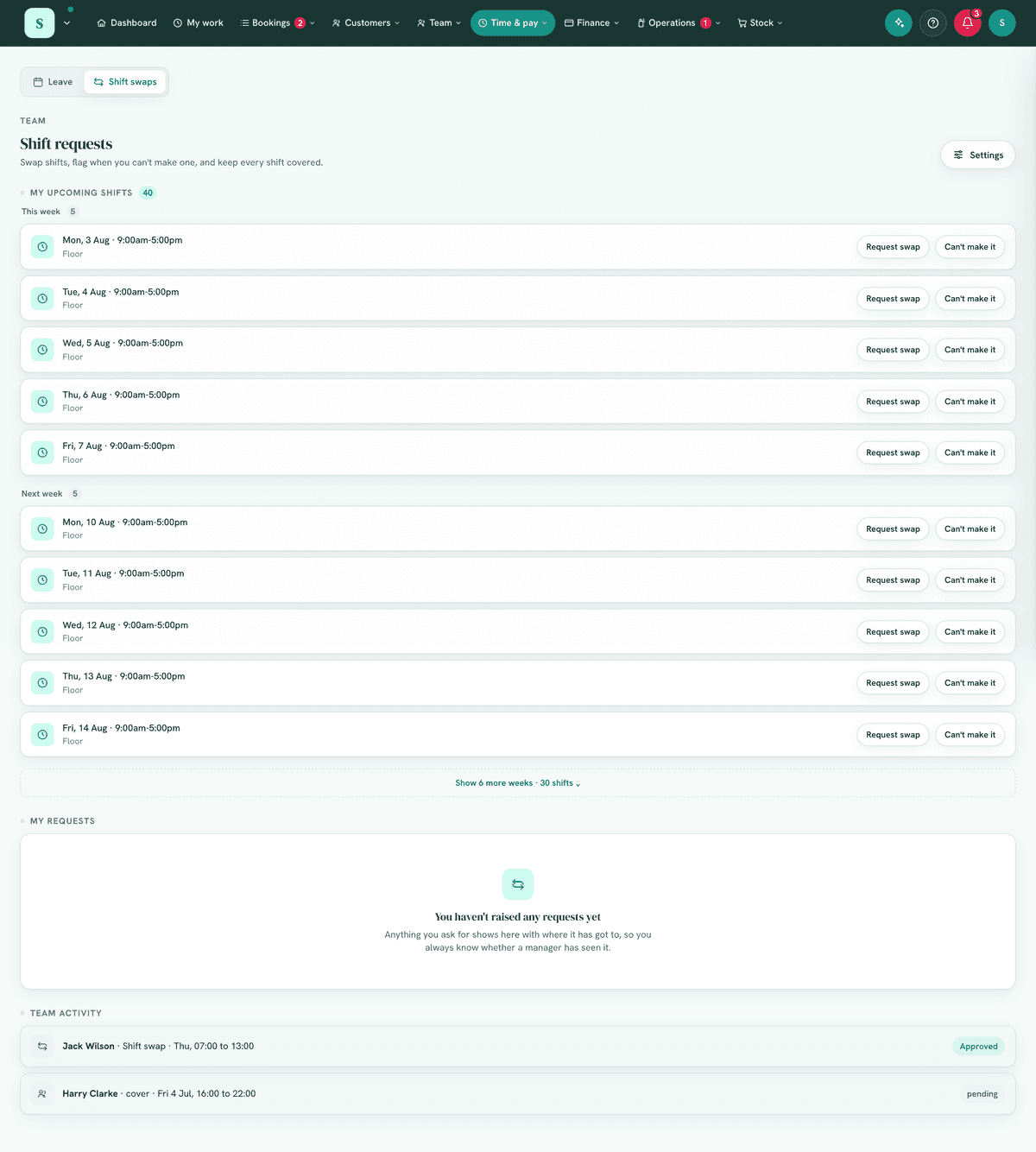
- Your upcoming shifts, each with the request actions your business has enabled: Request swap, Give away, Can't make it.
- Incoming items to action: swaps awaiting your accept/decline, requests awaiting a manager decision, open shifts to claim, and cover to mark sorted.
- My requests: the ones you asked for, and the swaps you are taking, each with where it stands for you:
| What it says | What it means |
|---|---|
| Waiting for Jordan / Waiting for you | The coworker hasn't answered. Nothing has changed. |
| Needs a manager's approval | The coworker accepted. The person who asked is still on the shift. |
| Swapped / Picked up | Approved, and the roster has changed: the shift is on the other person's roster now. |
| Jordan declined / Declined | It isn't happening. The person who asked keeps the shift. A manager's decline names them. |
| Withdrawn | The person who asked took it back. Nothing changed. |
| Cancelled | It could no longer happen, and the line under it says why (see 7e). Nothing changed. |
A shift with a request still being settled on it shows that state instead of the request buttons, so it is never offered twice.
6. Turning it on
Settings → Modules → Your team → Shift requests. In its settings you can
enable/disable each request type (swap, giveaway, unavailable) to match how your
team operates. Works with the Roster.
7. Step-by-step tasks
7a. Request a swap, giveaway or "can't make it" (staff)
- Open
Time & pay → Time off & shiftsand pick the Shift swaps tab. - On the shift, choose Request swap, Give away or Can't make it.
- For a swap, pick the coworker. If your business shares the roster with staff, you can also pick one of their shifts to take in return; when the swap goes through, your shift moves to them and theirs moves to you.
- Add a short reason (e.g. "unwell", "away that weekend").
- Submit. It goes to a coworker and/or a manager depending on the type.
Only your own shifts can be swapped, given away or flagged, and one shift can only have one open request at a time, including a shift already offered in return in another swap. A cut-off, if your business sets one, is counted to the shift's start time, and a shift that has already started can never be swapped or given away.
The coworker must be able to take it: a swap is refused if they are already rostered at that time, on approved leave then, or not qualified for the shift's role (when your business blocks on qualifications). Asking them, you are only told they aren't free at that time, never why. It is also refused when either person has already confirmed their timesheet for that week, or the week is locked for payroll, because the shift would come off one confirmed timesheet or onto another without anybody looking at it again.
Who is told, and how often. A "can't make it" reaches the approvers straight away, so cover can be found. A shift given away is emailed to everyone who can see shift requests, so somebody can claim it. Things that need a manager's decision (an agreed swap, a claimed open shift) reach the approvers at most once an hour: the first straight away, the rest together in one email when the hour is up. Every one of them is on the page at once.
7b. Respond to a swap (coworker)
- A swap aimed at you shows on My work and on Shift requests, with who is asking, the shift, and any shift of yours they would take in return.
- Accept or Decline. Accepting passes it to a manager; until they approve, the person who asked stays on the shift. Accepting is refused, with the reason, if you are already rostered then, on leave then, or your timesheet for that week is already confirmed.
- Accepted and now can't do it? Choose Can't do it now on the request before a manager decides. The person who asked keeps the shift and is told.
7c. Approve / decline (manager)
In your inbox, Approve or Decline pending requests. A swap or a claim only reaches you once the coworker has agreed. Approving is the moment the roster changes, and it checks everything again first: if the shift has changed, gone or started, or somebody has left, the request is closed with the reason and both people are told; if the person taking it is now rostered then or on leave, approving is refused and says why.
- Nobody decides a request they are part of. If you asked for the swap, or are taking the shift, another manager decides it. Anyone who can edit the roster can also change the shift directly.
- If the person who asked withdraws at the same moment you approve, exactly one of you wins: either you are told "This was withdrawn a moment ago. Nothing was swapped.", or they are told it has already been approved.
- A swap the coworker never answers can be cleared: Decline it from Team activity.
Before you approve, the card shows what the swap does to pay. For each person, their rostered hours that week before and after, worked out exactly as payroll works them out (your unpaid break rule, leave and public holidays included), with a note when the swap:
- takes somebody over your weekly overtime threshold (Timesheets settings, 38 hours unless you changed it);
- takes somebody above their contracted hours, or leaves them under them (the hours on their team card);
- has somebody work a public holiday, which payroll pays at your public holiday rate;
- leaves a permanent employee still paid the public holiday as a day off, because it was one of their usual days. Under the National Employment Standards a permanent employee is paid for a public holiday they would ordinarily work.
If you can see pay rates (managing the team, or final payroll sign-off), it also shows the wage change at base rates; overtime and public holiday rates come on top. Approving a swap that creates overtime or goes past somebody's contracted hours asks you to confirm first, and the approval's line in Settings → Activity records the hours it moved. The same preview is on the swap in the Approvals inbox.
When declining, add an optional note saying why (e.g. "no one else is trained on the coffee machine that day"), the requester sees it with the decision.
Mark sorted when cover for an open shift is arranged.
7d. Claim an open shift (staff)
- Find an open shift in the list.
- Choose Claim it to pick it up (subject to approval where required). The same checks apply as for a swap: not when you are already rostered then or on leave.
7e. When a swap can't go ahead
A swap or open shift that can no longer happen is cancelled for you, with the reason on it, and both people are told in the app and by email:
- the shift was changed on the roster (a different time, day or person) after it was asked for, so nobody can accept a time they were not shown;
- the shift was taken off the roster;
- the shift started before anybody settled it (told in the app only);
- the person taking it is no longer on the team;
- the week is locked for payroll.
Nothing changes on the roster in any of these.
7f. What a swap changes on the roster, timesheets and pay
When a swap is approved, the shift moves to the person taking it, and it is theirs from then on: it is on their roster and My work, their timesheet and pay from the roster count it, and the time clock expects them for it. It comes off the roster of the person who asked. If it was one of their regular shifts, that day is marked off for them, so the regular shift does not come back the next time the roster fills, they are not paid for it, and the clock does not expect them. A regular shift moved to somebody else by editing it on the roster is treated the same way.
8. Examples
- Beginner: a staffer taps Can't make it on tomorrow's shift with reason "unwell"; the manager sees it and arranges cover.
- Real-world (café): two staff arrange a swap; the coworker accepts, the manager approves, and the roster updates.
- Advanced (venue): someone gives away a weekend shift; it becomes an open shift that another team member claims, with manager approval.
9. Reports & exports
The inbox is the live record of requests and their status; pending approvals also surface in the notifications bell. Every step is in Settings → Activity: a swap asked for, accepted, turned down, approved, declined, withdrawn, and closed because it could no longer happen, with who did it and when. There's no separate export.
10. Common mistakes
- Assuming a swap is done when a coworker accepts: it still needs a manager's approval where configured, and every screen says so until it has it.
- Using chat instead, log it here so cover is tracked and the roster stays accurate.
- A disabled request type, if you can't see "Give away", your business has that option switched off.
- Declining without a note, the requester only sees the decision and is left guessing; add a line saying why.
11. Troubleshooting
| Problem | Fix |
|---|---|
| No request buttons on a shift | The request types may be disabled in settings, or the module is off. |
| A swap is stuck | Check whether it's awaiting the coworker or a manager, and action that step. |
| Can't approve | You need Approve swaps. |
| Cover still shows needed | Mark sorted once cover is arranged. If the person withdraws their "can't make it", the flag clears on its own. |
| "That shift isn't on your roster any more" | The roster changed after the page loaded. Refresh and pick the shift again. |
| "That shift has already started, so it can't be swapped" | A shift can only change hands before it starts. Ask a manager to change the roster if somebody else worked it. |
| "Jordan isn't free at that time" | They are already rostered then, on leave, or not qualified for it. Ask somebody else. |
| "You're already rostered … that day" | You can't take a shift that overlaps one you already have. Decline it, or ask a manager. |
| "… already confirmed the timesheet for that week" | A manager sends the timesheet back first; then the swap can go ahead. |
| "You're part of this request, so another manager needs to decide it" | Ask another manager, or change the shift on the roster directly. |
| A swap says Cancelled | It could no longer happen; the line under it says why (7e). Nothing changed. Ask again if it still makes sense. |
12. Error messages
Actions confirm inline; conflicts return a short message saying what happened instead, for example "This was withdrawn a moment ago. Nothing was swapped.", "This has already been approved, so the roster has changed. Ask a manager if it needs undoing." or "This swap can't go ahead. The shift was taken off the roster. Nothing was swapped." Re-check the request and act on its current state.
Related: Roster & timesheets · Leave