
Module · Invoicing
Where to find it in the app
- Use it: Finance → Invoicing
- Turn it on/off: your business name (top-left) → Settings → Modules → Finance → Invoicing
Plan: Solo and Business · Module group: Finance · Navigation:
Finance → Invoicing
1. Overview
Purpose. Raise invoices to bill customers and track what's owed, and send quotes (priced proposals) you can convert into invoices once accepted. It also handles outbound purchase orders to your suppliers, raise, approve, send and receive them from the same place (see 7g). It feeds the dashboard's Money, Business health, and the Accounting & reports.
2. When to use it
- To bill a customer beyond (or instead of) a booking deposit.
- To send a priced quote and turn the accepted ones into invoices.
- To keep a running picture of outstanding income.
3. Required permissions
- View invoices (
invoicing.view). - Create / send invoices (
invoicing.manage). - Raise purchase orders (
po.request), seeFinance → Purchase ordersand raise POs, without needing full invoicing access. Somebody with this and not View invoices has Purchase orders in the Finance menu, and no Invoicing. - Approve purchase orders (
po.approve), approve or reject POs awaiting approval (includes raising).
4. Navigation path
Finance → Invoicing. Quotes are also Finance → Quotes, for a business that
quotes: one that uses Jobs, or has raised a quote. It is Invoicing opened on
its Quotes tab, not a second screen. Purchase orders are also
Finance → Purchase orders, on their own, while they are switched on.
5. What you'll see
Tabs, in order: Ready to bill (when the Jobs tool is on, with a count of customers who have finished work waiting for an invoice), Invoices, Quotes, Purchase orders (when switched on and your role allows, and only without Stock & ordering: with it on, purchase orders are under
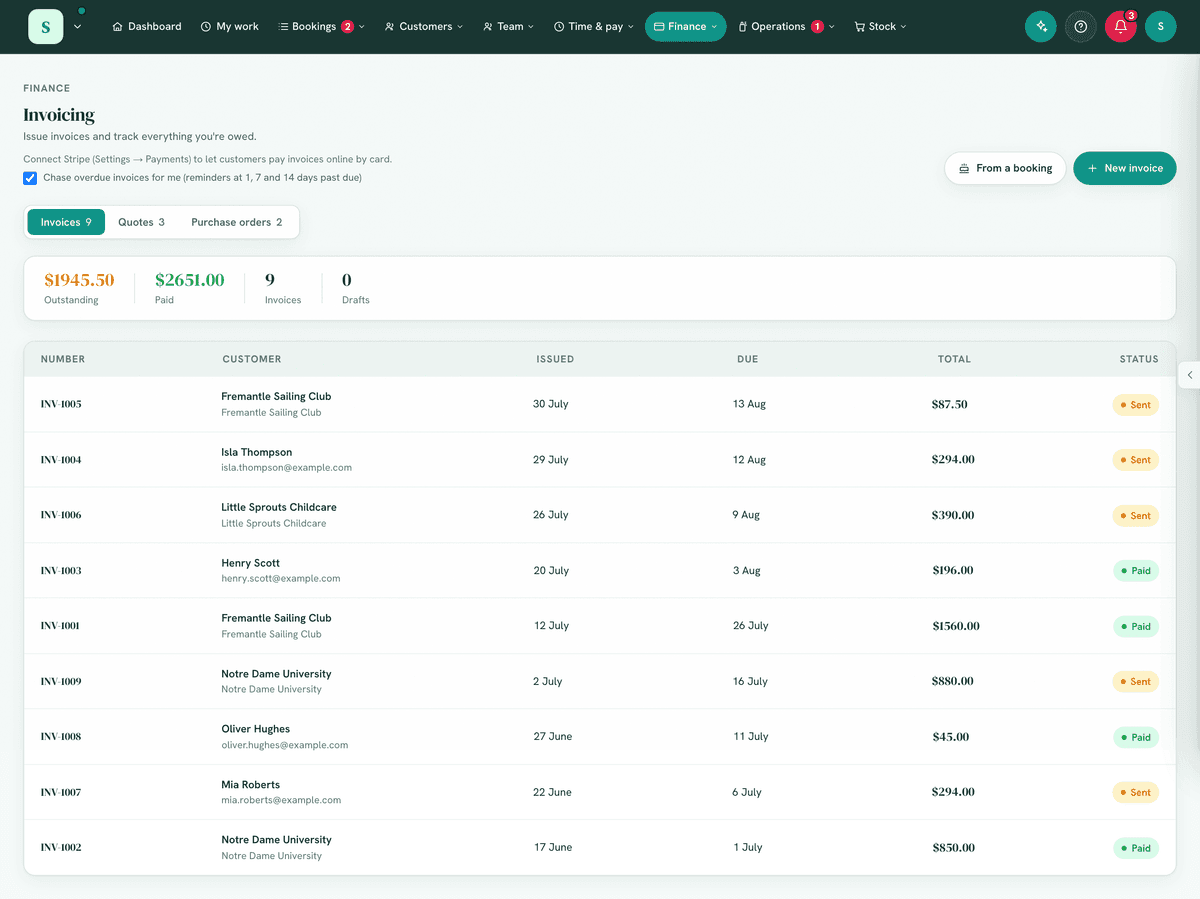
Finance → Purchase ordersandStock → Purchase orders, and a link to them here opens them under Stock), and Receipts. Ready to bill leads because it is the one tab that is a to-do list; the page still opens on Invoices. The address keeps the tab you are on, so reloading, coming Back to the page or sharing the link opens that tab. On a phone the tabs wrap onto a second line rather than running off the screen. It is the one place work is billed in bulk: Jobs shows the total waiting beside its tabs, with Review opening this tab. Anyone who can view invoices can read it; raising needs invoicing rights. A job with finished work and no customer is named above the list, such as JOB-0025 has $120.00 of finished work and no customer, so it cannot be billed, because nobody can be invoiced for it until the job has a customer.A stats band: outstanding (sent, unpaid), paid total, accepted total (quotes), the number of documents issued, and drafts. Every figure says which period it covers.
The period, at the right of the band (under it on a phone). It sets what the whole page shows: the band's figures, the counts on the tabs and chips, and the list itself. Choose Month, Quarter (the ATO quarters your BAS page uses: Jul to Sep, Oct to Dec, Jan to Mar and Apr to Jun), Financial year (1 July to 30 June) or All time, then use the arrows to step back to an earlier month, quarter or year. This month (or This quarter, This financial year) beside the arrows brings you back to today's. A document belongs to a period by its date, the one printed on it, so a draft sits in the period it is dated. A period with nothing in it says so, with Show all dates.
When an owner or manager chooses Month, Quarter, Financial year or All time, that is also what the page opens on next time, for everyone in the business. Stepping back and forward only changes what you are looking at.
Outstanding is always all time, because a debt does not stop being owed when the month ends. For the same reason the list never hides an unpaid invoice without saying so: when unpaid invoices (or quotes awaiting a reply, or open purchase orders) are dated outside the period, a line above the list says how many, with Show all dates.
Invoices counts documents that were issued and are still live. Drafts have their own figure and voided documents are not counted, so the numbers on the band never include the same thing twice.
Filter chips above the list, each with its live count for the period: on invoices, All, Drafts, Awaiting payment, Overdue and Paid; on quotes, Awaiting reply, Accepted and Declined; on purchase orders, Awaiting approval, Open and Received. Overdue means sent with a due date now in the past, so an invoice saved without a due date is never counted overdue. A customer's own payment terms win over your default, so one on Due on receipt is overdue the day after it is sent. A link from a notice, such as overdue invoices on the dashboard, opens the page on All time, so the list shows every one it counted.
A search box on every tab: type part of a document number or a customer, company or email (supplier on purchase orders) and the list narrows as you type. A search covers every date, whatever the period. The list shows the newest 50 matches with a Load more button for the rest, and the stats band covers the whole period, not just the rows shown. It also looks on the other tabs: a quote searched for on Invoices shows Found in Quotes: QUO-0057, and a match on another tab beside this tab's own reads Also found in…. Select the number to open it on its tab.
A list of documents with number, customer, date, due date, total and status. The status on an invoice is where its money stands: Awaiting payment, Part paid (money has come in and some is still owed, counting a deposit paid on its booking or quote), Overdue (sent, past its due date and still owed), Paid, Draft, Void, Awaiting approval or Rejected. A sent quote past its Valid until reads Expired. One saved without a due date says No due date rather than showing a blank.
Who it is for, named the same way on the list, on the document's drawer and on the printed and emailed copies: the business when there is one, with the person to open it beneath (Acme Pty Ltd, then Dana Smith), otherwise the person, otherwise their email. A document that names nobody shows its email with No name on file, never the word "Customer".
Selecting one opens its drawer (below); each document also has its own page to view or print.
The document drawer
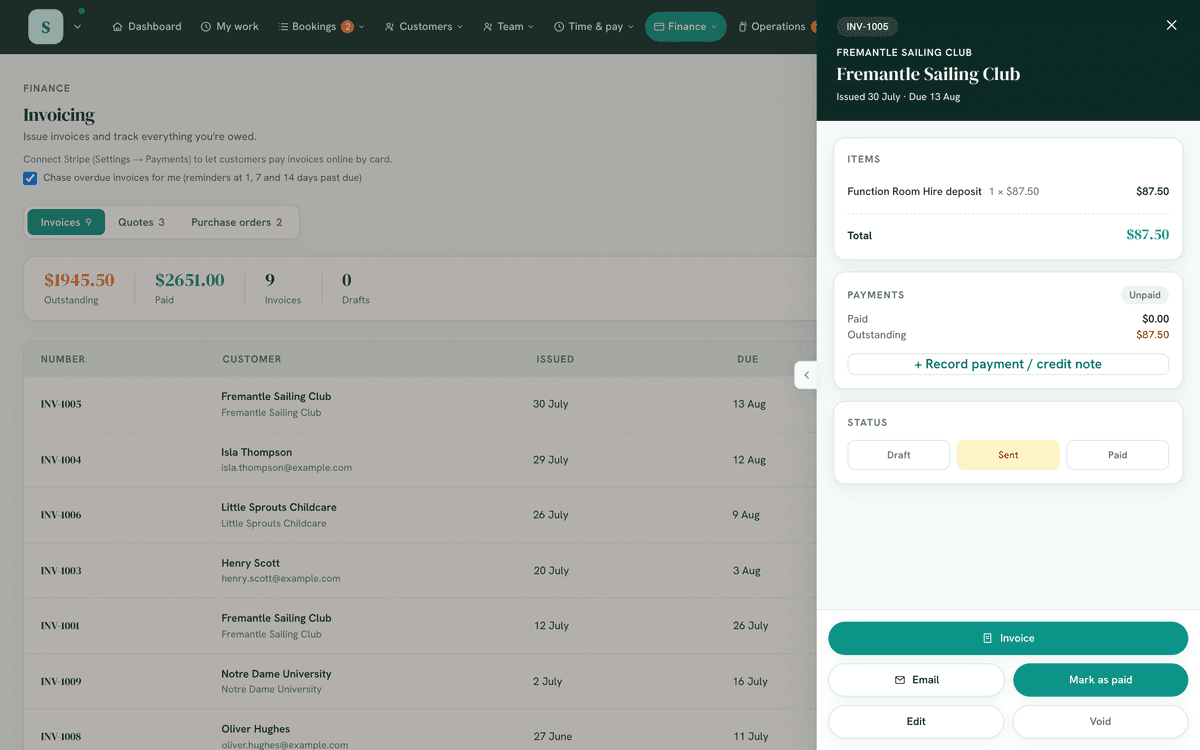
Everything about one document, read in one go:
- At the top: what the customer's copy is headed (Tax invoice, or Invoice when the business cannot issue a tax invoice yet, see Your ABN below) and its number; who it is for; their phone number when your role can see customers' details or manage invoices; a status in words and colour; the amount, which on an unpaid invoice is what is still owed ($93.26 owing of $153.26); the issue and due dates in full, with how many days overdue; and their reference or PO.
- Where it came from and where it went, each a link when your role can open it, plain words when not: the booking it was raised for, the jobs whose work is on it, the quote it was made from (or, on a quote, the invoice it became), and the customer record. A document typed for a one-off customer has no customer record link. A receipt or invoice for a booking also has Change what’s booked while the booking can still change: the document follows the booking, so an extra or a platter comes off there, never on the document itself. See Bookings.
- Payments: the total, what has been paid and what is outstanding, every payment, refund and credit note with its date, method and who recorded it, and money paid on the booking or the quote's deposit, named, so the figure can be explained (see 7b).
- Items, each with its quantity, price and line total, and under them the same totals block the printed and emailed copies print: discount, GST, any GST-free part and the total, to the cent.
- Notes, the Progress trail, and History: what happened to it and who did it (created, emailed, marked sent, payments, credits and refunds, voided entries), newest first, from your Activity log. Each email it sent is one line, such as Emailed to sam@example.com with Delivered or Didn't arrive beside it; press it to open the email as it went (Customers → Emails). When the customer opens the quote or invoice from its email and uses the page, History says Opened online by the customer (for an order, by the supplier).
- The actions that fit where it is now. A draft offers Email invoice (when it has an email address), View or print, Mark as sent, Edit and Delete draft. A sent one offers View or print, Email again and Copy pay link, with Send reminder once it is overdue. A paid one offers the invoice and its Receipt. A voided one can only be viewed.
- Emailing opens Review first (7a1): the email as it will arrive and where it goes, sent only when you press Send. Send reminder asks first, naming the address. Mark as sent asks first too and says nothing is emailed: use it when the invoice reached them another way, printed or handed over.
- A document raised for a booking says so: Booking SSC-2026-… with the booking's date, linked back to the booking. The same link runs the other way from the booking's own drawer, where Invoices & quotes says how much is still owing on each, counting what was paid on the booking.
Status moves by itself. The drawer shows each document's journey as a trail (for an invoice: Draft → Sent → Paid) with the finished steps ticked. You never set these by hand:
- Invoices: Draft → Sent → Paid. Emailing the invoice marks it sent (or press Mark as sent if you handed it over outside the app), and recording a payment marks it paid (see 7b).
- Quotes: Draft → Sent → Accepted / Declined. Emailing marks it sent; it becomes accepted or declined when your customer answers the quote link, or when you press their answer. An accepted quote can become an invoice.
- Purchase orders: Raised → Sent → Received, with Requested → Approved / Rejected in front when your approval rule requires it (see 7g).
- Receipts: none. A receipt is a finished record of money you have already taken.
What every invoice, quote and receipt looks like
Every copy of a document is the same document: the email your customer gets, the PDF attached to an invoice's, quote's or receipt's email, the copy you print or save as a PDF, the invoice they open from the link, the quote they accept online, and every receipt. Change something and it changes on all of them at once. Each one reads, top to bottom:
- What it is: Tax Invoice when you were registered for GST with your ABN saved when it went out (Invoice otherwise), Quote, Purchase Order or Receipt, with a Paid, Accepted or Void stamp when that applies. Your logo sits opposite, level with the heading, in the email as on the printed and online copies, sized to fit 300 by 150 pixels and keeping its shape, so a square logo prints about 40 mm across (smaller on a phone). A logo cropped close, on a clear background, prints largest.
- The key facts: its number, the date it was issued, when it is due (or valid until, or expected), the customer's own reference and the payment terms.
- From and Bill to: your business, address, phone, email and ABN, with any licence or registration numbers under it (see 7m), then your customer's name, business, billing address and ABN.
- The figure that matters, in large type: the amount due and the date (with a Pay now button when you take cards online), paid in full, the quote total (with Accept this quote when online acceptance is on), or on a receipt the amount paid.
- The lines: description, quantity, unit price and amount; registered for GST, each line's amount ex GST, its GST and inc GST (see 7l2). A bill covering several jobs or sites reads in sections, each with its subtotal, and a GST-free line says so.
- The totals: subtotal and discount, then GST (taxable sales, GST and GST-free sales on a mixed invoice), the total, what has been paid, and the amount due. How the GST is worked out, and how a discount is spread, is in 7l5. A business not registered for GST shows no GST anywhere, and its invoices and quotes say No GST has been charged. under the totals.
- Payments, each with its date and how it was paid, when any have come in.
- How to pay: the Pay button (a QR code on paper), your bank account with the invoice number as the reference, and any other way you take money.
- Terms and notes, then your Warranty when you give one (see 7n), then your details once more at the foot.
Each document keeps the GST it was issued with. The moment an invoice or quote is sent (or paid, accepted or declined), it records whether you were registered for GST and your ABN. Registering, or cancelling your registration, later never changes one already out: its heading, GST, credit notes, receipts, the BAS worksheet, the exports and Xero all read it as it was issued. A draft follows your settings until it goes out.
In the email, your business name sits above the document, the greeting opens it, and your logo sits beside the heading at the size the PDF prints it. Receipts and purchase orders carry it the same way. Your colour is used on the Pay now and Accept this quote buttons only. If it is too light for white words to show, the button's words are dark.
On a phone the two columns stack and nothing runs off the screen. On paper the toolbar and the card's border disappear, so what prints is the document.
Receipts
When a customer pays, the app emails them a receipt and keeps a copy here, numbered
REC-0001 upwards. You never raise one: they appear when money arrives, from a booking
deposit, a balance, a payment you key in, a cancellation fee, or membership dues.
You can read one, print it or Download PDF, and send it again to any address. You cannot edit, delete or void one, because it records what actually happened. Its email carries it as a PDF too (see 7e-ii).
Invoices too. Every emailed invoice has View or print this invoice, whether or not you take cards online. It opens the customer's copy of the invoice, where they can press Print or save as PDF, and Pay now when you take cards online. After 90 days the link still opens the invoice, and only paying by card needs a fresh one (Email again).
Your customer can print their own copy. Every receipt email carries a private link to it, so when somebody asks for the PDF months later they do not have to go looking through their inbox: they open the link and press Print or save as PDF. It is the same document you sent them, and it takes no payment and changes nothing.
If a customer rings up asking for a copy, open the receipt and press Copy link for the customer to paste it into a text message.
Prefer receipts to live only in the inbox they were emailed to? Untick Let customers print their own receipt at the top of the Receipts tab. While it is off no receipt link opens, including any you have already sent.
⚠️ Receipts are not invoices and are never counted as income twice. They are left out of Outstanding, your GST reports, the aging list, the invoice chase and the Xero push. The tab's one figure, Received, is the money that actually landed.
Full detail, including what makes a receipt a valid tax invoice, is in Payments sections 7d and 7e.
6. Turning it on
Settings → Modules → Finance → Invoicing. Add your business and tax
details (ABN, GST registration) in Settings → Invoicing & tax so they appear on documents and
drive GST handling.
Your ABN. A document can only be headed Tax invoice when you are registered for GST and the ABN you saved is a real one. Every ABN has a check digit, so a typo or two swapped digits is caught. Passing the check means the number could exist, not that the ATO has it as current, so copy it from your ABN registration. Until it is right, the top of the Invoicing page says what is wrong and what it costs (your invoices go out headed "Invoice" with no ABN, so your customers can't claim the GST, and a business customer may have to withhold 47% of a payment when no ABN is quoted), with Fix the ABN taking an owner straight to Settings → Invoicing & tax. Each document's drawer shows the heading its copy will carry.
7. Step-by-step tasks
7a. Create an invoice
- On the Invoices tab, create a new invoice.
- Set the customer, add line items (description, quantity, unit price), a due date and any notes (bold, italic and lists, see 7p). Someone not on file yet: New customer adds them there, with their address if you have it, which the document prints and Calculate distance measures travel to (7k2). Picking a customer fills in the Email: their Accounts email on an invoice when they have one (shown as Their accounts email under the box), their own email on a quote. Change it here to send this one somewhere else. Invoices made for you (Bill this job, the billing run, a converted quote, extra work on a booking) go to the accounts email the same way. See Customers, 7j. A customer with a credit limit shows how much of it is left, or by how much they are over, and one on hold says so with your note; neither stops the invoice. See Customers, 7m.
- Press Save as draft, or Review invoice to see it as the customer will get it and send it from there (see 7a1). Prices are typed the way your business prices, including or excluding GST (see 7l). To make one line GST-free, see 7l6.
7a1. See it before it is sent: Review quote, invoice or order
Nothing is emailed from the editor. Review quote (or Review invoice) saves it as a draft, with its number, and opens it the way the customer will receive it:
- The email itself, exactly as it will arrive: the greeting, the quote or invoice, and its Accept this quote or Pay now button when those are on. Computer and Phone show it at either size, and View or print the quote opens the printed copy.
- To and Subject: where it goes and what it is called in their inbox.
- Add a note (optional): a few words for this customer, such as Here's the quote we discussed on Friday. It goes under the greeting, in this email only, and shows in the email as you type. Up to 1,000 characters.
- Its PDF goes with it, said when your business attaches PDFs (7e-ii).
Press Send quote to Alex (their first name, or a supplier's name) to email it. It is marked sent and recorded in its History. Back to editing returns to the same draft, so a change is made to it rather than a second quote being raised; closing Review sends nothing and leaves the draft in Drafts.
The same Review opens from Email quote, Email invoice, Email supplier and Email again on a saved one, so every quote, invoice and purchase order is seen before it goes. On one already sent it says when it was sent, and sending again sends another copy.
7b. Mark an invoice paid
- Open the invoice.
- In Payments, press Record payment of $… (prefilled with the amount owing and today's date) or Record a part payment, refund or credit note, say how they paid, and press Record payment. The invoice flips to Paid by itself once nothing is owed, and the customer is emailed their receipt when the invoice has an email address (the form says so before you record it). The page then says which receipt went and where, such as Payment of $200.00 recorded. Receipt for INV-0086 emailed to sam@example.com. On a draft, the button reads Paid on the spot? Record $…, for a sale paid before the invoice was sent; the usual next step for a draft is sending it. Recording any payment on a draft marks it sent, as it has gone to the customer, so a part payment leaves the rest owing and chased like any other. From Finance → Money owed, Mark paid on an invoice records the amount owing as received today, the same entry. From a job, Take payment at the foot of the job card opens the job's invoice over it with this same card.
- Never more than the money allows. A payment or credit note can take what is owed down to nothing and no further, and a refund can give back what was paid on the invoice itself and no more. A typing slip, $1,550 against a $155 invoice, is refused with the amount that is owed, rather than vanishing from your figures. A deposit paid on the booking is refunded from the booking.
- There is deliberately no way to set the status to Paid by hand: the amount, date and method go on file with every payment, because that is what the receipt, your BAS figures and the accounting export are built from. An invoice paid by card through its pay link records all of this on its own.
- A payment recorded from Finance → Bank statement lands in the same ledger, dated the bank's date and noted From the bank statement. No receipt is emailed for it: the customer paid weeks ago and the invoice already lists its payments.
- With Xero. If your business sends payments to Xero, each payment goes against the invoice in Xero once recorded and then reads In Xero; one that cannot go says why under it. A payment entered in Xero instead can be copied here, shown as Recorded in Xero, with no receipt emailed. Both are choices in Accounting & reports (see Accounting, 7e-i).
7c. Send a quote and convert it
- On the Quotes tab, create a quote with line items, press Review quote, and send it from there (7a1).
- When the customer accepts, mark it Accepted (or Declined if not).
- From an accepted quote, create an invoice, it carries the lines over and jumps you to the Invoices tab. The invoice is dated by the customer's saved payment terms or your default, never by the quote's Valid until.
With Jobs, marking it Accepted can start the job, and a quote on a job is billed from the job: see 7c3.
Without online acceptance, the emailed quote ends by telling the customer to reply to go ahead, with your phone number when it is set in Settings → Invoice & tax details.
Or let them accept it themselves. Turn on "Let customers accept quotes online" at the top of the Quotes tab, and every quote you email that can still be accepted carries an Accept this quote button. Email on a quote they have already accepted sends a copy that says when they accepted it, with View your quote in place of the button, so they are never asked to accept twice. A declined or expired quote goes without the button, ending on how to go ahead. When the customer types their name and accepts:
- the quote moves to Accepted by itself, and records who accepted it and when, which you can read on the quote,
- when you use Jobs, a job opens for the work, numbered and linked back to the quote,
- owners and managers are told straight away, in the app and by email, with the customer's name, the amount and the job number when a job opened,
- and the customer is emailed a confirmation that their acceptance has been received, with their job reference when there is one.
The customer's confirmation goes to the email address on the quote, not to whoever pressed the button, because that is your customer of record. A quote with no email address on file (you can copy the accept link and send it by hand) simply has nobody to confirm to.
Accepting takes no payment and asks for no card, unless the quote asks for a deposit (below). Only a quote you have sent can be accepted, and only until its valid-until date passes.
Say how long the work takes. Under The work on a quote, enter the hours per visit and how many visits, for example 2 visits of 6 hours, and who does it. The time needed prints on the quote, the email and the customer's page. Once the quote is accepted, the job shows its quoted time on the Jobs board, and scheduling it starts at that length.
Let them choose their days. With online acceptance on, pick They choose their days under When they accept. Straight after accepting, the customer chooses their days on the same page, from the diary of the person doing the work: only times where the whole visit fits, from tomorrow onwards, and a different day for each visit. The days go onto the job as visits, the person doing the work and whoever runs the schedule are told, and the customer is emailed their days. The quote then shows its job and the days booked (JOB-0012: booked for Wed 14 Oct, 11:00am to 1:00pm with Sam), or they haven't chosen their days yet, and the visits appear on the Calendar in every view as Job entries. They are visits on the job, not bookings, so the bookings list does not show them. The person doing the work has to be on the booking calendar (Staff, spaces & equipment, linked to their login), so the times offered are the ones their bookings and other jobs leave free.
Days in a row. For work that has to carry on from one day to the next, such as tiling a room over five days, tick Days in a row under They choose their days. The customer picks the first day and a start time, and the other days follow on the next days the person works, stepping over only the days they do not work. The calendar offers only first days a whole run can start on, and a working day that is already taken at that time ends the run there rather than being stepped round, so the days stay together. Before they book, the customer sees every day listed.
Ask for a deposit. Under Deposit on a quote, ask for a percentage of the total or a set amount. It prints on the quote, its email and the customer's page.
- When you take cards online (Stripe connected, and Let customers pay invoices and deposits online by card on at the top of the Invoicing page), the customer's Accept button reads Accept and pay the deposit, and accepting takes them straight on to pay it by card. A customer who chooses their own days pays the deposit first. If they close the payment page, the quote stays accepted and their page shows the deposit still to pay.
- Otherwise, their page shows your bank details and payment instructions, with the quote number as the reference. When the money arrives, open the quote and use Record the deposit on its Deposit card, with how it was paid and the day it arrived.
Either way the customer is emailed a receipt, and the quote's Deposit card shows what has come in. Owners and managers are told when a deposit is paid by card, and the job shows whether its deposit is in.
The deposit comes off the invoice. The invoice you convert the quote into, or the invoices you raise from its job, show the deposit as already received and ask only for the rest. When there is more than one invoice for the work, the oldest takes the deposit first, up to its own total, so a later invoice never changes one you have already sent. Voiding an invoice passes its share on to the next one. The deposit is counted once in your reports, on the day it arrived.
A card deposit can be refunded from the quote's Deposit card with Refund to card. A deposit recorded by mistake can be removed there, unless it falls in a period you have closed. A quote holding a deposit cannot be deleted.
Quote a booking. A quote can be for one of the things you take bookings for, priced and checked exactly as a booking made online would be. With Bookings on, choose Add a [your booking word] on the quote, then what they are booking, its options and its time, or No date yet, they choose the time. The quote's lines become what it costs, and you can still change them: the quote's total is the agreed price. When the quote already has lines, you are asked before they are replaced. A quote raised from an enquiry shows the dates and numbers the enquiry asked for while you choose.
- With a date and time, the time is held from when you save the quote, a draft included, until the end of its Valid until day, so nobody else can book it. Deleting the draft lets it go. It shows on the calendar as held. Untick Hold this time to send it without holding the time.
- A session before the Valid until is held until it starts while the quote waits for an answer, and the quote card says Held until it starts. A time can't be agreed to once it has begun, so from then the customer's page says the time has passed and asks them to contact you, with no Accept button. You don't need a custom Valid until for a session tomorrow: the default works, and the hold ends at the start. To offer another time, open the quote, use Change on its booking, and send it again.
- Booked by the hour, choose how many hours on the quote. The quote's line, its email and the customer's page name the length (Decluttering session, 5 hours), and the whole length is held. Changing the hours, or anything else about the booking, holds the new time instead: the old hold is let go and the new one checked from scratch, so if a longer session no longer fits, nothing is held and the save says why. Change offers the quote's own held time again, so you can keep the same start.
- With no date, nothing is held. Once they accept, the customer chooses a time on the same page, from the times you have free. You can also choose it for them from the quote with Choose the time for them.
- The deposit is the one the service asks for, worked out on the quote's total, so a quote for a booking has no Deposit section of its own. With no deposit, accepting books it there and then. With one, the time stays held until it is in: paid by card from their page when you take cards online, otherwise by bank transfer, recorded on the booking when it arrives. The booking is confirmed once the deposit is in, and the customer is emailed that they are booked in. Once they have accepted, the time stays held for the deposit until the end of the Valid until day, even after the session starts, so a deposit you take on arrival, by EFTPOS or cash, still confirms it. Stripe isn't needed for any of this. To record it, open the booking with Open the booking on the quote, or from the calendar, where it shows as held (it joins the Bookings list once it is confirmed), and use Take a payment with how it was paid.
- Marking it Accepted yourself, after a phone call, does the same: it is booked, or held for the deposit, and the message at the top says which.
- When the quote is declined, voided or runs out, the time it held is free again. You are told in the app when a held time is let go because the quote ran out.
The quote's drawer shows where its booking stands: held and until when, waiting on its deposit, booked, or let go, with a link to the booking once there is one.
Let them decline it online. With online acceptance on, the customer's page has Decline this quote under the accept button, with room for a reason if they want to give one. The quote moves to Declined, any time it held is freed, and owners and managers are told, with the reason.
How long a quote is valid for. Set a default in Settings → Invoicing & tax → How long a new quote is valid for: 7, 14 or 30 days, or no default. Every new quote opens with its Valid until set from it, and you can change it on any quote with Valid for (7, 14 or 30 days from the quote's date) or a Custom date. A quote that holds a time needs a Valid until. For a booking sooner than it, the time is held until the booking starts (above).
7c1. Parts on a quote, from your Stock list
With Stock & ordering on, Add part under a quote's lines searches your Stock list by part number, barcode or name. Pick one and it goes on as a line, priced the way the job card prices it: the part's usual price, or the customer's trade price level when they have one, with their usual % off when you give discounts. Prices are in the quote's terms (ex GST on an ex GST quote), a GST-free part goes on GST-free, a labour code goes on as labour, and with parts in detail on the line reads with the part number, such as M12-18AC · Brake pad set. The box stays open for the next part. A part with no price yet goes on with the price box empty: type it, because a line with a description and no price is refused when the quote is saved (type 0 for a line at no charge). Nothing comes off the shelf for a quote. When the quote is accepted and the part is fitted on the job, the person fitting it answers On QUO-0012, so it is not charged twice (see Jobs, Parts on a quoted job). Add part is on quotes only: to sell a part, use it on a job, where it comes off the shelf. Owners and managers with Create / send invoices see it. A part typed with Add line works as it always has.
A part not in your Stock list yet. Type it in Add part and press Add … as a new part (or Enter when nothing matches). Give it a name, its part number with parts in detail on, and a price each in the quote's terms, then Add to quote. With Keep it in your Stock list for next time ticked, it is added to the Stock list at that price, so the next quote finds it by its number or name. If a part with that number or name is already there, that one is used and keeps its own price; the line takes the price you typed. Keeping a part needs Manage stock & ordering; without it the part goes on this quote only. Nothing comes off the shelf.
7c2. Options on a quote: extras and choices the customer picks
A quote can offer work the customer decides on, rather than all or nothing: a battery as well as the service, a choice of three grades of brake pads, a package of several jobs. They choose when they accept, and only what they choose is agreed and billed.
- Optional extra. Something they can add, or say no thanks to. One line, or several lines that go together as a package.
- Choice. One of several, such as Standard, Premium or Heavy duty. Tick They must choose one when the quote can't go ahead without it; otherwise they can choose none of them.
- Recommended. Ticked to start with. It counts in the quote's total until the customer answers, and they can untick it. Only one option in a choice can be recommended.
Add them. In the quote, under Options, use Add an optional extra or Add a choice (a choice starts with two options; Add another option adds more). Give each one its lines, as many as it needs; a name for a package; a note for the customer if you want one; and whether it is Recommended. A quote can be nothing but options. A quote for a booking can't have options: the booking's own extras do that job.
The total. Until the customer answers, the quote's total is its own lines and the recommended options, and the quote says so under the total. The quote, its email, its printed copy and the customer's page list every option with its price and where it stands: Recommended, Optional or Option before they answer; Accepted, Declined or Not decided after.
How the customer answers. With online acceptance on, the quote's page lists the options under Your choices: Add or No thanks on each extra (or leave it to decide later), and one option in each choice. The total, and a percentage deposit, change as they tick. They type their name and press Accept. A choice they must make has to be made, and a quote of options only needs one item chosen. The page and the server work the total out the same way, and if the quote was changed after they opened it, accepting is refused with This quote was changed after you opened it. Refresh the page to see it as it is now. That applies to every quote, with options or without.
Extras they left to decide stay open on their page under Still to decide. They can come back to the same link and add them, or say no thanks, until the quote has been made into an invoice. Anything they add goes onto the quote's job, you are told, and they are emailed a copy.
What happens after. Only the quote's own lines and the options they chose count: the total, the deposit, the job's lines, the invoice and the copy sent to Xero leave out everything declined or not decided. You and your managers are told, with how many options were accepted, declined and left to decide. The quote's Options card shows each answer, and its Acceptance record lists every acceptance: who, when, and what it came to.
When they answer another way. Press Accepted on the quote. The Options card asks for each one: Accepted, Declined or Not decided, and one option in each choice. Add who agreed if you know, then Accept with these answers. For extras they decide on later, use Record more answers. A quote with options can't be marked accepted, or made into an invoice, without its answers, so work nobody agreed to is never billed.
Changing an accepted quote. Any quote, once accepted, keeps what was agreed: Edit still changes who it is for, its notes and its reference, but not its lines, prices, discount or options. To change those, use Reopen: the acceptance is withdrawn and kept on its record, the quote goes back to Draft, and you change it and send it again to be accepted. Reopen isn't offered once the quote has become an invoice, when its lines are on its job, or when it is for a booking: change the work there instead.
Permission: adding options, recording answers and reopening need Owner or Manager, as for every quote.
7c3. Accepted quotes and their jobs
Where to make a quote for a job. Either place works. Write it in
Finance → Quotes, or on the job card (Quote this job, Quote extra work).
What matters is the quote's When it's accepted choice, which says, before
anybody accepts it, where its work goes.
When it's accepted. When you use Jobs, every quote shows this under Bill to while you write it, and on the quote itself until it is accepted, with Change beside it:
- Start a new job (the default): accepting opens a job for the quote's customer, named by its first line and assigned to whoever the quote names, with every priced line on it.
- Add to an existing job: pick one of the customer's open jobs. Accepting puts its lines on that job and never opens a second one.
- No job: for a quote that needs none, such as a supply-only order. Accepting starts no job, and you bill it from the quote with Convert to invoice.
Choose the customer first: their open jobs are listed, and when they have one the quote asks whether it is for that job, with Add to JOB-0012 to put it there. With several, it says how many and Choose a job opens the list. Changing the customer takes a job off the quote, because its lines would otherwise be billed to somebody else. Only a job still being worked (open or on hold) can take a quote; one that finished or was cancelled after the quote was put on it is said on the quote, and accepting then starts a new job.
The choice holds however the quote is accepted: by Accepted in the app, or by the customer online. An accepted quote with no job shows Start a job first and Convert to invoice beside it, so you can start the job later, even on a quote set to No job. A quote for a booking has no choice, because the booking is its work. Changing it needs Create / send invoices, and is recorded in the quote's history (a job's own history records a quote put on it or taken off).
A quote with a job is billed from the job. When a quote on a job is accepted, its priced lines go onto the job's Parts: labour as labour, parts as parts, travel and freight as themselves, and a line typed by hand with no kind as Other, never taken off the shelf, with the quote's discount taken off each line. An Other line is never counted as a part, and billed it has no kind, so it goes to the same Xero and export accounts as it would if the quote were invoiced straight. Lines put on a job before this stay as they went on. A call-out fee added with Add call-out goes on the job under Call-out, as that fee, with the labour time the quote said it includes (an accepted quote stays as quoted, even if the fee has changed since), so it is not added again; billed, it is labour on the invoice and in Xero and the exports. A job can have several quotes (the one it started from, and extra work quoted on it or linked to it), and each one accepted adds its own lines to the same job. The quote then shows Open JOB-0012 in place of Convert to invoice, and can't be edited; change the lines on the job. Bill the job with Bill this job, Ready to bill or Get paid, so the work is billed once. Time logged on the job for the quoted work reads Included; tick it chargeable for extra work the customer agreed to. A quote already made into an invoice keeps that invoice as its bill and puts nothing on the job.
Quote this, from a booking. Quotes, on a job. A consult or an inspection is usually where a quote comes from. On a booking's Work card, Quote this opens a new quote for the same customer, with the person they saw already chosen to do the work. A quote raised from a booking is listed on that booking, and it never counts the booking's own payments as paid towards the work. On a job card, the Quotes section quotes the job itself (Quote this job), more work found on it (Quote extra work), or puts one of the customer's quotes on it (Link a quote); see Jobs, Quotes on a job. Each opens over the job, so you stay on it, and each accepted one puts its lines on that job.
7d. Set a default due date for new invoices
To stop typing the same due date every time, set a default in
Settings → Invoicing & tax → "Default due date for new invoices". Choose
Custom date, Due on receipt, Net 7 days, Net 14 days or Net 30
days. Every new invoice takes its due date from this, however it is raised:
by hand, from Ready to bill, by the scheduled billing run, by the assistant,
or by converting a quote. A customer with saved payment terms of their own gets
theirs instead. The date counts from the invoice's issue date, and you can still
change it on any individual invoice. Quotes are unaffected (they have their
own default, see How long a quote is valid for above), and editing an
existing invoice keeps its stored date.
7e. Copy an invoice's online pay link
If you take card payments online (Stripe connected, online card payment on), open
an invoice (Finance → Invoicing → open an invoice) and use Copy pay link in
the drawer. It copies the customer's secure online card-payment URL to your
clipboard, so you can paste it into an email or message. The button appears on a
sent invoice with money still owing: the pay page refuses a draft, which
nobody has issued yet.
7e-i. Chase overdue invoices for you
Off until you turn it on. Tick Chase overdue invoices for me under the invoices list (owners and managers).
- Each invoice you have sent that is still unpaid gets a friendly reminder email at 1, 7 and 14 days past its due date, with the pay link when you take card payments online. Then it stops; after three, a phone call does better.
- Only invoices due from the day you turn it on are chased. Turning it on never emails everybody with an old unpaid invoice at once. For one of those, use Send reminder on the invoice or in Money owed.
- It needs a customer email address on the invoice. Drafts are never chased, and neither is anything recorded as paid, including a payment taken on its booking.
- Turning it off stops it at once. Turning it on again starts from that day.
- The email is Invoice reminder in Settings → Email templates, where you can reword it.
7e-ii. Attach invoices, quotes, orders and receipts as PDFs to their emails
Every invoice, quote and purchase order email carries the document as a PDF, and every receipt email carries the receipt, named by its heading and number (Tax Invoice INV-0042.pdf, Quote QUO-0012.pdf, Purchase Order PO-0007.pdf, Receipt REC-0007.pdf). Many accounts teams, and the systems that read their inbox, accept only an attached PDF and refuse an email that has only a link. The PDF is the printed copy exactly, with the pay QR code on an invoice that can be paid by card online.
- Invoices: Email invoice and Email again, Send reminder, the reminders sent by Chase overdue invoices for me (see 7e-i), and an invoice the app emails for you when a job is marked done or a booking ends.
- Quotes: Email quote and Email again, so a customer can print the quote or keep it whether or not you let them accept it online. The PDF is the printed copy; Accept this quote stays in the email. When a customer accepts a quote online, or approves more of its options, the email confirming it carries the quote too.
- Purchase orders: Email supplier and Email again. Confirm order stays in the email.
- Account statements: Remind on a customer in Money owed attaches each of their unpaid invoices as its own PDF, oldest due first, up to 10. Only invoices on that customer's account go with it.
- Receipts: every receipt the app emails when money comes in, and Send it
again on the Receipts tab. A receipt numbered
REC-…is attached as that receipt. A receipt for a payment on an invoice is attached as the invoice's receipt (Receipt for INV-0042.pdf): what was paid, and what is still owing. - On to start. Two ticks under Invoice, quote, order and receipt emails in Settings → Invoicing & tax: Attach the invoice, quote or order as a PDF (invoices, quotes, purchase orders, payment reminders, quote acceptances and statements) and Attach the receipt as a PDF (owners and managers). Unticking one applies to every email it covers from then on.
- It can take up to a minute longer to go, while the PDF is made.
- If the PDF cannot be made, the email waits and tries again after 2 minutes and after 10, then goes without it, still with its link. In the customer's Emails it then reads It went without its PDF, which could not be made. Use Email again on the invoice, or Send it again on the receipt, to send it with one.
- To save the PDF yourself, open View or print (or View receipt, or a receipt on the Receipts tab) and press Download PDF. It is the same file the email carries.
7f. Refund a payment
In the invoice drawer's Payments card, each recorded payment has refund options:
- Refund to card, shown on an online card payment row (for users with
the Refunds permission,
payments.refund). It issues a real Stripe refund on your connected account, full or a partial amount, records it in the ledger, and reopens the invoice if it's no longer fully paid. - Refund, records a manual (cash/eftpos) refund in the ledger without touching a card. Use this when you handed money back in person.
Partial refunds are supported. Enter any amount up to what's left of the payment. A partially refunded payment is tracked as partially refunded, and you can refund it again later, up to the original amount, never past it.
Voiding a payment recorded by mistake. The × on a payment row voids it: it stays on the invoice marked as voided and stops counting towards what has been paid. When a line on the Bank statement recorded or matched that payment, the line goes back to To look at, so it is never left explained by a payment that no longer counts. A payment that is one of several records a bank line explains cannot be voided here: open that line again on the Bank statement first.
7g. Raise & approve purchase orders
Purchase orders (POs) let you order from suppliers with a paper trail,
useful for a head chef or ops person who orders stock but doesn't touch
customer invoicing. Switch them on with Use purchase orders (and set the
approval rule) in Settings → Invoicing & tax.
One list, more than one way in. Finance → Purchase orders shows every
purchase order on its own. With Stock & ordering on, the same list is also
Stock → Purchase orders, beside the list to order and the Stock list; without
it, the same list is also the Purchase orders tab here. An order can also start from the list (grouped by supplier,
Purchase order on a supplier) or from Stock → Suppliers (New purchase
order): it opens with that supplier chosen and their lines from the list on it.
New PO shows to whoever can raise one: Raise purchase orders, Approve
purchase orders or Create / send invoices.
Parts already bought over the counter are entered from their docket instead, with Enter a docket on the Stock list (see Stock & ordering, 7b-ii-d): it saves a purchase order that has arrived, and does not go for approval, because the parts are already bought.
Raise a PO.
- On Finance → Purchase orders (or Stock → Purchase orders), create a new PO and type the supplier's name (or their email) to find them in your supplier book, shared with Stock & ordering. Not there yet? New supplier "…" at the bottom of the list adds them with their email for orders and phone, for anyone who approves purchase orders or sends invoices, and the order uses them straight away. Anybody else can order from a name that is not in the book. A name already in the book is refused, so a supplier is never there twice. The full record (ABN, account reference and more) is edited on Suppliers.
- Add line items, or Fill from your list to order: the PO pulls in that supplier's needed / on-order items from the shopping list so you don't retype them. A list item already on another open purchase order is left out, and the list then shows each item it took as On PO-0012. With freight on, Add freight adds the supplier's freight charge as a line of its own (7k4).
- Optionally set an expected date, reference and notes, then save. POs get their own PO- numbers.
Approval (optional). In Settings → Invoicing & tax you can require
approval for POs: off, over a threshold amount, or always. When a
rule applies and the raiser can't approve, the PO is parked as Requested
until someone with Approve purchase orders approves it (it becomes
Approved, ready to send) or rejects it with a note.
Two-step sign-off (optional). If your business has turned on two-step approvals, a PO that needs approval takes two approvals: an approver confirms the order first, then a Payroll Officer does the final sign-off that clears it to send. A PO mid-way carries a "Payroll sign-off" tag and appears in the Approvals inbox alongside leave, timesheets and expenses. (A raiser who can approve skips their own manager check.) With two-step off (the default), the approval above is a single decision.
Send it. Email supplier opens Review (7a1): the order as the supplier will get it, with a note if you want one, and Send order to the supplier emails it, with the order as a PDF (7e-ii), and marks it Sent, an approved order included. An order raised without an email goes to the supplier's email in your supplier book, which is then kept on the order; a supplier with none says so on the order, and it can be printed and marked sent instead. A requested or rejected PO can't be sent. Every copy says who ordered it, with their work email (Ordered by), and the supplier's replies to the email go to them.
The supplier confirms it. The emailed order has a Confirm order button. It opens the order on a page of its own, with no sign-in, where the supplier confirms it, adding a delivery date, their own order number, a note and their name if they like. If they can't supply it, Can't supply it? asks what, so you can order it elsewhere. They can change their answer later, such as a new delivery date. Opening the link does nothing by itself; only their button does.
- The order then reads Confirmed or Can't supply in the list, its drawer shows their answer and note, and an order for a job says so on the job: confirmed, due 28 Oct.
- The person who raised the order is told, and so are owners and managers, in the app and by email (each can change this in Settings, Notifications).
- The link stops taking answers once the order is received or cancelled, and lasts 180 days from the last time the order was emailed.
Receive it. When the goods arrive, open the PO and press Receive & reconcile. Every line starts at 0, so nothing is received until you say so: type how many arrived (3 of 4), or press All on a line, or Everything arrived for the whole delivery. Correct any actual prices, and attach the receipt (stored privately).
- All of it arrived? Save & mark received marks the PO Received.
- Part of it? Type what came and leave the rest at 0. The rest stays on order and the PO stays open, reading Part received, with Receive the rest for when it arrives. Save delivery says how many lines are still to come. A part for a job that has not arrived stays on the job as on order.
- Not coming? Not supplied on the line. If some of it came and the supplier cancelled the rest (2 of 4), type the 2 and press Rest not supplied: the line reads 2 of 4 supplied, the 2 go into stock or stay on their job (cut to 2), and your purchases, BAS and the bills export count the 2 you paid for. With nothing left to come, the PO is marked Received.
- A PO that has partly arrived can't be cancelled, because cancelling takes its parts off their jobs: mark what isn't coming as Not supplied instead.
- Each delivery is in the PO's history. Received POs are locked like paid invoices: cancel it and raise a new one if something's wrong.
Received into stock. A line for one of your stock items shows Into stock with the quantity still to come, in the unit the item is counted in, and the item and what is on hand beside it. Saving adds that to stock, once, and the item's history says Received on PO-0012.
- Less arrived? Change the number. The rest stays on order, and Receive the rest offers only what is still to come.
- A line is for a stock item when it came from the shopping list, when its name is exactly the stock item's name, or, with parts in detail on, when it was added with Find a part (below).
- Received on the shopping list first? A list item on this order that is received from the list counts against the order, so the order then offers only what is still to come. Once a line has all arrived, its list item comes off the list. A line that is not a stock item comes off once it has all arrived, and a line marked Not supplied stays on the list, free for the next order.
- An order raised before this existed shows lines whose name matches a stock item with the quantity empty: add them only if they are not in stock already.
- Putting goods into stock needs the same permission as receiving from the shopping list (Manage stock & ordering, or staff when Receive into stock is on in the list's settings). Without it, what arrived is recorded and stock is left alone, and the dialog says so.
- An order must be sent before it can be received. A cancelled, rejected or voided order receives nothing.
Ordering parts. With Track parts in detail on (Settings → Modules, under Stock & ordering), a new purchase order has Find a part above its lines. Type or scan a part number, a supplier's number for it, a barcode or the name. The part goes on the order under the chosen supplier's own number for it, at what that supplier last charged (or the part's cost when they have not), such as RB-1101 · Brake pad set. Choose a different supplier afterwards and each part you found reads under theirs, unless you have changed the line. Fill from the shopping list does the same for parts on the list, and adds under any lines already written.
When the order comes in:
- Each part put into stock takes the price paid as its cost (the corrected price, or else the ordered price), and that supplier's last cost and date are kept on the part. A part on a multiplier then sells at its new cost, or keeps its price when Re-price parts when their cost changes is off.
- When more goes into stock than was ordered on a line, the unit may differ (one box ordered, ten counted as each), so that part's cost is left as it was and the dialog says so. Set it on the part.
- A typed line that starts with a part number (M12-18AC brake pads) is matched to that part, the supplier's number for it first, with the quantity empty.
- Add to your parts on a bought line that is not one of your parts yet adds it with its number, name and unit, at the price paid, and links the line so it goes into stock. A part that already has that number or name is linked instead of added twice. Adding a part needs Manage stock & ordering.
Ordering parts for a job. For a job on a new order picks the job the parts are for; Add another job adds a second, and each line then says which job it is for, or Not for a job. Each line for a job is a part on that job as soon as the order is saved, priced the way the business prices parts, and the order's reference is the job number unless you type one. Order parts on the job card and on My day opens an order already for that job. Receiving it keeps the job right: a job's line never goes into stock, a different docket price moves the part's cost, a line not supplied comes off the job, and cancelling, rejecting or voiding the order takes its parts off. A part already invoiced is never changed. See Jobs, Ordering parts for a job.
Fill from your list to order reads the list to order, so it is offered to owners and managers (Create / send invoices).
Where POs flow. Received POs can be exported from Accounting as a bills (accounts payable) CSV for your bookkeeper. POs never mix into your sales figures or the sales export.
7h. Bill a customer with no name on file
A customer reaches you without a name when a booking or a phone call captured only an email or a number. Ready to bill lists them as Unnamed customer, and pressing Raise draft invoice asks Who is this invoice for?, showing their email so you can tell who it is. What you type is the name on the invoice, and the customer's record takes it from there. Raise all leaves them for you to raise one at a time and says so, and the scheduled billing run leaves their work in Ready to bill. Nothing is ever made out to the word "Customer".
An older invoice that was made out to "Customer" shows its email instead, with No name on file. Open it, press Edit and type the name (a draft or a sent invoice can be edited until it is paid).
7i. Keep your home address off invoices, quotes and receipts
Invoices, quotes, receipts and credit notes print your business address under your business name, and so does the foot of your marketing emails. If that address is your home, choose how much of it shows, in Settings → Invoicing & tax → Invoice & tax details, under the address boxes:
- Full address, which is how it starts.
- Suburb only: the suburb, state and postcode, without the street.
- Leave it off: no address. Your phone and email still show.
The line under the choice shows what will print. Press Save invoice details. It applies to every document from then on, including one already sent when the customer opens it online again; an email that has already gone keeps what it said.
- Your full address stays on file, for vehicle trip distances and the map.
- Purchase orders always show your full address, because the supplier delivers there.
- Every choice still makes a valid invoice. A tax invoice must show your business name and ABN; an address is not one of its requirements.
- Whether booking pages and booking emails show your address is a separate switch: Settings → Bookings → "Show our address and a map".
- A warranty prints your full address whichever you choose, because the law requires a written warranty to give it (see 7n).
7j. Choose how your documents are numbered
Invoices are numbered INV-0001 onwards, quotes QUO-0001, purchase orders PO-0001, adjustment notes ADJ-0001 and receipts REC-0001. You can give each its own prefix and choose the next number, in Settings → Invoicing & tax → Document numbers. Each row shows the document the next number will make, so you can see the result before you save. Press Save numbers.
Why you might. Xero numbers invoices INV-0001 onwards too, and it files each invoice by its number. If you also invoice from Xero, your numbers here and there overlap, and an invoice pushed from here is refused when Xero already holds that number (see Accounting & reports, Xero). Give invoices a prefix of your own, such as your initials, so the two never meet. Moving your invoicing across from Xero? Set the next number to follow your last Xero invoice and the sequence carries on unbroken.
What it accepts.
- A prefix is one to six letters or numbers, starting with a letter. It is saved in capitals.
- Two kinds of document can't share a prefix, because no two of your documents may carry the same number.
- The next number must be higher than any number already used under that prefix. Settings says the lowest it can be, for example "INV-0080 is already used, so start at 81 or higher."
- The next number you set can be up to 999,999,999.
Numbers never run out. Every number has at least four digits and gains more as it grows: INV-9999 is followed by INV-10000, and the count goes on without end. Nothing is cut short, started again or used twice. A kind that has counted past 999,999,999 keeps counting, and its prefix can still be changed. Job numbers (JOB-0001 onwards) count the same way.
What changes. Only documents made from then on. A number already issued never changes, so a customer quoting an old invoice is still understood. You need the Edit business settings & branding permission to change these; everyone else sees them.
Booking, ticket and membership references are set separately, on Settings → General.
7k. Discounts
Turn on Percentage discounts in Settings → Invoicing & tax → Discounts. It is off until you turn it on. Then:
- A customer's usual discount. On the customer, Usual discount takes a % off. It comes off every part added to their jobs from then on. Choose whether it also comes off their labour, under A customer's usual discount comes off: Parts (the default) or Parts and labour. Labour takes it when the work is billed, in Ready to bill, Add unbilled work, Bill this job and the scheduled billing run alike. It never comes off a booking's price, which was agreed when it was booked.
- % off one line. A part's More on a job (and Use a part on My Work) has a % off box, filled in with the customer's usual discount, and the invoice and quote editor has a % off column. Under A line's own % off, choose whether it replaces the customer's on that line (the default: 10% usual and 5% on a line takes 5% off) or adds to it (15%). 0 on a line means no discount on it.
- What the customer sees. Only the lower price, on the invoice, the email, the printed copy, the online invoice and in Xero. The job shows the part as 10% off, the editor keeps the full price and the % so either can be changed, and Ready to bill says 10% off labour beside a customer whose labour takes it.
- Who can. Turning discounts on and choosing how they work needs Edit invoices. Setting a customer's usual discount needs both Edit customers and Edit invoices. Anybody who can record a part can give it a % off, just as they can type its price.
- A part already on a job keeps the price it was added at when a customer's usual discount changes. Log work and the visit builder take the customer's usual discount on every part, and say so under the parts.
- Purchase orders never take a % off.
7k2. Charge travel by the kilometre
For a business that charges its customers for travel. Turn on Charge travel in Settings → Invoicing & tax → Travel charges. It is off, with no rate, until you turn it on and set one. How it is charged is By the kilometre (this section) or By zone, a set amount by how far away the customer is (7k3). Then set:
- Rate, per km, to the cent, typed the way you price your invoices, like your hourly rate. Priced excluding GST (7l), it is typed ex GST and says per km, ex GST, with the rate including GST under it ($1.815 a km inc GST for $1.65); otherwise it includes GST and says per km, inc GST. Not registered for GST, or with travel GST-free, it says per km, no GST. Zone amounts and a customer's own rate are typed the same way. On a job, a trip charges what its invoice line will: 230 km at $1.65 ex GST is $379.50 plus GST.
- Each trip counts: One way (the start), or There and back.
- Included free on each trip: kilometres taken off every trip before it is charged. Empty or 0 charges from the first kilometre.
- Most charged on a trip: the most kilometres one trip is charged for, after the included kilometres come off. Empty is no limit.
- Name on invoices: the word the line starts with. Empty reads Travel.
- Travel is GST-free (registered businesses only): tick it only when the work the travel is for is GST-free. Travel charged to a customer is part of the price of the work, so it takes the work's GST.
- Each service: whether travel is Charged on top of its price, Included in the price, or Not charged. Turning travel on lists your services, starting each one at Charged on top when it happens at the customer's place and Not charged otherwise; nothing is saved until you press Save. Each service also has the choice under Where it happens (see Bookings, A6).
How a trip is charged. Whole kilometres times the rate: the line's quantity is the kilometres charged and its price each is the rate, so the line is exactly the two multiplied, and the GST is worked out like any other line. A part of a kilometre is refused rather than rounded. The line says how it was worked out, for example Travel, 21 Oct, 34 km there and back, first 10 km included. Each trip is its own line, never folded into a parts total.
On a job, record each trip in the job's Travel section (see Jobs, Travel on a job). Trips are billed with the job's work and parts by Bill this job, Ready to bill, Get paid and the scheduled billing run.
Call-out fees on an invoice or quote. When the business has call-out fees (Jobs settings), each has an Add button under the lines. It adds the fee as a labour line at its amount, in the document's terms (ex GST on an ex GST invoice), so it goes to your Labour account. A fee that includes labour says so on its line; hours typed on the document are charged as typed, so price them with that in mind. On a job, the included time comes off the logged hours by itself.
On an invoice or quote, Add travel under the lines asks for the kilometres, shows what they come to, and adds the line. It uses the customer's own rate when they have one. Remembered for … fills in the distance remembered for the job's site, or the customer (see Jobs, Travel on a job). Calculate distance measures from your business address to the job's site, or the customer's address, and Use fills the kilometres in. For a customer marked Never charged, tick Charge it anyway to add the line at your rate. A quote's travel line is the travel the job is billed for once the quote is accepted.
A customer's own say. On the customer, the travel box chooses Your rate, Their own rate (per km), or Never charged. It applies to trips recorded from then on; a trip already recorded keeps the rate it was recorded at. Setting it needs both Edit customers and Edit invoices.
What starts as not charged. A trip for a customer marked Never charged, or on a job from a booking whose service has travel included or not charged, starts as not charged, and the job says why. Charge this trip anyway charges it. A trip inside the kilometres included is recorded and charges nothing.
Changing the settings later never changes a trip already recorded: each keeps its rate, how it was counted and the kilometres included when it was recorded.
Travel on online bookings. Off until you tick Charge travel on online bookings in the same card. With it on, a service done at the customer's place and set to Charged on top works travel out on the booking page: once the customer has typed their address, the road distance from your business address is measured, counted as your trips are counted (one way, or there and back), and the travel is shown under the address and in the total before they book. It is paid with the booking, the same way as the rest of the price, deposits included, and it is its own line on the booking, its receipt and its invoice.
- Furthest for an online booking (km by road, one way): further away, the booking page does not take the booking and asks them to get in touch, with your phone and email. Empty is no limit.
- Online bookings charge your rate: who is booking is not known until they book, and the figure shown has to be the figure charged.
- If the distance cannot be measured at that moment, the page says travel is charged on top at your rate and added to their invoice, and the job from the booking charges it as any job does. A booking is never lost to it.
- A job from a booking that paid travel online says so, and trips recorded on it are not charged again.
- Measuring uses a map service HappierBiz connects; until it is connected, the tick box says so and cannot be turned on.
Plus travel. Wherever a customer first sees a service's price on your booking page, a service that charges travel on top says plus travel beside it.
Your cost per km (ex GST) is what a kilometre driven costs your business. It is used only by Job profit on a job, never shown to a customer.
Who can. Turning travel on and setting it needs Edit invoices; choosing what each service charges needs permission to manage your services. Anybody who can record parts on a job can record a trip on it.
Xero and other exports. Travel lines are their own kind, so they can go to their own Xero sales account (see Accounting export), and they print under their own heading when labour and parts print apart (7l4).
7k3. Charge travel by zone, a set amount by distance
For a business that charges a set amount for travel rather than a rate per km, for example nothing nearby and a flat fee further out. In Settings → Invoicing & tax → Travel charges, with Charge travel ticked, choose By zone under How it is charged.
- Zones. Each zone is a distance and a charge: everything up to that many km away, one way by road from your business address, costs that amount. The first zone starts at 0 km and each one after starts where the one before ends. A charge of 0 is included. Up to 8 zones; Add a zone adds one, the X takes one off, and they are put in order of distance when you save. A zone missing its distance or its charge is refused, not guessed.
- Further than the last zone, an online booking is not taken and the customer is asked to get in touch, with your phone and email. On a job, quote or invoice you choose the zone to charge.
- Name on invoices, Travel is GST-free, Your cost per km and Each service work as they do by the kilometre (7k2). The charge is the price the customer pays, including GST when you are registered.
- Note for customers (with online bookings on): your own words about travel, shown with it on the booking page. Optional.
- Your rate per km and your zones are both kept, whichever you choose, so switching back and forth loses neither.
The line. One line for the zone: quantity 1, the zone's charge as the price, reading your name for travel then the zone, for example Travel, 21 Oct, 10 to 20 km on a job, or Travel, 10 to 20 km on a booking. An included zone adds no line to a booking and charges nothing on a job.
On the booking page. Once the customer has typed their address, the distance is measured and the page shows the travel line, how far away they are, every zone with theirs marked, and your note, and the travel is in the total before they book. It is paid with the booking like the rest of the price. They cannot choose a cheaper zone: a measured address decides it. If the distance cannot be measured at that moment, the page lists your zones and the customer chooses theirs, and that zone is charged with the booking; choosing Further than the last zone asks them to get in touch.
The figure charged is the figure shown. If travel for the address has changed between the page working it out and the customer pressing book (the distance could be measured by then, or you changed your zones), the booking is not made: the page says what travel now comes to, works it out again, and they check the total before booking.
On a job. Add travel shows your zones as buttons. Enter how far away the job is (or use Remembered for …, Calculate distance, or a logged trip) and the zone it falls in is chosen, or press a zone yourself. The kilometres are optional by zone: they only pick the zone, and Remember this distance and Also add to Vehicle trips are offered once there is one. Don't charge this trip and Charge this trip anyway work as they do by the kilometre. A trip keeps the zone and charge it was recorded at: changing your zones later never rewrites it, and Change on a trip keeps its zone unless you choose another.
On an invoice or quote. Add travel shows the same zone buttons, with By road and Remembered for … to choose the zone from the distance. Add line adds the zone's line; an included zone has nothing to add.
A customer's own say by zone is Your zones or Never charged. A rate per km of their own is kept for charging by the kilometre, and the box says so.
Vehicle trips. Add it to the job's travel halves the logged journey to find how far away the job is, and charges the zone that falls in. Further than your zones, it is not added and says so: choose the zone on the job.
7k4. Charge freight
Freight is a line of its own kind, kept apart from parts, labour and travel all the way to your books. It is off until you turn it on.
Turn it on. Settings → Invoicing & tax → Freight: tick Charge freight, and if you like, give it your own name for it (Delivery, Postage, Courier). A business registered for GST can also tick Freight is GST-free when what it delivers is GST-free; each freight line can still be changed (7l6). Changing it needs Edit invoices, the same as travel charges.
On a quote or an invoice. Add freight under the lines adds a line in your word for it, with its price box ready to type. The price is typed the way all your prices are, including or excluding GST (7l), and its GST works like any other line's (7l5). When labour and parts print apart (7l4), freight has its own heading with its own subtotal. A quote's freight stays freight when the quote becomes a job and when it becomes an invoice.
On a purchase order. Add freight adds the supplier's freight charge as its own line. It never goes into stock, and it never holds an order open as still to come: receiving the goods is enough. When the order is for a job, the freight goes on that job as freight (not a part), passed on at what it cost: no parts markup, no trade price level and no % off, and it is left out of the parts margin. Change its price on the job card like any line. See Jobs.
On a supplier bill. When you record a bill (Expenses → Record a bill), Freight in it says how much of the bill was freight. It is part of the amount, not added to it. See Expenses.
In your books. Freight goes to its own accounts, chosen in Finance → Accounting & reports (see Accounting & reports, 7e-i):
- Freight you charge goes to the sales account chosen for it under Sales account by kind of line (Xero and MYOB), or, in QuickBooks, under a product named after your word for freight.
- Freight a supplier charges goes to the expense account chosen for it under Expense account by kind of line, on purchase orders and supplier bills alike.
Left blank, freight goes to your main sales or expense account, as every line did before. Lines already raised as freight keep printing and exporting as freight even if you turn Charge freight off later.
7l. Prices excluding GST
For a business registered for GST. In Settings → Invoicing & tax → Your prices, choose Excluding GST. Every invoice and quote raised from then on prints each line ex GST, then the GST, then the total:
Every price you type follows it, on every screen and device: quotes, invoices, jobs and their parts, the Stock list, kits, dockets, purchase orders, rates, travel, call-out fees, services and membership plans. Each price box says ex GST and shows what it comes to with GST under it. There is no other switch (see Jobs, Prices inc or ex GST).
What customers see before they buy stays including GST, as Australian consumer law requires: the booking page, a service's price and extras, and a membership's join page. For a business registered for GST, the booking page and the memberships page say Prices include GST. under the prices.
Each line's GST is 10% of that line, to the cent, the way Xero works it, and an ex GST invoice goes to Xero as Exclusive, so the GST in Xero matches the invoice.
The editor takes prices ex GST. Its price column reads Ex GST and the discount is ex GST too, spread over the taxable and GST-free lines in proportion (7l5). The foot of the editor shows the amount ex GST and the GST before you save. With prices Including GST, it shows the GST the total includes instead, such as Includes GST $136.36, worked out as the printed invoice or quote works it out. Work added from a job arrives at its price without GST.
The total is what the customer pays, and everything that adds up money (what is owed, a card payment, reminders, reports) works from it exactly as before.
Each document keeps the way it was raised. Changing the setting changes new invoices and quotes only; one already raised, sent or paid never re-prices. A quote turned into an invoice keeps the quote's way.
A job keeps the way it was created. A job created before you change the setting keeps its prices, and Bill this job raises its invoice the same way, so the invoice charges what the job card said (see Jobs, Prices inc or ex GST).
Not changed: an invoice for a booking stays including GST, because the customer agreed that price on the booking page. Receipts follow the invoice they are for. A purchase order's prices are typed the same way, and the order shows the GST its prices include (7l5).
The BAS worksheet reports each ex GST invoice's GST as it was charged.
Changing it needs Edit invoices. A business not registered for GST does not see the choice.
7l2. GST on each line: ex GST, GST and inc GST
For a business registered for GST, every invoice, quote and receipt shows each line three ways: its amount Ex GST, its GST, and its amount Inc GST, beside the quantity. It is on to start with.
- The columns add up to the totals under them, to the cent: the GST column comes to the GST in the totals, and the inc GST column to the total, before any discount. Each line's GST is worked out on the line itself (7l5). On an older document, worked out on the whole document, any cent left over from rounding sits on the line that lost the most to it.
- The price each sits under the description when there is more than one, such as 200 × $1.65 on a travel line, followed by ex GST when prices are excluding GST (7l). A line of one has no price each, as its amount says it.
- A GST-free line says GST-free in the GST column.
- On a phone the ex GST and GST amounts sit under the description, and the inc GST amount stays on the right.
- A business not registered for GST never shows them: it has no GST to show. Purchase orders never show them either.
- To switch it off, untick Show GST on each line in Settings → Invoicing & tax → Your prices. Each line then shows its quantity, its price each (an hourly rate, a rate per km) and its amount, ex GST when you price excluding GST, with the subtotal, GST and total under them. It needs Edit invoices, and changes how every document prints, sent ones included, without changing any amount.
7l3. For next time on an invoice for a job
An invoice for a job prints what was found on that job's equipment, or for its customer, and not done yet, under For next time, with the day each was noted. It is not charged; it is there so the customer can keep track. The list comes from the job cards (see Jobs, For next time). To keep it off invoices, untick Print what is outstanding on a job's invoice in Jobs settings.
7l4. Labour and parts apart
An invoice or quote can head its lines by what they are: Labour, then Parts, then Travel (7k2), then Other, each with its own subtotal, before the usual Subtotal, GST and Total. Choose it in Jobs settings, under Charging, Lines on invoices: One list (how every business starts unless it is a workshop, machinery repairer or trade) or Labour and parts apart. It needs a manager.
- What goes where. Logged work, labour codes and call-out fees are Labour, parts are Parts, trips charged by the kilometre are Travel (it prints under your own name for travel). A booking's price and a fee are Other. In the invoice and quote editor this is the Type column, beside Description: a line you type chooses its type there (it starts as Other). A line added with Add part, a call-out fee, Add travel or freight, or brought from a job or booking, shows its type and can't be changed, so a part is never filed as labour by mistake. A line's type also decides which Xero sales account it goes to, when you have chosen one for labour or parts.
- Your own words. Labour is called renames the Labour heading. The Parts heading is Parts are called under Charging for parts, the same words as the one total line when parts go as one total. Empty reads Labour and Parts.
- Only when it says something. A bill that is all labour, all parts or all other reads as one list. A heading with nothing under it is left out.
- A bill for several jobs heads the kinds inside each job's section.
- With GST on each line (7l2), each heading's subtotal is inc GST, the amount its lines end on.
- Every copy shows it: the email, the print, the customer's online copy and the invoice drawer. Purchase orders and receipts stay one list.
- Nothing about the money changes. Switching it on or off changes how every invoice and quote reads, sent ones included, never an amount.
7l5. How GST is worked out and rounded
For a business registered for GST, every invoice, quote, receipt and purchase order works out its GST the way Xero and MYOB do, so the GST on your documents and in your accounts agree to the cent.
- Each line carries its own GST, to the cent. A line priced including GST holds one eleventh of itself; a line priced excluding GST has 10% of itself added. The GST in the totals is the lines' GST added up. Three $5.00 lines including GST hold $0.45 each, $1.35 in all.
- A discount is spread in proportion. A discount off the whole document comes off the taxable lines and the GST-free lines in proportion to what each comes to, the way 10% off everything reads, and the GST on the taxable part comes off the GST. On a document with both kinds of line, a note under the totals says how much came off each part. On a document priced excluding GST, the discount is typed ex GST and reads back exactly as typed.
- Receipts add up to the invoice. A part payment's receipt states its share of the invoice's GST, and the payment that settles the invoice states whatever GST is left, so the receipts for an invoice add up to its GST exactly. Two $50.00 payments on an invoice holding $9.09 of GST state $4.55 and $4.54.
- A purchase order shows its GST. Under its lines: the GST its prices include and the total, with Prices include GST. beneath. An order of GST-free parts shows its total alone.
- The total never depends on it. What a customer owes, a card charge, a payment, a reminder and every report add up the lines less the discount, exactly as before. Only how the total splits into GST and the rest is worked out here.
Older documents keep every figure they were issued with. An invoice, quote, receipt or purchase order from before this way of working keeps its subtotal, GST, total and each line's GST to the cent, everywhere it shows: the copy, the PDF, the customer's online copy, reports, the BAS worksheet, the exports and Xero. Its GST was worked out on the whole document, so a line there can be a cent off one eleventh of itself.
- Editing one works it out this way from that save on, once its lines or its discount change. Changing only its notes, dates, reference or who it is for leaves it exactly as it was.
- An accepted quote stays as quoted. The invoice made from a quote is worked out the way the quote was, and a customer accepting a quote is recorded the same way, so what was agreed is what is billed. So is an invoice for a job that bills an older quote's lines, from Bill this job or added to a draft.
7l6. Make one line GST-free
For a business registered for GST, each line of an invoice or quote, and of a quote's options, has a Tax button at the end of its row: GST when the line is charged GST, GST-free when it is not. On a phone it sits on the row under the line's description, beside Qty and the price. A line you add starts charged GST. A part, travel or a booking marked GST-free comes in GST-free.
- Tap the line's Tax button.
- A window asks first and shows the line's GST and its total, before and after. Priced including GST, the line's total stays the same and only the GST in it changes. Priced excluding GST, the line's total goes down or up by its GST.
- Make GST-free or Charge GST changes the line. Cancel, the cross or Esc leaves it exactly as it was.
- Save the document. Nothing changes until it is saved.
- Mark a line GST-free only when what it sells is GST-free. A taxable sale marked GST-free still owes its GST to the ATO, out of the price you charged.
- Not registered for GST: there is no Tax column, because no line carries GST. A line already marked GST-free still shows its button, so you can see it and change it.
- An accepted quote keeps its lines as accepted, GST included: reopen it to change one (7c2, Changing an accepted quote).
- An issued invoice from a GST period that has ended keeps what it charged: record a credit note on it instead (7o).
7m. Licence numbers on your documents
Some trades must show a licence or registration number on their paperwork. Add yours in Settings → Invoicing & tax → Invoice & tax details, under the contact email:
- Press Add a licence or registration.
- Type what it is, in your own words, and its number.
- Under Shows on, press the documents it should print on: Invoices, Quotes and Receipts (all three to start).
- Press Save invoice details.
Each prints under your ABN, the name then the number, in the order you list them, on every copy: emailed, printed or PDF, and online. You can add up to eight. The cross beside a row removes it.
- Purchase orders and credit notes never carry them. A purchase order goes to your supplier.
- Nothing is cut short. A row with a number but no name, a name but no number, or no document pressed is refused with the reason, and so is a name over 80 characters or a number over 40. A row left completely empty is simply dropped.
- It applies straight away, to every document from then on, including an older one when the customer opens it online again. An email already sent keeps what it said.
What the law asks for. This varies by state and trade, so check with your licensing body. In general, licence numbers are required on advertising, signs, quotes and contracts more often than on invoices. For example, NSW building trades put theirs on written quotes and contracts, and Queensland and WA electrical contractors on their advertising. A refrigerant trading authorisation (car air conditioning included) must be on invoices, receipts and quotes. Printing a licence on every document is a safe default.
7m1. Job address on quotes and invoices
A quote or invoice is made out to the customer's billing address. When the work was somewhere else, it also prints a Job address line with the job's details:
- the job's site, when the job has one with an address;
- otherwise the customer's own address, when their bills go to a different address (open the customer from Customers → Customer list, then Bills go to a different address under Address and billing);
- for a booking's invoice with no job, the address given on the booking.
It prints only when it differs from the billing address, so a customer with one address reads exactly as before. A bill covering several jobs names each job's site on its heading instead. Every copy shows it: emailed, printed or PDF, online and the receipt.
7m2. Serial number, make and model on your documents
When a job is on a piece of equipment (a customer's machine, vehicle or unit), its quote, invoice, receipt and job card say which. Choose what they say in Settings → Invoicing & tax, under Equipment details on documents (headed with your own word for equipment if you renamed the Equipment menu). One list covers every document. Tick what should print:
- Name and Registration or ID: printed together on one line, headed with your word for equipment. Both are on to start.
- Make and model: left off when the name already says both, so it never prints twice.
- Serial number: from the equipment record.
- Your own equipment fields, such as an engine number, each under its own name.
- Reading taken on the job: the hour meter or odometer reading recorded on the job. On to start.
Each tick saves straight away. Make and model and Serial number can be printed under your own words: type them in the box beside the tick (Serial No., PIN, VIN). Leave it empty for the usual words.
Good to know:
- The details come from the equipment record, never typed on the document. Fill in the serial number on the equipment, and pick the equipment on the job. A job with no equipment prints none.
- Nothing changes until you choose. Until then documents print the name, the registration or ID, and the reading, as they always have.
- A detail with nothing recorded is left out, never printed empty.
- It applies straight away, including to an older document when the customer opens it online again. An email already sent keeps what it said.
- A bill for several jobs prints each job's equipment on its heading line, the serial number included when ticked.
- The receipt for a payment on a job's invoice names the equipment too. The reading prints only on the quote and invoice, and not on the job card, which is printed before the work.
- Purchase orders never carry it. The card shows only when Equipment is switched on.
- Xero does not receive these details. Xero has no place on an invoice for them, so they print on your copy and your customer's.
- Who can change it: anyone who can manage invoicing (owners and managers unless you changed it).
7m3. A note on every quote and invoice
To print the same note on every quote (This quote does not include labour), or on every invoice, write it once in Settings → Invoicing & tax, under Notes on every quote and invoice:
- Type the note On every quote, On every invoice, or both. Bold, italic and lists work as they do in a document's own notes (see 7p).
- Press Save.
It prints in the Notes section, under the quote's or invoice's own notes, on every copy: emailed, printed or PDF, and online. While you write a new quote or a draft, the editor shows it under the Notes box, so you need not type it again.
- A quote or invoice keeps the note it was sent with. The moment one is sent (or paid, accepted or declined), its note is copied onto it, and changing the note in Settings later never changes what a customer already has. A draft shows the note as it stands in Settings until it goes out.
- Quotes and invoices sent before you wrote the note stay without it.
- Receipts, purchase orders and credit notes never carry it.
- Up to 2,000 characters each. A longer note is refused, and nothing is saved.
- To stop printing one, empty the box and press Save.
- This is separate from Anything else about paying (see When it's due), a single line about paying that prints on invoices and quotes.
7n. Add a warranty to your invoices
If you give your own warranty in writing, such as a period of cover on parts and labour, the Australian Consumer Law sets out what it must say. HappierBiz prints the parts it can for you. In Settings → Invoicing & tax → Invoice & tax details:
- Tick Print a warranty on your documents.
- Under Your warranty, write your terms. They must say how long it lasts, what you will do, what the customer must do to claim, and who pays the cost of claiming.
- Under It covers, choose Goods, Services or Goods and services. Parts and labour together is Goods and services.
- Under Shows on, choose Invoices, Quotes and Receipts (invoices and receipts to start).
- Press Save invoice details.
A Warranty section then prints after the notes, with:
- Your terms, as you wrote them.
- Who to claim from: your business name, full address, phone and email, taken from the card. If your address or phone is missing, the card says so.
- That your warranty is in addition to the customer's other rights under the law.
- The wording the law prescribes, in a box, word for word, for goods, services, or goods and services. You can't edit it. Open Printed under your warranty, as the Australian Consumer Law requires on the card to read it before you save.
Good to know:
- Your full address prints in the warranty, even if you chose Suburb only or Leave it off for the top of your documents (7i), because the law requires a warranty to give it.
- A cancelled invoice prints no warranty.
- Purchase orders never carry it.
- It can't be saved half done. It is refused when it is ticked with no terms ("Write your warranty, or turn it off."), when no document is chosen, or when the terms are over 2,000 characters.
- A change applies to every document from then on, including older ones opened or sent again. An email already sent keeps what it said, so keep a copy of earlier terms if you change them.
- Your customer's consumer guarantees apply whether or not you give a warranty. The wording is needed only when you do. If you are unsure what your warranty should promise, ask an adviser or your state's consumer protection agency.
7o. Change an invoice after it is saved or sent
A draft can be changed freely. Take off a line that came from a job's logged work or parts, and that work goes back to To bill on its job, ready for the next invoice; the save says how many entries went back. A line typed by hand gives nothing back, and nor does a line saved before invoices kept their work.
A sent invoice can be changed while it is still in the GST period it was issued in. Send the customer the corrected copy. A change inside the same period does not create a GST adjustment, so no adjustment note is needed.
Once that GST period has ended, for a business registered for GST, what a sent
invoice charges stays as it was issued: its prices, quantities, lines, discount and
GST. The period may already be on your BAS, and the law puts a later change in the
later period, on an adjustment note. So record a credit note on it for the
difference (it is issued as an adjustment note, see below), or raise a new invoice
for anything extra. Its notes, order number, due date and the words on its lines can
still be changed. The editor says so above the lines when it opens. The period
follows How often you report GST under Settings → Invoicing & tax (monthly,
quarterly or annually), and is a quarter until it is set.
A credit note leaves the work it covers billed, as written off; only a line taken off an invoice gives work back. A paid invoice can't be edited, and nothing dated inside a locked period can be changed.
7p. Format your notes
The Notes box on an invoice or quote, and a job's Invoice notes, have four
buttons along the top: Bold, Italic, Bulleted list and Numbered
list. Select some words and press one, or press it and type. Ctrl+B and
Ctrl+I (Cmd on a Mac) work too. Enter starts a new line, or the next point in
a list; Enter on an empty point ends the list. A blank line starts a new
paragraph.
The notes print as they look in the box: on the emailed invoice, the printed or PDF copy, and the page the customer opens from the link. Anything pasted in keeps its words and loses its look, so a copied email or web page brings no colours or fonts with it. The plain text part of an email, and the reference in an accounting export, carry the words without the formatting. Notes written before these buttons existed read exactly as they did.
Telling customers how to pay you
Every invoice ends with a How to pay block, and it says the same thing wherever the customer is looking: on the emailed invoice, on the printed or PDF'd copy, and on the online invoice they open from the link. It lists whatever you have set up, in this order:
- Pay by card, offered automatically whenever Stripe is connected and online card payment is on. There is nothing to type. On the printed copy this is a QR code, so a posted invoice is still payable from a phone.
- Pay by bank transfer, from the account name, BSB and account number you set in Settings → Invoice & tax details. Customers are also told to quote the invoice number as the reference, which is what lets you match the deposit to the invoice later. You never type that, it comes from the invoice itself.
- Any other way to pay, free text for anything the fields don't cover: cash or card in person, cheque, an account with a wholesaler.
Your BSB is checked. A BSB is six digits (633-000). If you type four, the
save is refused and says so. This is not fussiness: a wrong BSB is a customer's
payment that silently never arrives, and you are the last person who finds out.
For the same reason, the three bank fields are all-or-nothing, half an account
on an invoice is worse than none.
When it's due
Under How to pay, every invoice prints its deadline as a date:
Payment due by 8 August 2026.
That sentence is taken from the invoice's own Due date, so it can never disagree with the "Due" line further up. Wording like "payment within 14 days" is deliberately not used: fourteen days from when? The invoice is issued one day, emailed the next, opened days later, and a posted one arrives a week after that. Everyone counts from somewhere different and none of it is written down. A date can't be counted wrong, and it's what you point at when you chase.
Set the deadline in Settings → Invoice & tax details → "Default due date for new invoices", or per-invoice in the Due date box. An invoice with no due date states no deadline at all and can never be counted as overdue, so the editor warns you when it's empty, and so does a draft, above Email.
The "Anything else about paying" box is for conditions the date can't express ("Late payments may incur a fee"). It prints under the deadline. It is not where you set the deadline. If it promises a number of days and an invoice's own date disagrees, which happens for a customer on their own terms, the editor and the draft say so before it is sent, because the customer would read both.
Only an owner or manager can change these. Where your money lands is the highest-value setting in the app, so it sits behind the same check as your ABN and business address, and every change is recorded in Settings → Activity log.
If you have set up none of the three, the Invoicing page warns you, and the customer's invoice tells them to contact you rather than pointing at payment details that aren't there.
8. Examples
- Beginner (tutor): raise a simple one-line invoice for a block of lessons, send it, mark it paid when the transfer arrives.
- Real-world (trades): send a multi-line quote for a job; on acceptance, convert it to an invoice and track it to Paid.
- Advanced (venue): invoice the balance of a function beyond the booking deposit, set a due date, then export paid invoices to Xero at month-end.
9. Reports & exports
- The stats band gives outstanding (all time) and paid, accepted and draft figures for the period shown, named on each figure.
- Sent and paid invoices (never quotes or drafts) flow into the Accounting & reports CSV.
- Outstanding invoices appear on the dashboard and in Business health.
10. Common mistakes
- Leaving an invoice as Draft, drafts aren't owed, counted or exported. Send it.
- Expecting quotes to export, only invoices do; convert accepted quotes first.
- Wrong GST treatment, set your GST-registered status in Settings so totals and the export are correct.
- No due date, overdue tracking needs one.
11. Troubleshooting
| Problem | Fix |
|---|---|
| "... was issued in an earlier GST period, so what it charges can't be changed now" | It is a sent tax invoice whose GST period has ended. Record a credit note on it for the difference, or raise a new invoice for anything extra (see 7o). Its notes, order number and due date can still be changed. |
| An invoice I know exists isn't in the list | The list shows the period at the right of the band. Step back with the arrows, choose All time, or search for it: a search covers every date. |
| The counts on the tabs and chips went down | They count the period shown. Choose All time to count everything. |
| An invoice isn't in the accounting export | It must be Sent or Paid (not Draft), and within your export date range. |
| An accounts team or supplier says the email had no PDF | Check Attach the invoice, quote or order as a PDF (or Attach the receipt as a PDF) is ticked under Invoice, quote, order and receipt emails in Settings → Invoicing & tax, then use Email again on the invoice or Send it again on the receipt. If the customer's Emails says it went without its PDF, it could not be made at the time: sending again tries once more. To send it yourself, open it and press Download PDF. |
| An overdue invoice got no automatic reminder | Chase overdue invoices for me is off, the invoice was due before the day you turned it on, or it has no customer email. Use Send reminder on it. |
| Totals look wrong with GST | Check your GST-registered setting and that amounts are entered GST-inclusive. |
| Can't create or send | You need Create / send invoices. |
| A quote won't appear as income | Convert the accepted quote into an invoice. |
| No Add part on a quote | It needs Stock & ordering switched on, and it is on quotes only (see 7c1). On an invoice, add the part on the job, where it comes off the shelf. |
| "Give … a price, or 0 for no charge." | A line has a description and an empty price. Type its price, or 0 for a line you are not charging for. |
| The customer is told "The time on this quote has passed" | The booking on the quote started before they accepted. Open the quote, use Change on its booking to pick another time, save and send it again. |
| A quote for more hours saved with "The time couldn't be held" | The longer session runs into another booking, a job or closing time from that start. Nothing is held until you choose a start where the whole length fits. |
| New invoices have the wrong (or no) due date | Set a default in Settings → Invoicing & tax → "Default due date for new invoices". It fills every new invoice, however it is raised, unless the customer has saved terms of their own; change any single invoice's date as needed. |
| An invoice went out with no due date | Open it, choose Edit and pick a payment term. The date counts from the invoice's issue date, not from today. |
| No Copy pay link button | It only shows on a sent invoice with money owing, when online card payment is on and Stripe is connected. A draft has no pay link until it is sent. |
| An invoice says No name on file or shows an email where the name should be | Nobody's name is on it: the customer record had none when it was raised. Press Edit on the invoice and type the name. Ready to bill now asks for a name before raising one. |
| The Invoicing page says the saved ABN fails the ATO check digit | A digit is wrong or two are swapped. Until it is fixed your invoices are headed "Invoice" with no ABN on them, so your customers can't claim the GST. Press Fix the ABN (owners), or ask an owner to correct it in Settings → Invoicing & tax. |
| "That's more than the $… owing" | A payment or credit note can't take an invoice below nothing. Record what actually settles it. If the customer overpaid, refund the difference to them. |
| "You can refund up to $…" | A refund here gives back money paid on this invoice. A deposit paid on the booking is refunded from the booking. |
| "This changed while you were looking at it" | Somebody (or a payment) changed the document after you opened it. Close it, open it again and check before trying again. |
| No Refund to card button | The payment row must be an online card payment, and you need the Refunds permission (payments.refund). For cash/eftpos, use the plain Refund (manual ledger entry). |
| "A BSB is 6 digits, like 633-000" | You've typed part of a BSB. It's the six-digit number at the top of your bank statement, usually shown with a dash in the middle. |
| "Bank details need all three parts" | Add the account name, BSB and account number. A partly-filled block would leave a customer unable to complete the transfer. |
| The Invoicing page says "Your invoices don't show any way to pay" | You have no bank details, no card payment and nothing written down, so every invoice you send names an amount and no way to settle it. Fix it in Settings → Invoice & tax details. |
| My invoice promises 14 days but is dated 30 days out | Your typed wording and your Default due date disagree, and the customer sees both. Settings warns you when they do; change whichever one is wrong. |
| The invoice doesn't say when payment is due | It has no Due date. Set one on the invoice, or set a default in Settings → Invoice & tax details. Without it there's no deadline to print and the invoice can never go overdue. |
| No Finance → Purchase orders, no Purchase orders tab, or no Stock → Purchase orders | POs are switched off (Use purchase orders, in Settings → Invoicing & tax), or your role lacks Raise purchase orders, Approve purchase orders and View invoices. With Stock & ordering on, purchase orders are under Finance → Purchase orders and Stock → Purchase orders, never a tab here. On a narrow screen a menu that does not fit is under More. |
| No Quotes in the Finance menu | It shows for a business that quotes: one using Jobs, or one that has raised a quote. Until then quotes are the Quotes tab of Finance → Invoicing, and the menu item appears with the first quote. It also needs View invoices. |
| My licence number isn't on an invoice | Check its row in Settings → Invoice & tax details has Invoices pressed under Shows on, and that you pressed Save invoice details. Purchase orders never show it. |
| My warranty isn't on a document | Print a warranty on your documents must be ticked, with terms written and that document pressed under Shows on. A cancelled invoice shows none. |
| My full address shows in the warranty | A written warranty must give your business address, so the warranty uses it even when the top of the document shows Suburb only or nothing. Turn the warranty off if you would rather not show it. |
| My home address is on my invoices | Choose Suburb only or Leave it off under Settings → Invoicing & tax → Invoice & tax details (see 7i). Purchase orders keep the full address. |
| A PO won't send | It's still Requested (needs approval first) or was Rejected, or the supplier has no email address. |
| Receiving a PO didn't add to stock | Only lines for stock items go into stock: from the shopping list, or named exactly as the stock item. Receiving into stock also needs permission to receive stock. |
| Into stock is empty on a line | It was found by its name on an order raised before receiving into stock existed, or everything ordered has already arrived. Type how many to add. |
| Part of a delivery is still to come | Receive what came. The rest stays on order and the PO reads Part received; Receive the rest when it arrives offers only what is still to come. |
12. Error messages
Status changes confirm inline (e.g. "Invoice sent", "Quote accepted",
"Created invoice
- "This invoice is waiting for approval, so it can only be approved or rejected." An invoice over your approval amount needs a second manager. It can't be set back to draft or marked sent around that.
- "It is now over your approval limit, so it waits for a second manager to approve it before it can be sent." A draft edited (or added to, such as extra time on a booking) past your approval amount waits for approval like a new one.
- "This invoice has been voided, so it can't be sent." A cancelled bill is never emailed to a customer.
- "That's more than the $… owing on this invoice." and "You can refund up to $…": see 7b.
- "This customer has no name on file, so there is nobody to make the invoice out to." See 7h.
- "This changed while you were looking at it." See Troubleshooting.
Related: Payments · Accounting & reports · Customers · Stock & ordering
Adjustment notes (credits and refunds)
When you record a credit or a refund against an invoice, an adjustment note is created automatically and numbered ADJ-0001 upward. Open it from the payments panel on the invoice, print it, or send it to the customer.
You need one. Where a credit or refund changes the GST on a sale, the law asks the seller to issue an adjustment note, and to do it within 28 days if the customer asks for one. It is what lets your customer undo the GST they claimed on the original invoice, so without it they are stuck.
The note shows the invoice total before, the amount credited or refunded, the GST inside that amount, and the total after. The GST is worked out as a share of the whole sale, so on an invoice that mixes taxable and GST-free items a $50 credit does not carry $4.55 of GST, it carries its proportion.
If you are registered for GST but have not saved a valid ABN, the note tells you so before you send it: without an ABN it cannot do the one job the customer needs it for.
Knowing what was emailed to a customer
Whenever the app emails a customer an invoice or receipt as part of something else (recording a payment, Mark paid in Money owed, charging a booking's balance, taking a payment on a booking or at the kiosk, Get paid on a job, or a job marked done that emails its booking's invoices), it says which document, its number and the address it went to: Receipt REC-0042 emailed to sam@example.com. The message carries an envelope and stays at least ten seconds. A receipt for a payment on an invoice is named by the invoice (Receipt for INV-0086): the invoice is the numbered document. When nothing is said about a receipt, none was sent, usually because there is no email address on the invoice or booking.
When an invoice email does not arrive
Handing an email to the provider is not the same as it being delivered. If an invoice email bounces or is refused, including one that bounces back after it has gone, the invoice says so, in red, on the invoice itself: "This didn't reach [address]", with the reason. A receipt whose email didn't arrive reads Not delivered on the Receipts tab, with the same message when you open it.
This matters because everything downstream assumes it arrived. The due date runs, the invoice ages into overdue, and the automatic chasing keeps writing to the same dead address. Fix the address and send it again.
Sent date. The "sent" date is when the document FIRST went to the customer and does not move when you resend, because that is the date the payment clock ran from. Resending is recorded separately.
When a customer's system replies to an email
Your emails go out under your business's name from HappierBiz's no-reply address, with replies set to go to your own email, so when a person presses Reply it reaches you. Some automatic systems, such as an accounts team's invoice inbox, answer the address the email came from instead. HappierBiz passes those answers on to you:
- Your business email gets it, headed [Who] sent an automatic reply or [Who] replied, with their words and which of your emails it answers. Reply to it and your answer goes straight to them. Files they attached are named, not passed on: ask them to send them to your own email.
- The bell tells anyone who can see what the email was about, with a link to it.
- The invoice or receipt shows Reply from [address] with what they said, and so does the email in the customer's Emails (see Customers, 7f2).
A reply is matched to your email by who sent it and the subject it quotes. If it cannot be matched to one of your emails for certain, it is not passed on, so another business's reply never reaches you. Each email's replies from the same sender are passed on once a day, so two automatic systems cannot fill your inbox.
An accounts team that refuses an invoice for want of a PDF: check Attach the invoice, quote or order as a PDF is ticked (see 7e-ii), then use Email again.