Module · Team happiness
Where to find it in the app
- Use it: Team → Team happiness
- Turn it on/off: your business name (top-left) → Settings → Modules → Team → Team happiness
Plan: Business · Module group: Your team · Navigation:
Team → Team happiness
1. Overview
Purpose. Look after your people, not just the numbers. Team happiness offers an anonymous weekly pulse check-in, peer recognition (shout-outs), an owner/manager morale read, and a private way to raise a concern, because the goal is happier teams, not just efficient ones.
Anonymous by design. Pulse responses feed an aggregate morale figure; individual responses are not attributed. Managers see the team mood, not who said what.
2. When to use it
- To take the team's temperature each week.
- To recognise good work publicly.
- To give staff a safe channel for suggestions.
- To give staff a private way to raise a concern such as bullying or workload.
3. Required permissions
- View team happiness (
happiness.view). - Manage pulse & recognition (
happiness.manage). - Handle private concerns (
happiness.concerns): who reads concerns raised privately. The owner holds it; managers do not unless you tick it for them.
4. Navigation path
Team → Team happiness
5. What you'll see
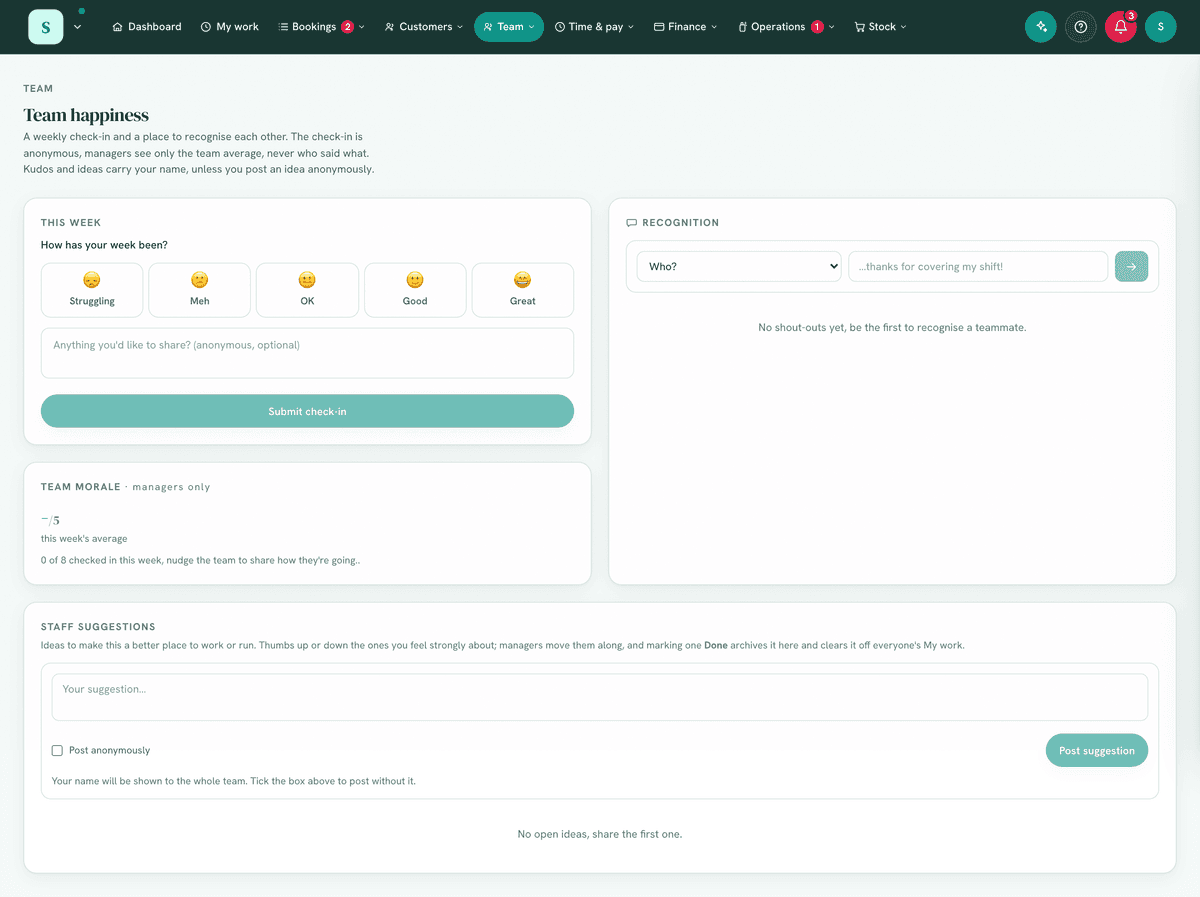
- This week, your own pulse check-in (a score, with an optional anonymous comment), and a "Change my check-in" option.
- Team morale (managers only), the aggregate read for the team.
- Recognition, give a team member a shout-out / thanks.
- Staff suggestions. Submit an idea or improvement (with your name or anonymously), upvote the ones you back, and follow each one's status.
6. Turning it on
Settings → Modules → Your team → Team happiness (Business plan).
7. Step-by-step tasks
7a. Do your weekly check-in (everyone)
- Open
Team → Team happiness. - Set your score for the week and, optionally, add an anonymous comment.
- Use Change my check-in to update it during the week.
7b. Recognise a teammate
- In Recognition, pick a team member and write a short message (e.g. "…thanks for covering my shift!").
- Post it so the team sees the appreciation.
7c. Read team morale (managers)
- Open Team morale (managers only).
- Review the aggregate trend; it also surfaces on the dashboard for managers.
7d. Raise a concern privately (everyone)
- On My work, the Raise a concern card says who will read it: Seen only by …, everybody who holds Handle private concerns.
- Press Raise a concern, say what it is about and what is happening.
- Choose Show my name or Don't show my name. You have to choose one. With your name not shown, whoever handles it sees Name not shown. It stays linked to you, which is how you follow it up: it is private, not anonymous. Nobody can change that choice later.
- Send. Your concerns stay on the card with their status (New, Being looked at, Closed) and any replies. Open one to add a message or Withdraw it.
You are told when there is a reply or the status changes, in the bell, by email and on your phone. The notice never says what the concern is about.
7e. Handle private concerns
- Open
Team → Private concerns(only people with Handle private concerns see it). - Open a concern to read it. Send reply answers the person, and moves a New concern to Being looked at. Mark as being looked at, Close and Reopen change its status, and the person is told.
- You are told when a concern is raised, gets a new message, or is withdrawn. The notice never includes the subject, the words or who raised it.
To have someone other than the owner handle them, tick Handle private
concerns on their role or add-on in Team → Staff list → Roles & permissions.
Concerns are never in the activity log, the assistant cannot see them, and
Download everything includes them without who raised them.
7f. Submit a suggestion
- In Staff suggestions, write your idea and submit it, choosing whether to post with your name or anonymously.
- Anyone on the team can upvote the suggestions they support, so the ones with the most backing rise to the top.
- Managers move each suggestion through a simple status as they act on it: New → Considering → Planned → Done, or Not now, so the team can see where their idea landed. Press the status on the suggestion to change it; Done archives it. Everybody else sees the status.
8. Examples
- Beginner: the whole team does a 10-second weekly check-in; the owner sees morale trending up.
- Real-world (gym): trainers post recognition for great member feedback, and a dip in morale prompts a quiet check-in from the manager.
- Advanced: suggestions feed a monthly team meeting; recognition becomes part of the culture, and the morale read informs rostering and workload decisions.
9. Reports & exports
The team morale read (managers) is the headline metric and appears on the dashboard. Recognition and suggestions are living records.
10. Common mistakes
- Treating it as surveillance, it's deliberately anonymous; don't try to identify individual responses.
- Only the owner checking in, encourage the whole team so the morale read is meaningful.
- Ignoring the signal, a falling morale read is the point; act on it.
11. Troubleshooting
| Problem | Fix |
|---|---|
| Morale shows "Loading…" / nothing | There may be no responses yet this week; encourage check-ins. |
| A staff member can't check in | They need View team happiness, and the module on. |
| Can't manage pulse/recognition settings | That needs Manage pulse & recognition. |
| No Raise a concern card on My work | Team happiness is off, or nobody else holds Handle private concerns (the owner has no card, because concerns come to them). |
| Can't see Private concerns | That needs Handle private concerns. |
12. Error messages
Check-ins, recognition and suggestions confirm inline. Morale only appears once there's at least one response for the period.
- "Keep it under 600 characters." An idea is up to 600 characters, kudos up to 400. The box stops there.
- "Choose whether your name is shown." A concern needs one of the two choices.
- "This concern is closed. Raise a new one if it is still going on."
- "Nobody here can receive a concern yet." Nobody but you holds Handle private concerns. Ask the owner.
Related: Team comms · The dashboard & navigation