03 · The dashboard & navigation
This chapter explains the home Dashboard you land on after logging in, and the top navigation you use to move around the back-office.
The top navigation bar
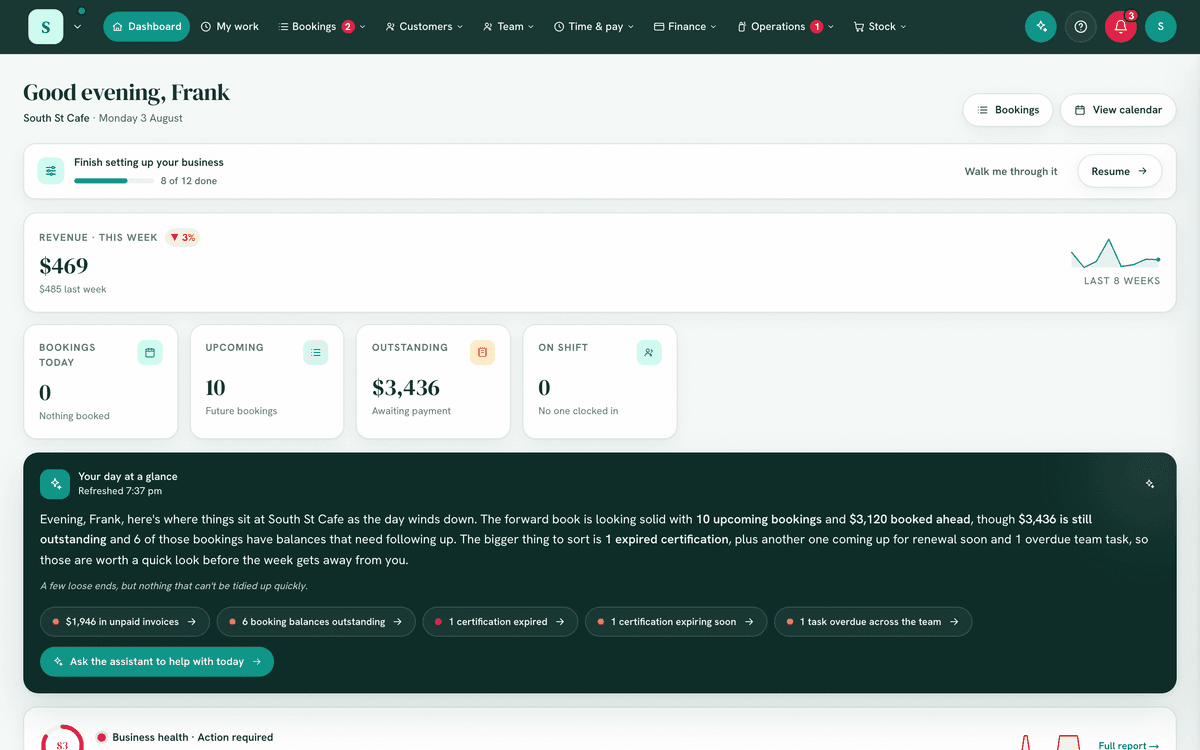
The dark bar across the top of every back-office page is your main navigation. From left to right:
- Workspace switcher, your business logo and name (top-left). Select it to switch between businesses you belong to, and to reach Settings and Plan & billing for the current business (shown if your role allows).
- Dashboard, a home link back to this page, and My work, your own day.
- Grouped menus, related tools collected into dropdown groups (below).
- More, holding any group that did not fit the width of your screen.
- Search everything, the magnifying glass. See below.
- Assistant, a sparkle icon (only if the AI assistant module is on and you have permission). Opens the AI assistant.
- Help, the ? button, opens the guide and the getting-started panel.
- Notifications bell, a live list of things needing attention.
- Account menu, your account, password and sign-out.
The navigation is personalised: you only see groups, menus and items your role can access and your business has switched on. A group with only one available item collapses into a single flat link. So two people in the same business can see different menus.
The navigation groups
| Group | Contains | Notes |
|---|---|---|
| (Dashboard) / (My work) / (Jobs) | Dashboard, My work, Jobs | Standalone links, not menus. Dashboard and My work are always there; Jobs appears when its tool is switched on. |
| Bookings | Bookings, Services, Memberships, Check-in, Calendar, Day plan | The group label and its first item follow your wording (e.g. "Appointments", "Classes"). Day plan appears only when the run-sheet is switched on. Staff, spaces & equipment has no menu item on purpose, it is once-ever setup: reach it from the Services page or the getting-started checklist. |
| Customers | Customer list, Messages, Emails, Marketing | Messages is always available, even without the Customers module. |
| Team | Staff list, Announcements & chat, Licences & certificates, Team happiness, Private concerns | Roles & permissions is opened from the Staff list page, it has no menu item of its own. |
| Time & pay | Approvals, Roster & timesheets, Time off & shifts, Pay prep & export | Approvals appears for approvers, and gathers leave, shift, timesheet, expense and purchase-order approvals into one inbox. Time off & shifts holds Leave and Shift swaps as sub-tabs. |
| Finance | Money owed, Invoicing, Quotes, Purchase orders, Accounting & reports, Bank statement, Equipment costs, Expenses, Vehicle trips | Quotes is the Quotes tab of Invoicing, shown for a business that quotes (Jobs on, or a quote raised). Purchase orders shows while purchase orders are switched on, the same list as Stock → Purchase orders. Equipment costs is the second tab of Operations → Equipment, the asset register, and follows your word for equipment (e.g. "Vehicle costs"). |
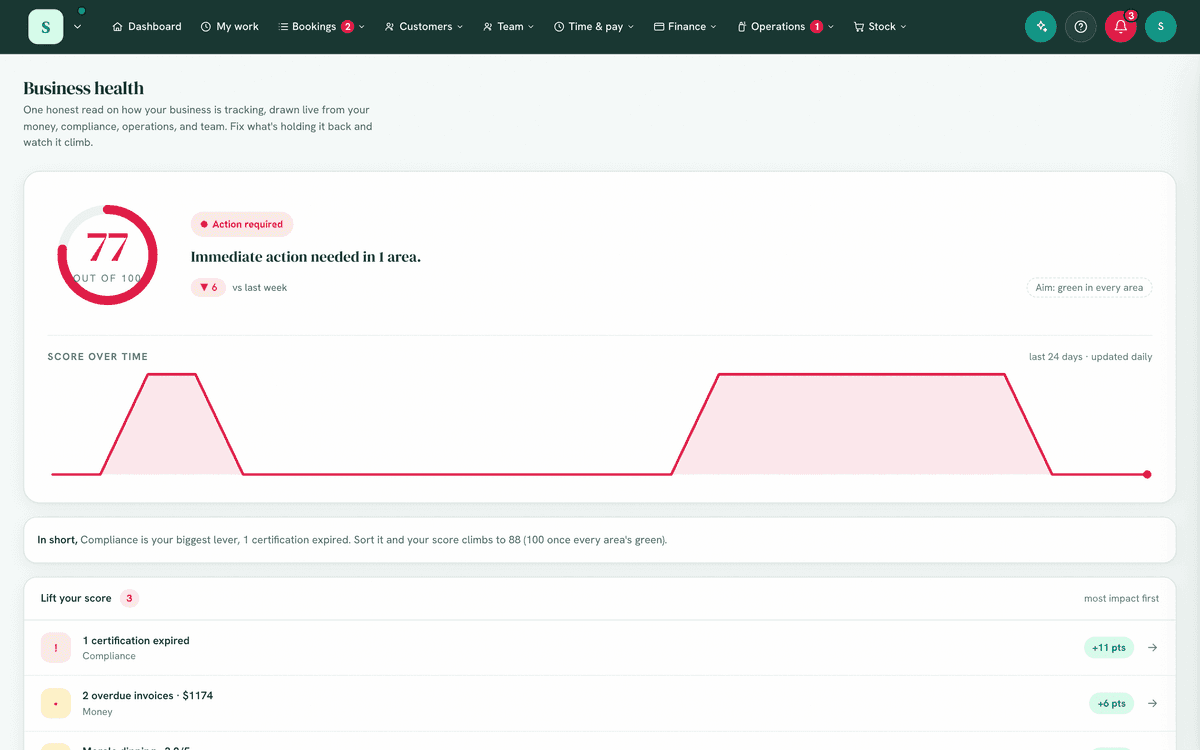
| Operations | Tasks, Safety, Maintenance, Documents, Forms, Reminders, Equipment, Handy links | Business health has no menu item, you reach it from its dashboard card. Equipment has two tabs, Looking after it and Costs for your accountant. |
| Stock | To order, Stock list, Purchase orders, Suppliers, Recipes | The To order and Recipes labels follow your wording (e.g. "Parts order", "Menu"). |
Settings and Plan & billing aren't in the top bar, they live in the workspace switcher (your business name, top-left). Open Settings there, then use its tabs (General, Appearance, Payments, Team, Modules, …) to set things up and switch modules on or off.
Search everything
The magnifying glass in the top bar searches the whole back office at once, so you can reach a record without knowing which module holds it. Keyboard: ⌘K on a Mac, Ctrl+K on Windows. On a phone it is the first item in the More menu.
- Select the magnifying glass (or press ⌘K).
- Type at least two characters. Results appear as you type.
- Select a result to go straight to it, or use the arrow keys and Enter. Esc closes the panel.
Before you type, Go to offers a shortcut to each area your role can open and your business has switched on.
What it looks in:
| Area | Found by |
|---|---|
| Customers | Name, company, email, phone, billing address, account code, ABN |
| Bookings | Name, phone, email, reference, the address the work is at, an event ticket's reference |
| Invoicing | Invoice, quote, purchase order or receipt number, customer, company, email, ABN, reference |
| Jobs | Job number, job name, who it is assigned to |
| Equipment (your own and your customers') | Name, make, model, registration or ID, serial number or VIN |
| Your customers' records (pets, children, students, whatever you keep) | Name |
| Sites | Label or address |
| Stock | Name, part number, SKU, a supplier's number, barcode |
| Suppliers | Name, email, phone, account reference, ABN |
| Members | The reference on their membership card |
| Documents, forms, tasks, your team | Name or title, folder or category |
| Expenses | Supplier, what it was for, category, who claimed it (only your own claims, unless you can approve expenses) |
Notes and descriptions are not searched, so a note that mentions somebody never turns up as that person.
Results are grouped by what they are, closest matches first: something typed in full beats something that merely starts with it, which beats a match in the middle. When a customer and their bookings match equally well, such as their phone number or email, the customer comes first. Each group shows its best few, so a common surname cannot crowd out everything else. N more in … opens that area already searched.
Find a vehicle, job or part by its number
Numbers and codes match however they were written down. Spaces, dashes, capitals and leading zeros are ignored, so abc 123 finds the registration ABC123 and job129 finds JOB-0129. The end of a code is enough: the last six characters of a VIN, or the last digits of a job number, find it. A phone number needs at least four digits, and the leading 0 (or +61) is ignored, so 0400 917 263 and +61 400917263 find the same person. An email works typed in full, from its start, or by its domain (acmeproperty finds accounts@acmeproperty.com.au).
When what you typed clearly points at one record, it opens as a card at the top with everything connected to it:
- Equipment (a vehicle, a machine, a unit): its owner and their phone, the next service and the last one, the latest reading, what the owner owes, open jobs on it, and the owner's upcoming bookings. Buttons for Log a service, New job (with the customer and the equipment already filled in), New booking, New invoice, Call and Text.
- A customer: phone, email, address, what they owe (overdue in red), their membership, upcoming bookings, open jobs, their equipment and their records, with any alert on a record. Buttons to start a job, booking or invoice for them, or call, text or email them.
- A customer's record (a dog, a child, a student): its alerts first, who it belongs to, and their upcoming bookings.
- A job: its status, customer, equipment, site, next visit and who is on it, and Bill this job.
- Stock: on hand, on order, bin, price, supplier, and the last jobs it was used on.
- A site: the customer and the open jobs there.
Enter opens the card's record. A card appears only when the match is clear: typed in full, the start or end of a code, phone number or email, or the only result there is. When two records fit equally well, such as two customers with the same name, or a phone number two people share, there is no card, so you choose from the list. A customer's own bookings matching as well never take the card from them.
You only ever see what your role already allows. Each kind of record, and each part of a card, is checked against your own permissions and against what your business has switched on. Somebody who can see equipment but not invoices sees no amount owing on the card, and somebody who cannot open customers sees no phone numbers. The search cannot show you a record you could not have opened by navigating to it.
Call and Text open your own phone or messages app with the number in it. Nothing is sent from HappierBiz.
If one kind of record cannot be searched right now, the panel says so rather than showing it as empty, because "no results" and "could not look" are different answers. The same goes for a part of a card that could not be read.
The More menu
Menus that do not fit the width of your screen collect under More, on the right of the nav. Nothing is ever hidden: narrow the window and the groups move into More rather than running off the edge. On a phone the whole nav lives there, with Search everything at the top.
The notifications bell
The bell shows a count when something needs you, and a panel listing items in priority order. Safety leads, because a failed check is a fridge at the wrong temperature rather than an admin chore:
- Maintenance issues to fix, and safety checks overdue today
- New customer messages
- New bookings, and booking requests to approve
- New members, and memberships past due
- Unread announcements, new handover notes, and new team chat (one line per channel, so you know which chat is buzzing)
- Approvals to review, and shift requests for you to respond to
- Low-rated reviews to check
- Documents awaiting your sign-off
- Tasks due or overdue, yours and any nobody has picked up, and any timesheet sent back to you
You only ever see a line for a tool your business has switched on, and only if you hold the permission for the page it links to. Each line is a shortcut to that page, and where there is a single item it names it: one open fault reads "Freezer temperature out of range, in Kitchen", not "1 maintenance issue". When there's nothing pending, it reads "You're all caught up."
The same counts appear as red badges on the menus themselves, so you can see which section is asking for you without opening the bell.
Only what you can clear is on the bell. Something that waits on somebody else, like a customer who has not confirmed, shows on your dashboard and in the morning email instead, and the bell tells you when they confirm or cancel.
The account menu
The circular avatar (your business initial) at the far right opens:
- Your business name and tagline
- Help & getting started, opens the in-app help panel (see below)
- Account & password, change your password
- Sign out
For your security, you're automatically signed out after a period of inactivity.
Help & getting started
Every business, on any plan, including the free trial, has an in-app Help & getting started panel. Open it from the ? button on the top bar (next to the notifications bell), or from the account menu (avatar → Help & getting started). It opens as a side panel that stays put while you work, the page shifts over to make room, so you can read the step-by-step guide and click around the real screens at the same time, and it stays open as the assistant takes you from page to page. Close it with the ✕. It contains:
- Getting-started shortcuts, quick links to set up your business and branding, set up what you offer, connect payments, add your team, and view Plan & billing (links adapt to the tools you have on).
- Ask the assistant, a help chat that answers "how do I…" and "where do I…" questions and gives you a take-me-there button to the right screen.
What the help assistant can and can't do. It's a product guide, it explains the app and points you to the right place, but it cannot see your business data (bookings, money, customers, team). Ask it how and where, not how many. For answers drawn from your own live data, that's the full AI assistant (a Business-plan feature, see AI assistant). The help assistant has a monthly question allowance, set per plan (shown on the pricing/billing cards), displayed at the bottom of the panel.
The home dashboard
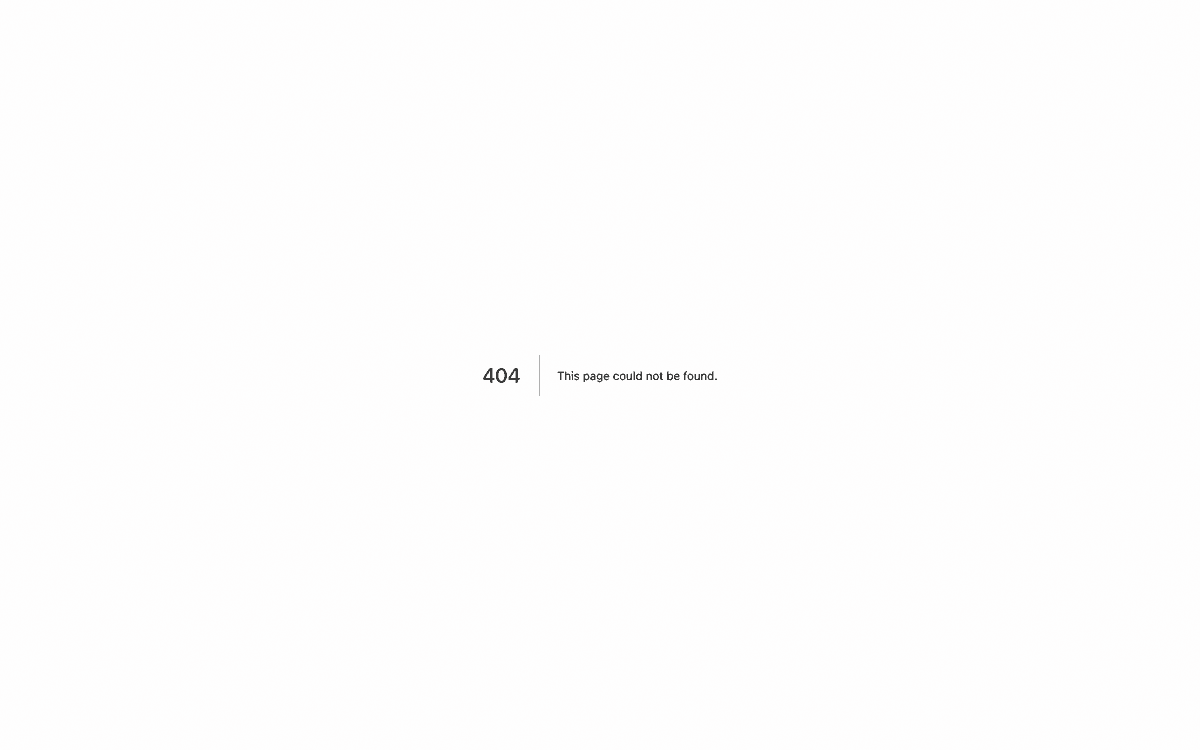
The Dashboard is your at-a-glance command centre. It adapts to the modules you've switched on and to your role, you only ever see cards relevant to your business.
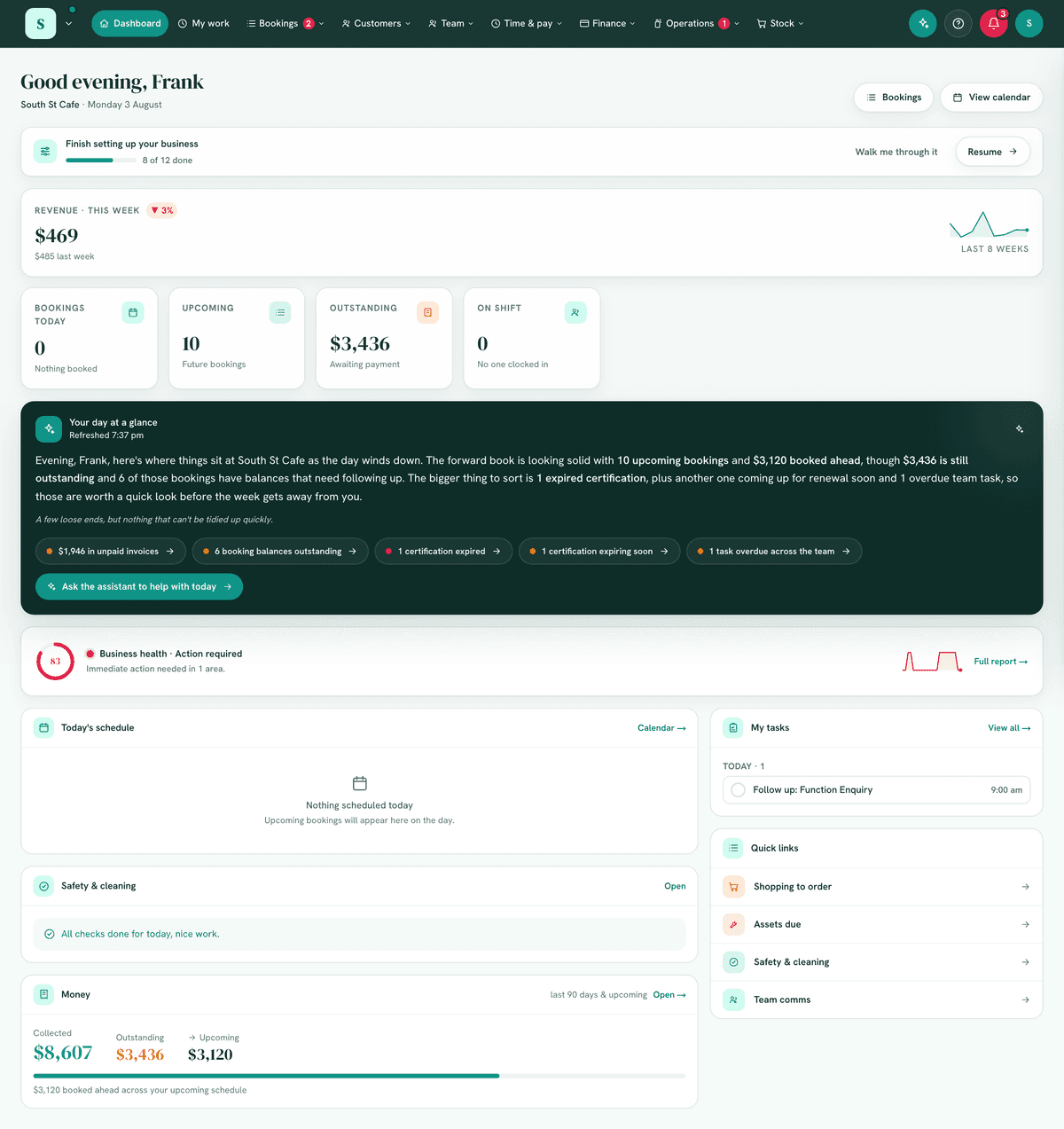
Greeting and quick actions
The top shows a time-of-day greeting with your first name, your business name and today's date. If Bookings is on, you also get quick buttons to Bookings and either Set up bookings (if you haven't yet) or View calendar.
"Finish setting up" checklist (managers only)
While you're getting started, a checklist card shows what is left, with a live progress bar. Steps appear only for the modules you have turned on, and tick themselves off from what you have actually set up:
- Confirm your timezone
- Set your opening hours (Bookings)
- Add your business & tax details (Invoicing or Payments)
- Add your logo & brand colours
- Turn on two-step verification
- Choose how you get paid (Payments)
- Invite your team (not shown to a one-person business)
- Finish your Xero payroll setup (only once Xero is connected)
- Add your spaces, staff or equipment (Bookings)
- Set up what you offer (Bookings)
- Set up your safety & cleaning checks (Safety)
- Get your booking page ready to share (Bookings)
- Take your first booking (Bookings, in your own word for a booking)
Each step links straight to the right place.
Required steps are the ones money cannot move without: your timezone, your business and tax details, and how you get paid. Start here marks the first of them still to do.
Any other step can be skipped if it does not apply to your business, for example a one-person business with no rooms or equipment to book. A skipped step leaves the count, so the checklist can finish without it. Skipped steps are listed under skipped at the bottom of the card, and Put back returns one.
Hide folds the card away for now. Until the required steps are done, a slim strip stays on the dashboard with Resume. Once everything left is done or skipped, the card goes away.
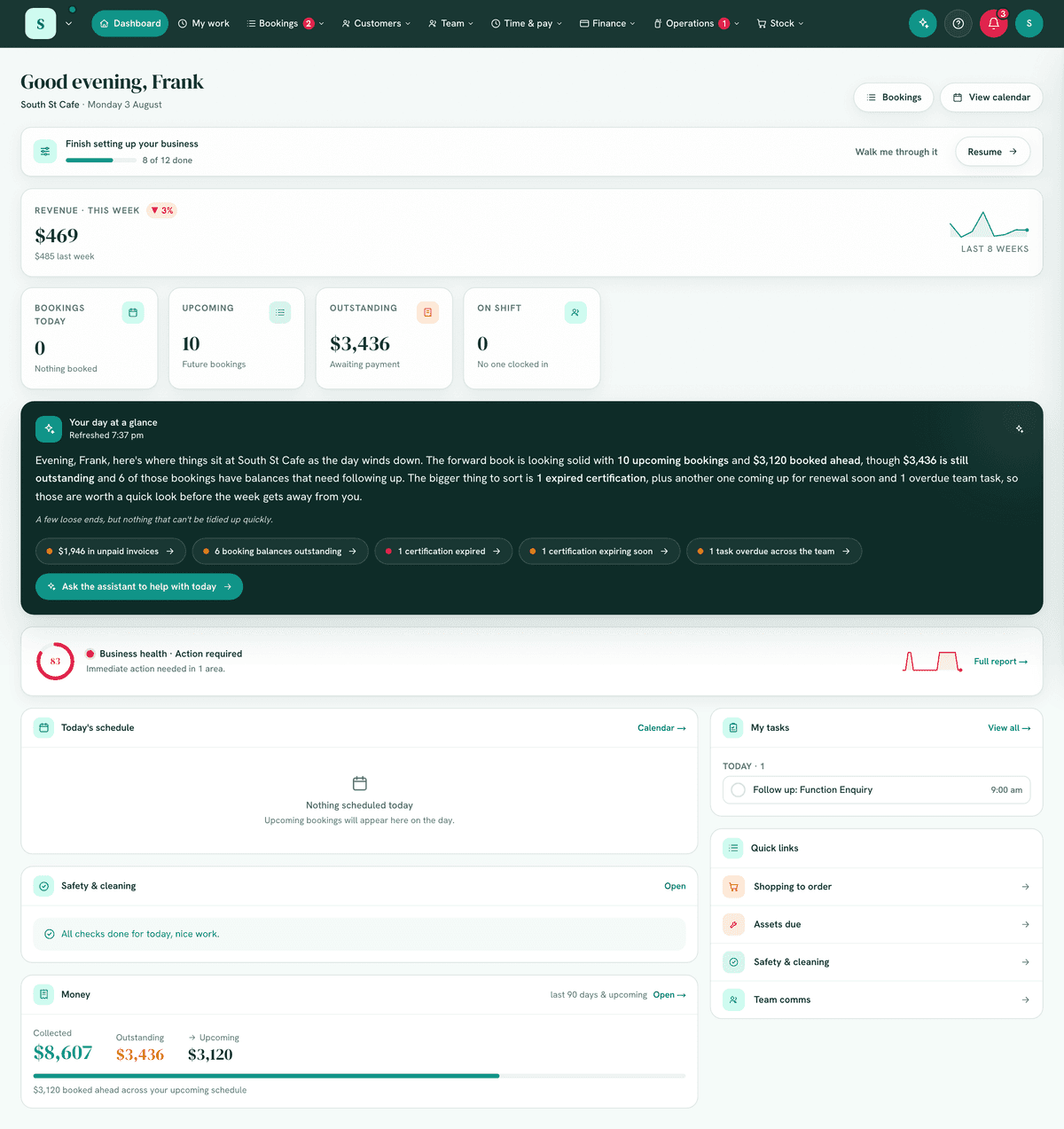
The KPI strip
Up to four key numbers, built only from the tools you use, e.g.:
- Bookings today (or your wording), what's on the schedule
- Upcoming, future bookings
- Outstanding, money awaiting payment (Money/Invoicing)
- On shift, who's clocked in now (Roster)
If you have fewer than four, a Needs attention tile fills the gap. Every tile is a shortcut.
Business health
For anyone whose role can View Business Health (owners and managers by default). A green / amber / red score (0-100) summarising how the business is tracking, with a one-line summary and a breakdown of areas sorted so anything needing attention leads. Select Full report for the whole picture. See Business health for what each area counts and what moves the number.
Today's schedule
A timeline of today's bookings in time order, each with who it's for, where, and a colour dot for paid (green) vs balance owing (amber). If nothing's booked, it says so.
Money
If Payments or Invoicing is on: Collected, Outstanding and Upcoming (booked-ahead value), with a progress bar showing how much of the total has been collected.
Needs attention
A cross-module to-do list, traffic-lit and linked, surfacing things like:
- Booking requests to approve
- Shift requests awaiting approval
- Unpaid invoices and outstanding balances
- Certifications expired or expiring within 30 days
- Open maintenance issues
- Assets due for service
When nothing's pending it shows All clear.
How work flows here
For a business using Jobs: the three steps a piece of work moves through, in order, each a link to where it lives.
- Your bookings menu (named in your own word): the time booked, and any payment to book.
- Jobs: the work, with its visits, hours, parts, photos and videos.
- Ready to bill: finished work, raised as a draft invoice.
How they fit together opens the Jobs chapter of this manual. A step whose tool you have switched off is left out, and one your role cannot open is shown without a link. The × hides the card for you in this browser; a new browser or device shows it again. You see it if you can open Jobs and the business dashboard.
Quick links
Shortcuts to common tools you have on (Shopping to order, Assets due, Safety & cleaning, Team comms), with live counts where useful.
Changing a status
A job, a task, a form response, a staff idea and a piece of equipment each show their status once, as a coloured pill with a small arrow. Press it to change it:
- Each choice says what it does, in a line under its name, and the current one is ticked.
- A choice that takes something away, such as cancelling a job, is last, in red, apart from the rest, and asks before anything happens.
- Escape, or a press anywhere else, closes it without changing anything. The arrow keys move through it and Enter chooses.
- Somebody who may not change it sees the status without the arrow.
On a job, the next step sits beside it as a plain button: Mark done while it is open or on hold, Reopen once it is done or cancelled. What follows each choice is the record's own, and its page in this manual says what that is.
Making a side panel bigger
Most things open in a panel from the right: a customer, a task, a booking, a stock item, settings. On a computer it can be made bigger when there is a lot to set up:
- The arrows on its left edge step it a size at a time. ‹ widens it to half the screen, then to nearly the full screen; › takes it back a size, to half the screen and then the width it usually opens at. Hover an arrow to see where it goes.
- Drag its left edge for any width in between, up to nearly the full screen.
- It remembers. Each kind of panel opens at the size you last chose for it, on that computer and browser.
A strip of the page always stays visible beside it; press it, or Escape, to close the panel. On a phone or tablet a panel already fills the screen, so there are no arrows.
Common questions
"Why can't I see a menu/card a colleague has?" Either the module is off for your business, or your role doesn't have the permission. See Roles & permissions.
"The nav only shows Dashboard and Messages." This is usually a temporary session-sync glitch, sign out fully and back in. If it persists, contact your administrator.
"The dashboard looks different from this manual." It's meant to, the dashboard only shows cards for the modules you've enabled and your role.
Next: Begin the module chapters, starting with Accounting & reports.