
Module · Calendar
Where to find it in the app
- Use it: Bookings → Calendar
- Turn it on/off: your business name (top-left) → Settings → Modules → Bookings → Calendar
Plan: Solo and Business · Module group: Bookings & schedule · Navigation:
Bookings → Calendar
1. Overview
Purpose. A visual view of your schedule so you can see availability at a glance and avoid double-bookings. It shows the same bookings as the Bookings list, laid out on a calendar, including per-staff and per-space lanes.
2. When to use it
- To see how a day, week or month is filling up.
- To check a specific staff member's or space's day.
- To jump from an empty slot straight into making a booking.
3. Required permissions
- View the calendar (
calendar.view). - Edit bookings (
bookings.edit) to block out time or unblock it again.
4. Navigation path
Bookings → Calendar
5. What you'll see
A view switcher with five views:
- Day, one day in running order, each entry with its start and end time.
- Week, a seven-day week with times.
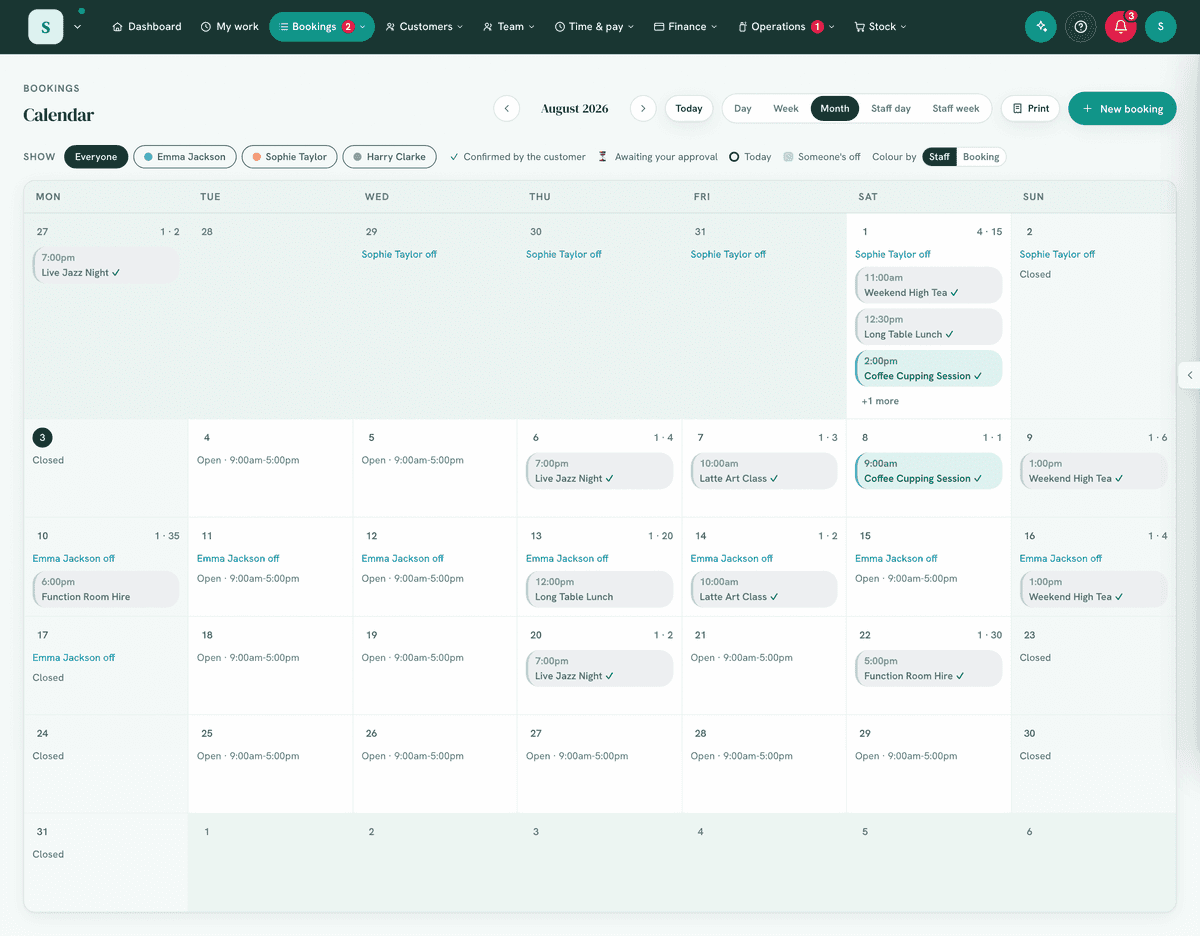
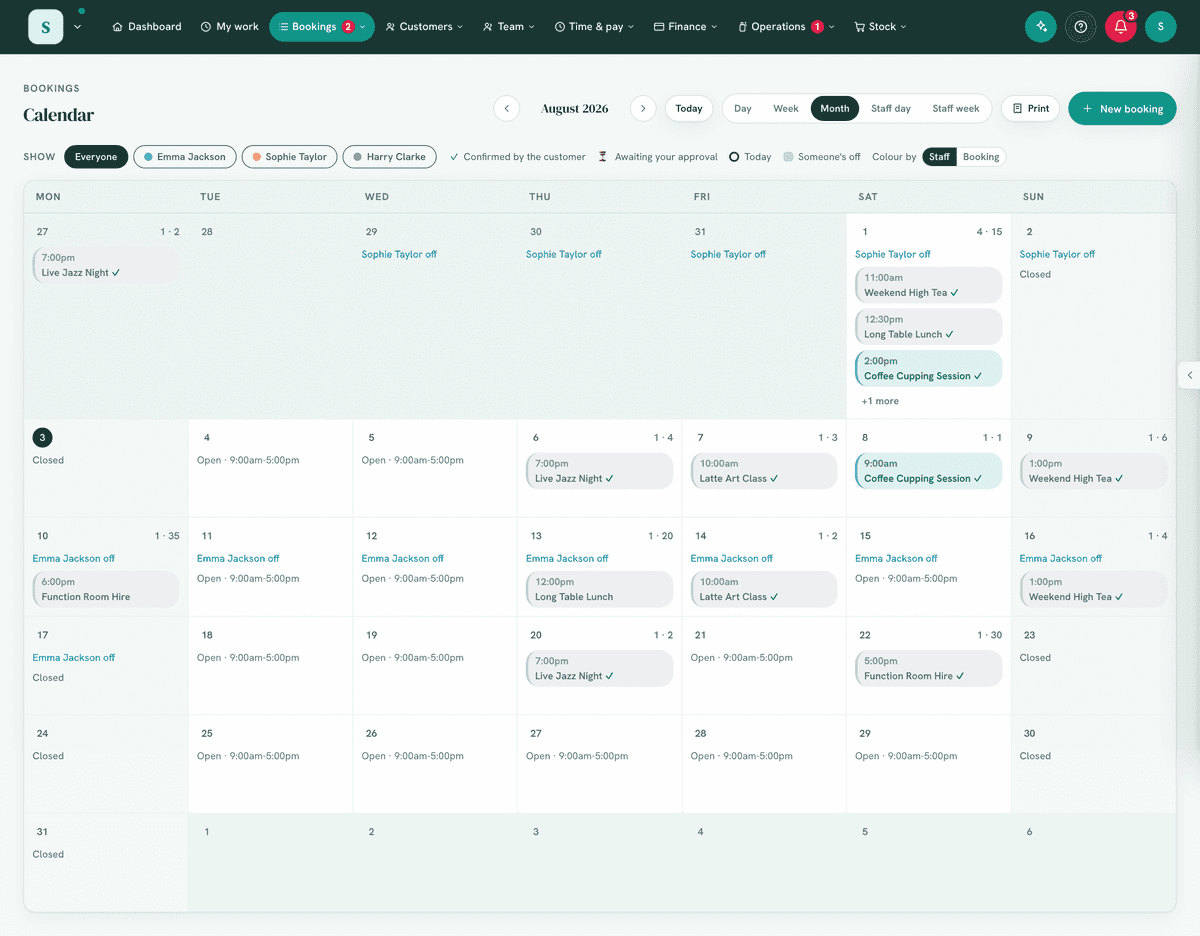
- Month, the whole month, each day showing its bookings (with a "more" link when a day is busy).
- Staff day, one day split into lanes per staff member or space.
- Staff week, a week split into per-staff and per-space lanes.
On a phone there are two: Day, and Month as a list of the days with something on them.
With Jobs on, Staff day and Staff week are the Schedule board, so there is one place to see who is where: a column for everyone on the team with their job visits, rostered shift and leave, their customer bookings beside them, and the jobs still to schedule in the To schedule tray, with New job (which can put the job's first visit straight onto someone's day) and Print run sheets. The arrows, the date and Today move it like any other view. Select a booking on it to open that booking. Spaces and equipment keep their lanes, one press away (Staff | Spaces). See Jobs, One diary with your bookings. Somebody who cannot open Jobs sees the staff lanes below instead.
Job visits show in every view, with a dashed edge and the word Job: the time, what the job is and who it is for, and in Day the job number and who is going. This is where the days a customer chooses after accepting a quote appear, in time order beside your bookings. Select a visit to open its job (people who can open Jobs). A booking that opens a job shows once, as the booking, and the day's heading counts the visits (1 on a job). The staff filter keeps a person's visits with their bookings, and Print includes them.
Today and previous / next navigation, and a heading showing the current month / week / day.
A staff filter to limit every view to one person or space.
A legend (e.g. Today is outlined, and Job visit has a dashed edge when one is on screen).
Each booking block shows who it's for, the size and time; a ✓ marks a customer-confirmed booking. In Staff day the customer's name comes first, then what they booked, and two bookings at the same time on one person or room sit side by side, so neither is hidden under the other. A booking somebody is on the team of also shows in their own column, with a dashed edge and the word Team, so their day reads as busy.
With a daily limit set (Settings → [your booking word] & pricing → Daily limits), each day shows how full it is, such as Workshop 3 of 4 jobs, in amber once it is full. See Bookings, A9.
Selecting a booking opens a side panel with the whole booking at a glance:
- anything not to be missed in a red card at the top, on its own, under the name of the question you asked it with. A play centre sees FOOD ALLERGIES, a clinic sees whatever it asked, and a business that asks nothing like it sees no red card at all. See What lands in the red card below,
- the booking details: name, what was booked, headcount, who or where it is with, its team, phone, payment state and the reference,
- what they told you, every one of your own booking questions with the customer's answer, including anything they chose off a pick-many list such as which platters they want,
- extras they added, each paid extra with its quantity and price. What they booked (the package or the service itself) is not listed here, only what was added on top.
Then Open full booking for the rest: invoices, invitations, work log, and changing what's booked.
What lands in the red card
Some answers matter more than the rest. An allergy, a medical condition, a medication: the ones where somebody getting it wrong is not just an inconvenience. Those get their own red card, at the top, away from everything else, and they appear on the day board, at the door, on the printed run sheet and in your phone calendar as well, whatever other detail you have switched off.
HappierBiz decides which answers those are from the question you asked. Words like allergy, dietary, intolerance, coeliac, EpiPen, medical, medication and asthma mark a question as one of these. So a question you called "Food allergies or dietary requirements?" gets the red card and one you called "Which theme would you like" does not.
Three things follow from that, and they are the reason this is worth reading:
- The heading is your words, not ours. Whatever you called the question is what the card says.
- A business that asks nothing like this never sees a red card. A consultant taking booked calls has no use for one, so none appears.
- If you want an answer in the red card, say so in the question. A question worded "Anything we should know?" is a general box, and a general box is not treated as a safety answer, because on most businesses it is not one. Put the word in the question, e.g. "Any allergies or medical conditions we should know about?", and it is flagged from then on.
An answer of none, nil, N/A or no produces no card. Nearly every booking answers this way, and a card that appears on all of them is a card everybody learns to stop reading.
6. Turning it on
Settings → Modules → Bookings & schedule → Calendar. It works alongside
Bookings (which holds the experiences and spaces & equipment the calendar
displays).
7. Step-by-step tasks
Move around:
- Choose Month, Week, Staff day or Staff week.
- Use previous / next to change period, or Today to jump back.
- (Optional) Pick a person in the staff filter to focus on them.
Open or create from the calendar:
- Select a booking block to open it (or its full booking).
- Select an empty slot to start a new booking at that time.
- In Month view, use a day's more link to drop into that day's Staff view.
Change how long a booking runs:
With Jobs on, Staff day is the Schedule board, where bookings are not dragged: select the booking and use Change under How long (step 3).
- In the Staff day view, drag the bottom edge of a booking down to make it longer, or up to make it shorter. It moves in quarter hours and shows when it would finish. For a time between the quarters, use Another finish time in step 3.
- Let go, and the booking opens on that length with what it does to the price. Untick the email box if you are going to ring the customer instead, then select Save length.
- Or select the booking and use Change under How long, which does the same.
The time it gains is held. If it would run into another booking or a job for the same person or room it is refused, and says which. Running past closing time, into blocked out time or over a daily limit goes ahead and says so. A service priced by the hour changes price with its length; a set price stays unless you choose to charge for the extra time (see Bookings). Classes, events, drop-offs and stays booked by the night have no handle.
Move a booking to someone else, or another time on the day:
With Jobs on, select the booking on the board and use Change who it's with or Reschedule in its panel.
- In the Staff day view, drag the booking into another person's column, or up or down to a new time, and let go. A dashed outline shows where it will land and with whom. It moves in quarter hours.
- A panel shows From and To, and checks straight away whether that person is free then. If not, it says why, and the button becomes Move anyway.
- Untick the email box if you are going to ring the customer instead, then select Move.
It can only go to someone set up for that service, and a person's booking only to another person (a room's to another room); anything else is said on the panel before anything moves. Two bookings that each take a person one at a time cannot be put on top of each other, so there is no Move anyway for that. Dragging works with a mouse or a pen; on a phone or tablet your finger scrolls the day, so open the booking and use Change who it's with or Reschedule instead.
Block out time so nothing new can be booked:
- Select Block out.
- Pick the date, and an until date as well if it runs for more than a day.
- Choose All day or Part of the day and set the times.
- Under What to block, choose Everything, one thing you offer, or one space. Blocking one leaves the rest bookable, so a Saturday can run on a single room instead of three.
- Add a reason if you want one. Only your team sees it, customers are never told why a time is unavailable.
- Select Block it out.
Blocked time shows on every view with a Not taking new bookings tag.
To remove one (you blocked the wrong day): select Block out and look under Everything blocked out from today. Every block from today onwards is listed there, whatever dates the calendar happens to be showing, with the dates, what it covers and an Unblock button. You do not need to find the day first. There is also an Unblock next to the block itself in the Day and Staff day views when you are standing on that date. Unblocking takes effect straight away and puts that time back on sale.
Take a booking over the counter anyway: blocking stops customers booking online. It does not stop you. In New booking a blocked day still appears in the date picker, drawn with a dashed edge instead of the green dot, and so does a blocked time, and you can pick either. So you never have to unblock a whole day to take one phone call. Picking one says so before you save it.
What the customer sees. The day simply is not offered. If they land on it from a link or a class date, they are told the date is not available and nothing more. They are never told a blocked day is "fully booked", and they are not offered a waitlist for it, because nothing on that day can free up.
Move someone's whole day (they called in sick):
- Switch to the Staff day view and pick the date.
- In that person's column heading, select Move day. With Jobs on, the heading reads Move bookings… (in your own word for a booking), beside Hand day…, which hands their job visits to a colleague.
- Their bookings are listed down the panel. For each one, select Move.
- You get Closest times first: real openings on the people who can do that job, nearest to the original time. Underneath, Their days shows each of those people's day, with what they already have crossed out and every opening long enough for this job clickable. Choose one and it moves.
- It ticks off and jumps to the next person, so a six-client day is six clicks.
You do not have to line the times up. A 9:00am can go to 2:30pm with someone else, the 10:30am to 1:20pm with a third person, and the 12:00pm to tomorrow morning. Look at widens the search from one day to three days or a week.
What the customer gets. Each move emails them their new date and time, the reference, where to come and a link to their booking. If they are now with somebody else the email says so in words, not just in a details row, and it offers a one-tap link to put the new time in their calendar plus a reminder to delete the old entry. Their confirmation tick is cleared and the reminder is re-armed, so the automatic reminder goes out again for the new time.
Untick "Email each customer their new time" when you are going to ring them instead, which is usually the right call for a change happening today. Your team is told either way. If a booking has no email address on it, the row says so, so you know who still needs a call.
If nobody can fit a client in, the row says so plainly and stays where it is. Nothing is cancelled, and nothing disappears.
Blocking out versus closing
Two different things, and picking the wrong one is the commonest mistake here.
| Block out (Calendar) | Closure (Roster → Closures) | |
|---|---|---|
| Covers | Everything, or one offering, or one space | The whole business |
| Length | A whole day, part of a day, or a run of days | Whole days only |
| Roster | Unaffected, the team is still working | Shows the business closed |
| Use it for | A room you are not selling that day, a late start, keeping a Saturday quiet | Public holidays, a shutdown, a training day |
8. Examples
- Beginner (salon): glance at Week view to see how tomorrow looks before taking a phone booking.
- Real-world (clinic): use Staff day to balance load across practitioners and spot a gap to slot in an urgent appointment.
- Advanced (venue): filter to a single room in Staff week to confirm it's free for a function enquiry before quoting.
9. Reports & exports
The calendar is a live view; there's no separate export. Use the Bookings → Past tab to search and page through history.
10. Common mistakes
- Expecting availability rules here, the calendar shows bookings; open hours, capacity and buffers are set on Experiences and Spaces & equipment.
- Not noticing the staff filter is on, if the calendar looks empty, check you haven't filtered to one person.
- Expecting a block to cancel what is already booked. It does not, and it never will without asking you. Blocking stops new bookings; anything already sold in that window is still going ahead, and the app says so when you block. Cancel those yourself from the Bookings list if that is what you meant.
- Switching a space or an offering off to close one day. That closes it for every future date, and nothing reminds you to switch it back on. Block the day instead.
11. Troubleshooting
| Problem | Fix |
|---|---|
| Staff lanes are empty | Add staff or spaces under Bookings, on the Staff, spaces & equipment page, and attach them to experiences. |
| A booking isn't on the calendar | It may be unscheduled (no date), a pending request, or cancelled, check the Bookings list. |
| Wrong day highlighted as "today" | The app uses your business timezone (set in Settings); confirm it's correct. |
| A day still offers times after you blocked it | Check what the block covers. A block on one space or one offering leaves the others on sale, which is usually the point. |
| New booking still lets you pick the day you blocked | That is deliberate, so you can take a booking over the counter. The day and its times are drawn dashed, and picking one tells you it is blocked. Customers cannot get to it. |
| You blocked the wrong day and cannot find it | Block out → Everything blocked out from today lists every one of them wherever you are in the calendar. You do not have to navigate to the date first. |
| A customer booked a time you had blocked | Only possible if they were already part-way through checkout when you blocked it. Their hold is honoured; the block applies from then on. |
| No Block out button | It needs the Edit bookings permission. |
12. Error messages
The calendar is read-and-navigate; it surfaces no error dialogs. Creating or editing a booking from it uses the Bookings flows and their inline messages.
Related: Bookings · Roster & timesheets · Leave