
Module · Payments
Where to find it in the app
- Use it: Finance → Money owed
- Turn it on/off: your business name (top-left) → Settings → Modules → Finance → Money owed
Plan: Solo and Business · Module group: Finance · Navigation:
Finance → Money owed
1. Overview
Purpose. Take deposits and balances online through your own Stripe account, so payouts go straight to your bank. You can charge a saved card for an outstanding balance, or record a manual (cash/eftpos) payment.
Your money, your account. Your money goes straight to your own Stripe account, HappierBiz takes no platform fee (0%) and never holds your funds. Payouts go directly to your bank on Stripe's schedule.
2. When to use it
- To collect a deposit when a customer books online.
- To charge or settle the remaining balance.
- To see what's outstanding and what's been collected.
3. Required permissions
- View payments (
payments.view). - Take / charge payments (
payments.charge).
4. Navigation path
Finance → Money owed
5. What you'll see
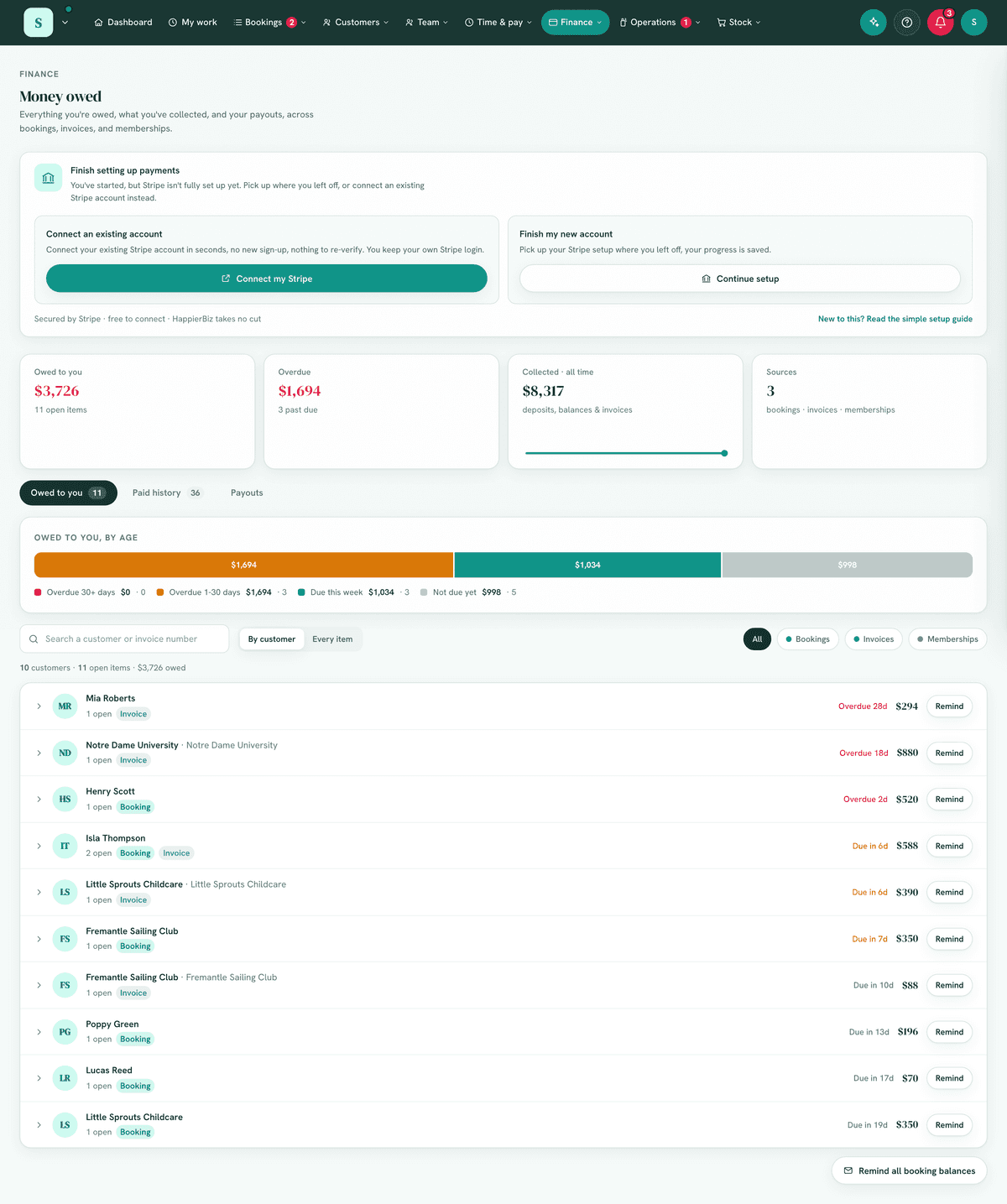
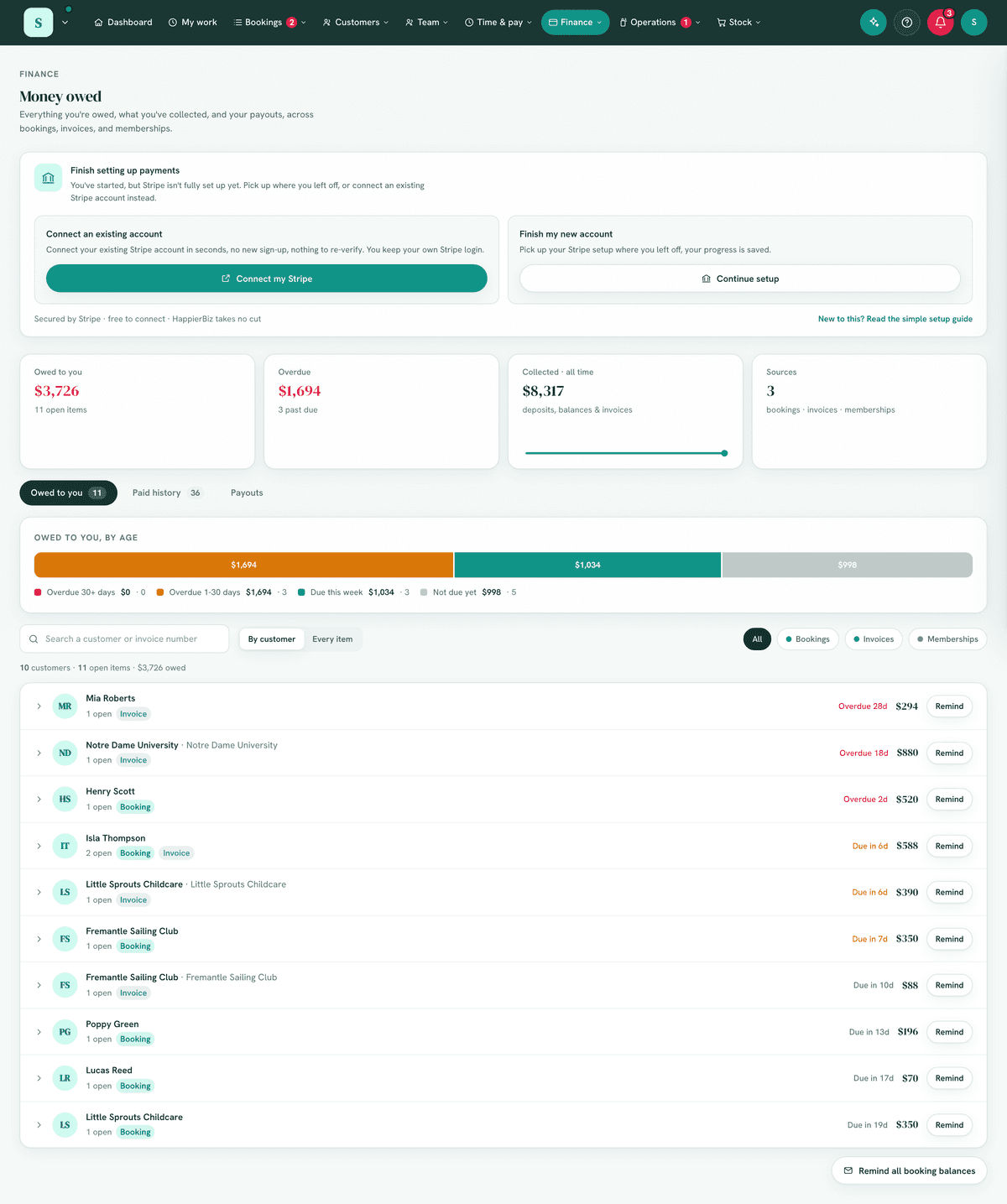
The screen is the Money hub. If Stripe isn't connected yet, a Connect card sits at the top to link your Stripe account ("Payouts go straight to your bank").
Summary tiles run across the top:
- Owed to you: the total still owing, with a count of open items.
- Overdue: how much of that is past due.
- Collected · all time: everything that actually landed, read from the payment ledger (booking deposits and balances, membership dues, payments keyed in by hand, net of refunds) plus what has been paid against invoices, with a small trend line once there's enough history. It is the same ledger the Paid history tab lists, so the tile and the list always agree.
- Sources: how many of your money sources (bookings, invoices, memberships) are switched on and feeding the list.
Below the tiles are three tabs:
Owed to you: one unified receivables list that merges booking balances, unpaid invoices and past-due memberships into a single view. Items are grouped by customer (or flip to Every item) and bucketed by age, with an aging bar you can click to filter to a bucket. You can search, and filter by source when more than one is on.
Whose account it is on
Money owed is grouped by the customer record, the account, as accounts packages do, not by the name typed on each booking or invoice. A parent's bookings for their children, or an invoice made out to someone at a client, sit on that customer's one line. When the name on an item differs from the account's, the item shows it after a dot (· Mary Jones), and searching for that name finds the account. A booking or invoice for somebody merged into another record counts on the record they were merged into. A past-due membership sits on the customer whose email it carries. Anything with no customer record behind it is listed under its own name. The figure is the same one their customer card shows as owed. Open an item and press Open their customer card to go to them, or Open the booking on a booking's balance, which is where an extra comes off or the numbers change. Remind on a customer emails one statement of everything on their account, to their accounts email when they have one, otherwise the email on their record. Each of their unpaid invoices goes with it as a PDF, oldest due first, up to 10; with more, the rest are listed with their links and you are told. Each row's action fits its source: a Charge button for a booking balance with a card on file (or Mark paid when there's no saved card), Send reminder and Copy pay link for an invoice, and Send portal for a past-due membership so the member can update their card. Mark paid on an invoice (in its drawer here) records the amount owing as received today, exactly as Record payment on the invoice itself does, and emails the customer their receipt when the invoice has an email address. To record a different amount, date or method, open the invoice in Finance → Invoicing. A booking balance or invoice that has been emailed shows when, Reminded today or Reminded 29 Oct, in the row and in its drawer. For a booking that counts the balance reminder, the email sent when the saved card is declined, and Email pay link.
Paid history: every payment that actually landed, read from the payment ledger: booking deposits and balances, membership dues, and any payment you keyed in by hand, each with the date it arrived and how it was paid in your own words (EFTPOS, bank transfer, card). A refund shows as its own line, in red, on the day it went back. Refund sits on a booking's card payment and opens the refund box for that booking; membership refunds are done in Stripe.
It reads the ledger, not the booking's status flags. An earlier version listed a booking as "Deposit +$1,300 Paid" and "Balance +$0.00 Paid" when the deposit had been $650 and the balance $650, and offered a Refund button on $0.00, because it was working the figures out from what the booking said about itself. Money you can see here is money that moved.
Payouts: money paid out to your bank. If your Stripe account is started but not finished, this tab says so and points at the card at the top of the page, rather than reporting a connection problem.
6. Turning it on & connecting Stripe
Settings → Modules → Finance → Money owed.Open
Finance → Money owed. Card payments always run through your own Stripe account, and the card on this page has two steps:- Create a Stripe account opens Stripe's website in a new tab. It's free. Stripe asks for your email and a password, then your ABN, business address, bank account (BSB and account number) and photo ID. If it asks for a website and you don't have one, your booking page address works. Skip this step if you already use Stripe.
- Connect my Stripe: sign in to Stripe, check it shows your account, and approve. Stripe sends you straight back.
Security note: enter banking and identity details directly on Stripe's own secure pages, never share them in chat or by email.
Back in HappierBiz, the card is replaced by Online payments are live. If it says Finish setting up your Stripe account instead, Stripe still needs a detail or two: Open my Stripe dashboard, finish what Stripe asks, then Check again.
Your Stripe account is yours.
- You sign in to it yourself at dashboard.stripe.com, with the full Stripe dashboard. Payouts go to your bank on Stripe's schedule, and Stripe's card fees are between you and Stripe. HappierBiz takes no cut.
- To disconnect HappierBiz, open your Stripe dashboard and go to Apps, then Installed apps. Your Stripe account carries on as a normal Stripe account.
- A Stripe account that's managed by another platform (for example one a website builder created for you) can't be connected. The card says so: create a separate Stripe account of your own and connect that one.
- Once payments are live, connecting a different Stripe account is refused with "This business is already connected to Stripe." Contact support to change it.
- HappierBiz no longer creates Stripe accounts for you. A setup started that way and never finished shows Finish setting up payments: connect your own account instead, and it replaces the unfinished one.
New to this? There's a plain-English, printable guide: press Step-by-step guide on the card in
Finance → Money owed(it's also in Help → User manual → Setup guides). It walks a first-timer through creating their Stripe account and connecting it, and Download as PDF / Print saves it as a PDF.
7. Step-by-step tasks
7a. Take a deposit at booking
Deposits are collected automatically when a customer books an experience that requires one (set on the experience, see Bookings). They appear under Paid history and reduce the outstanding balance.
7b. Charge an outstanding balance to a saved card
- On the Owed to you tab, find the booking. The Charge button only appears when the customer has a card on file, saved when they paid their deposit online. Rows without one say no saved card.
- Choose Charge, HappierBiz charges the saved card via your Stripe for the exact amount owing.
- On success you'll see a confirmation (e.g. "Charged $X to
's card" ).
If there's no saved card, take payment another way (cash, eftpos, bank transfer) and use Mark as paid instead (7c).
7c. Record a manual payment
- For a cash/eftpos payment taken in person, choose Mark as paid.
- Pick how they paid from the list. It is the same list on a booking and on an invoice, and the words you choose are printed on the customer's receipt.
- The balance is cleared without a Stripe charge.
The list is yours. Settings → Payments → How your customers pay you in person
starts with Cash, EFTPOS, Bank transfer and Card, and you can rename them, remove the
ones you never take, or add your own (Voucher, Account, "Tap at the door"). Remove them
all and the standard four come back, so you can never end up with an empty list.
Changing it affects the next payment your team records. Anything already recorded keeps the words it was given, so a receipt your customer is holding still reads the same.
Never taking cards online? If every payment happens on your own EFTPOS terminal or through another provider, see Using your own EFTPOS terminal or payment provider: what to tell HappierBiz, and how to keep a sale out of your books twice.
7d. The tax invoice your customer gets, automatically
You do not raise anything. The moment money arrives, the customer is emailed a document. If you are registered for GST and your ABN is saved, it is a valid tax invoice and says so; otherwise it is a plain receipt, because only a GST-registered business may issue a document titled tax invoice.
It happens on every payment: a deposit, a balance, a card charged automatically, a cash or EFTPOS payment you key in, an invoice paid online or settled in cash, a cancellation fee, and membership dues. What the customer gets does not depend on how they paid you.
Money against an invoice is receipted to the customer but is not filed again in the Receipts tab, on purpose. The invoice is already your numbered document and it lists its own payments, so a second one for the same money would be paperwork twice. The Receipts tab holds money that has no invoice behind it: bookings, memberships and cancellation fees.
It is itemised. Not "Deposit paid $110.00", but what they actually bought:
Party package, Weekend High Tea     1 × $350.00
Chips Platter                       1 × $33.00
Party Bags (per guest)              8 × $7.70
                        Total (inc GST)   $486.00
                        Amount paid        -$110.00
                        Amount due         $376.00
Per-guest extras are multiplied out by the headcount, and a GST-free line is marked as one so the totals split taxable from GST-free. It is the same document your invoices use, which is why a customer who gets both sees one description of what they bought.
What is on it, which is everything the ATO asks a tax invoice to show:
| Date | the day the money arrived, not the day you typed it in |
| For | what they bought, in your words, with the date of the booking |
| Reference | your booking reference, so they can quote it |
| Received from | who paid |
| Amount paid | with Includes GST, or "None, this is a GST-free sale" |
| How it was paid | Cash, EFTPOS, Bank transfer, Card |
| Still to pay | when a balance remains |
| ABN | yours, checked against the ATO check digit |
Two things worth knowing:
- Back-dating carries through to the customer's copy. Cash taken on Friday and recorded on Monday produces a document dated Friday, which is the day it belongs to for both of you.
- A payment of $1,000 or more must also name the buyer. It does, from the booking. If a booking somehow has no contact name, the document stays a plain receipt rather than an invalid tax invoice.
No ABN saved? Then none of your receipts can be tax invoices, and your business customers cannot claim the GST back through them. Worse, where no ABN is quoted a business customer may be required to withhold 47% of the payment. Add it in
Settings → Invoice & tax details.
The receipt as a PDF. Receipt emails also carry the receipt as a PDF attachment, for accounts teams that file only PDFs. The email itself is the complete tax invoice too, so a mail filter that strips the attachment still leaves the customer a valid one. To stop attaching it, untick Attach the receipt as a PDF under Invoice and receipt emails in
Settings → Invoicing & tax(see Invoicing, 7e-ii).
Whether your deposit is a part payment or a security deposit changes when GST falls due on it. The app treats it as a part payment, which is right for a deposit that comes off the final bill. If yours is genuinely held as security, ask whoever does your BAS.
7e. Finding a receipt again, and sending another copy
Every receipt the app emails is kept, numbered REC-0001 upwards, under
Finance → Invoicing → Receipts. The tab appears as soon as you have one.
You can:
- Read it exactly as your customer got it. View or print this receipt opens the document itself, with Download PDF to save the same PDF its email carries.
- Send it again. "Can you resend my receipt?" now has an answer. It asks which address to use, prefilled with the one on file, so you can send it to a different one when they ask. It goes with the receipt as a PDF when that is ticked.
- See whether it arrived. A receipt that bounced is marked Not delivered with what the mail provider said, so you can correct the address and send again.
- Copy the link for the customer. Paste it into a text message when somebody would rather have it that way than by email.
7f. Your customer's own copy
A receipt is your customer's tax invoice for what they bought, and they may need it years later: at BAS time, when their bookkeeper asks, or when their accountant is going through the year. So every receipt email carries a private link to it.
They open the link and press Print or save as PDF, and their browser makes the
file. The link never expires, and it is the same document you sent them, rebuilt from
your own record of it, so it still works when the email's attachment has been lost. It shows what
they bought, what they paid, the GST, your ABN and its REC number.
It cannot do anything. There is no payment on it, no form, no button that changes anything. It only shows the document.
The link is private, not public. It is a long random address that is never listed anywhere and never appears in a search engine. Anybody who has it can see that one receipt, which is the same as anybody who has the email they were sent.
Turning it off. At the top of the Receipts tab, untick Let customers print their own receipt. While it is off, no receipt link opens, including any already sent, and new receipt emails go out without one. Only an owner or a manager can change it.
Took payments before this existed? There's a card on the Receipts tab, File receipts for past payments, and it tells you how many payments are waiting. It adds your own copy of the receipts the app has already emailed, so you can find them here. Once there's nothing left to file, the card goes away, so it is asking a question rather than sitting there for ever.
⚠️ Nothing is emailed to your customers. They were sent their receipt on the day they paid; sending it again months later would read as a second charge. This only fills in your side. Pressing it twice is safe, and it says what it filed and what it left out.
It leaves out anything that isn't money you actually kept: payments that never completed, ones you refunded in full, cancelled bookings, and membership payments (there's no booking to itemise from). Backfilled receipts show as On file rather than Sent, because the app is holding your copy without a record of that particular send.
Receipts cannot be edited, deleted or voided. They are your record of money you have actually taken, so they stay exactly as they went out. If something about a payment was wrong, fix the payment (refund it, or record the right one); the receipt for what happened stands.
They are not invoices, and they are not counted as income twice. A receipt does not appear in Outstanding, in your GST reports, in the aging list, in the invoice chase or in the Xero push. Your income is counted once, from the payment itself. The Receipts tab shows one figure, Received, which is what actually landed.
⚠️ A part payment's receipt describes the whole booking. A $110 deposit on a $486 party produces a document for the $486 supply showing $110 received and $376 still to pay, which is an ordinary tax invoice with a part payment on it. The list shows the $110 that hit your bank, because that is the number you are usually looking for.
8. Examples
- Beginner (venue): a party deposit is taken when the customer books; on the day you Mark as paid the balance they settle in cash.
- Real-world (clinic): charge the outstanding balance to the card on file after the appointment.
- Advanced (multi-service): monitor Owed to you daily, auto-charge cards for balances due, and reconcile Payouts against your bank.
9. Reports & exports
The Paid history and Payouts tabs, plus the Owed to you and Collected summary tiles, give a live financial picture. For accounting, raise invoices and use the Accounting & reports. (Payments tracks card collections; invoices track billed income, they can legitimately differ.)
10. Common mistakes
- Trying to take payments before connecting Stripe, connect first; charges must be enabled on your Stripe account.
- Confusing Payments with Invoicing, Payments handles card collection; Invoicing produces the billing documents that feed accounting.
- Raising an invoice just to give the customer a tax invoice. They already have one, emailed the moment they paid. Raise an invoice when you want a single document for a whole job, or to bill on account, not to produce a receipt.
- Charging a card the customer didn't save, auto-charge needs a saved card; otherwise mark paid manually.
11. Troubleshooting
| Problem | Fix |
|---|---|
| Can't take any payments | Stripe isn't connected or can't take charges yet. Connect your own Stripe account on Money owed, or if the card says Finish setting up your Stripe account, finish it in your Stripe dashboard and press Check again. |
| A balance won't auto-charge | There's no saved card for that booking, take payment another way and mark paid. |
| A balance charge failed | The saved card was declined. The customer has been emailed a payment link, and the card is tried again about once a day. If they pay another way, record it and mark paid. |
| Payout hasn't arrived | Payouts follow Stripe's schedule to your bank; check the Payouts tab and your Stripe dashboard. |
| A payment was disputed (chargeback) | The payment is flagged in-app and the owner is emailed. In-app refunds are blocked for a disputed payment, the money is already held for the dispute, so respond to the dispute in your Stripe dashboard before the deadline. |
| Can't charge/mark paid | You need Take / charge payments. |
12. Error messages
Charging shows a success toast or a short error from Stripe (e.g. card declined) , act on the message. Connection status is reflected by whether the Connect card or the live tabs are shown.
Related: Invoicing · Accounting & reports · Bookings