
02 · User roles & permissions
HappierBiz controls who can see and do what through roles. Every team member has one role, and each role is a set of fine-grained permissions. This lets a front-desk staffer use the roster and read announcements without ever seeing your finances or customer marketing.
The four built-in roles
Every new business starts with four roles. You can edit, rename, reorder and add to these (except where noted).
| Role | Default access | Can be edited? | Can be deleted? |
|---|---|---|---|
| Owner | Everything (full access). | No, Owner is always full access. | No. |
| Manager | Everything by default, runs the business day to day. | Yes. | Yes. |
| Supervisor | A senior-staff subset: create/edit bookings, run-sheet, check-in, calendar, view customers, see & reply to customer messages, post announcements, build the roster & view timesheets, approve shift swaps and leave, complete safety checks, view documents/forms, manage shopping (incl. raising & approving purchase orders), view recipes, see the team directory, manage tasks, see and schedule jobs, approve expenses, and see everyone's vehicle trips. | Yes. | Yes. |
| Staff | A minimal everyday set: read announcements, view the roster, clock in on their own phone and confirm their own timesheet, see shift requests, request leave, complete safety checks, view documents and forms, view shopping and recipes, see & complete tasks, log their own expenses and vehicle trips, and raise purchase orders for parts (an owner or manager sends them; a business set up before this turns it on for Staff by ticking Raise purchase orders). Not customer messages: tick See & reply to customer messages if you want staff answering customers. Staff don't see the staff list; they keep their own details up to date under My work → My details. |
Yes. | No (Staff is a built-in baseline). |
Owner is the only account that can never be locked out of anything. Make sure at least one person you trust holds the Owner role.
Add-on roles ("hats")
Beyond the single base role above, a person can wear zero or more add-on roles (we call them "hats"). A hat stacks on top of their base role rather than replacing it, so a plain Staff member can also be, say, the Payroll Officer or a First Aid Officer. Their effective access is the union of their base role and every hat they wear.
Assign hats at Team → Staff list → open the person → **Add-on roles** (tick
boxes, each with a short note). Base roles are a single choice; hats are
multi-select.
Make your own add-on with New add-on role on
Team → Staff list → Roles & permissions: name it and tick what it allows (or
nothing, if it only marks who does a job). It appears with the others on each
person's card. You can only tick access you have yourself, and deleting it later
takes it off everyone wearing it.
Business-function hats (grant extra access):
- Payroll Officer, holds the Final payroll sign-off plus read access to the time-and-money approvals (timesheets, leave, expenses, purchase orders), without full manager reach. Give it to whoever releases pay under two-step approvals. One or many people can hold it. See Approvals & payroll sign-off.
- HR, people management: the team directory, licences/certs and HR documents, and who's off, without pay sign-off.
Australian designated-role hats (mostly about who the team can find). These are surfaced on the safety board so staff know who to go to, and some grant a little safety access:
- WHS Officer, runs the safety checks and the fault register, and is told when a check fails or a fault is reported. An elected Health and Safety Representative is chosen by your workers under the WHS Act, so this add-on does not make somebody one; give your H&S Rep the add-on if they run the checks.
- First Aid Officer, a trained first aider.
- Fire / Emergency Warden (AS 3745), leads evacuation.
- Mental Health First Aider, a trained, confidential first point of contact.
- Return to Work Coordinator, supports injured workers back to work (required above certain thresholds in some states).
Each add-on is a role you can edit or rename on the Roles & permissions
screen (Team → Staff list → Roles & permissions), where they are listed under
Add-on roles. + New role makes a base role, not an add-on.
Role, job title, department and shift type
Four things on a person's card sound alike. Only one of them decides access.
| On the card | What it is | Does it give access? |
|---|---|---|
| Role | What they can see and do in HappierBiz. One per person. | Yes. This is the only one that does, with add-on roles. |
| Add-on roles | Extra access or a designated duty (Payroll Officer, First Aid Officer), stacked on the role. Any number. | Yes, on top of the role. |
| Position / title | The job they do, as you would write it on a contract: Head chef, Senior stylist. Shows on the staff list and org chart. | No. |
| Department / team | Where they work, for grouping and search. | No. |
Shift types (Settings → Team) |
What a shift is for on the roster: Barista, Kitchen. | No. |
So a person titled Manager is not a manager in HappierBiz unless their role is. To give someone a manager's access, change their role. Staff can't change their own job title; a manager sets it on their card.
Who can change what
- Nobody changes their own role or add-ons. Another manager or the owner does it. Your own card shows your role, not a picker.
- You can only give access you have yourself. That covers choosing someone's role, ticking an add-on, adding a person, importing a file, and creating or editing a role. If a role holds something you don't, the change is refused and says how many things are out of your reach.
- The same goes for acting on someone with more access than you. Giving their record a login, sending their invite, resetting their two-step, changing their pay (rate, employment type or hours), offboarding them, archiving them, giving their access back and deleting them are all refused with "… has access you don't have yourself, so ask an owner …". Their other details, such as a phone number or an emergency contact, stay editable.
- There is one owner. Ownership moves only when the owner hands it over, from the new owner's card (Make … the owner), and they must have a login. The owner has to have signed in within the last 15 minutes, with two-step when their account has it; otherwise it asks them to sign out and back in first, so a phone left signed in cannot give the business away.
- A role or add-on change applies as soon as you confirm it, not when you press Save on the card.
How permissions work
- A role holds a list of permission keys (or "full access" for the Owner).
- A permission is a single right, such as "Create bookings" or "Send marketing campaigns".
- Permissions only appear when their module is switched on. If you don't use Marketing, its permissions don't clutter the roles screen.
- The navigation, dashboard and every page respect permissions: a person only sees a menu item or button if their role allows it, and a page they can't see in the menu sends them back to their own home if they open its address.
- One tool goes finer than roles. Documents can also be restricted folder by folder or file by file, because "the team can see documents" and "the team can see the employment contracts" are not the same sentence. That sits on top of the permissions here and is described in Documents, 7f. The permission is still the door: a document access rule can narrow or widen what someone does inside the tool, but it can't open Documents for a role that has no document permission at all.
The full permission catalogue
Permissions are grouped into sections. A section only appears if you've switched on the module it belongs to (sections without a module are always available).
Bookings (module: Bookings)
- View bookings
- Create bookings
- Edit bookings
- Delete / cancel bookings
- Approve booking requests
- View the run-sheet
- Use day-of check-in
- Manage experiences & packages
- Manage spaces & equipment
- Manage class passes (view sold, cancel, refund)
Calendar (module: Calendar)
- View the calendar
Customers (module: Customers)
- View customers
- Add / edit customers
Messages
- See & reply to customer messages
Marketing (module: Marketing)
- View campaigns & audiences
- Send marketing campaigns
Team comms (module: Team comms)
- Read announcements
- Post announcements
Roster & timesheets (module: Roster)
- View the roster
- Build / edit the roster
- View timesheets
- Edit / approve timesheets
- Final payroll sign-off (release pay), the last step that releases pay when two-step approvals are on (timesheets, leave, expenses and purchase orders). Owners and managers hold it by default; the Payroll Officer add-on role also grants it. See Approvals & payroll sign-off.
Shift requests (module: Shift requests)
- View shift requests
- Approve swaps
Leave (module: Leave)
- Request leave & track their own
- See the whole team's leave (who's off)
- Approve leave & edit leave types
Licences & certificates (module: Licences & certificates)
- View licences & certs
- Add / edit licences & certs
Team happiness (module: Team happiness)
- View team happiness
- Manage pulse & recognition
- Handle private concerns (the owner only, unless you tick it for a role)
Payments (module: Payments)
- View payments
- Take / charge payments
- Refunds, payouts & bank (Stripe dashboard)
Invoicing (module: Invoicing)
- View invoices
- Create / send invoices
- Raise purchase orders
- Approve purchase orders
Expenses (module: Expenses)
- Submit & track own expenses
- Approve & reimburse expenses
Memberships (module: Memberships)
- View members & plans
- Create plans, cancel members
Accounting & reports (module: Accounting & reports)
- View / export accounting (the exports, the BAS worksheet and the Profit and loss)
Bank statement (module: Bank statement)
- See the bank statement lines
- Import statements, match & record lines
Vehicle trips (module: Vehicle trips)
- Log & see own vehicle trips
- See everyone's trips, edit any, export, add vehicles
Safety & cleaning (module: Safety)
- View safety checklists
- Complete safety checks
- Build / edit checklists
Documents (module: Documents)
- View documents
- Upload / manage documents
- See every document & set who can access what (the document super user: sees everything whatever the access rules say, and edits folder and centre rules. The Owner always has this.)
Documents have a second, finer layer on top of these permissions: you can say who can see each folder or each document, so an HR folder can be for HR and the owner only. You do not have to use it, and until you add a rule the permissions above are the whole story. See Documents, 7f.
Forms & workflows (module: Forms)
- View / submit forms
- Build forms & manage submissions
Reminders & digests (module: Reminders)
- View reminders & digests
- Configure & send digests
Equipment & maintenance (module: Equipment)
- View assets (both tabs of Equipment, including Finance → Equipment costs, its CSV and print)
- Add / service assets (also the GST, first use date, business use and invoice on an asset, and recording a disposal)
Stock & ordering (module: Shopping)
- View stock & ordering
- Manage stock & ordering
Recipes & menu (module: Recipes)
- View recipes
- Add / remove recipes
Tasks (module: Tasks)
- See, add & complete tasks
- Edit/delete any task & set up the board
AI assistant (module: AI assistant)
- Use the AI assistant
Business overview (always available)
- View Business Health
Team & roles (always available)
- View the team directory
- Add / edit team members
- Manage roles & permissions
Business settings (always available)
- Edit business settings & branding
- Manage plan & billing
- View plan & billing (read only: the plan and every invoice)
Managing roles
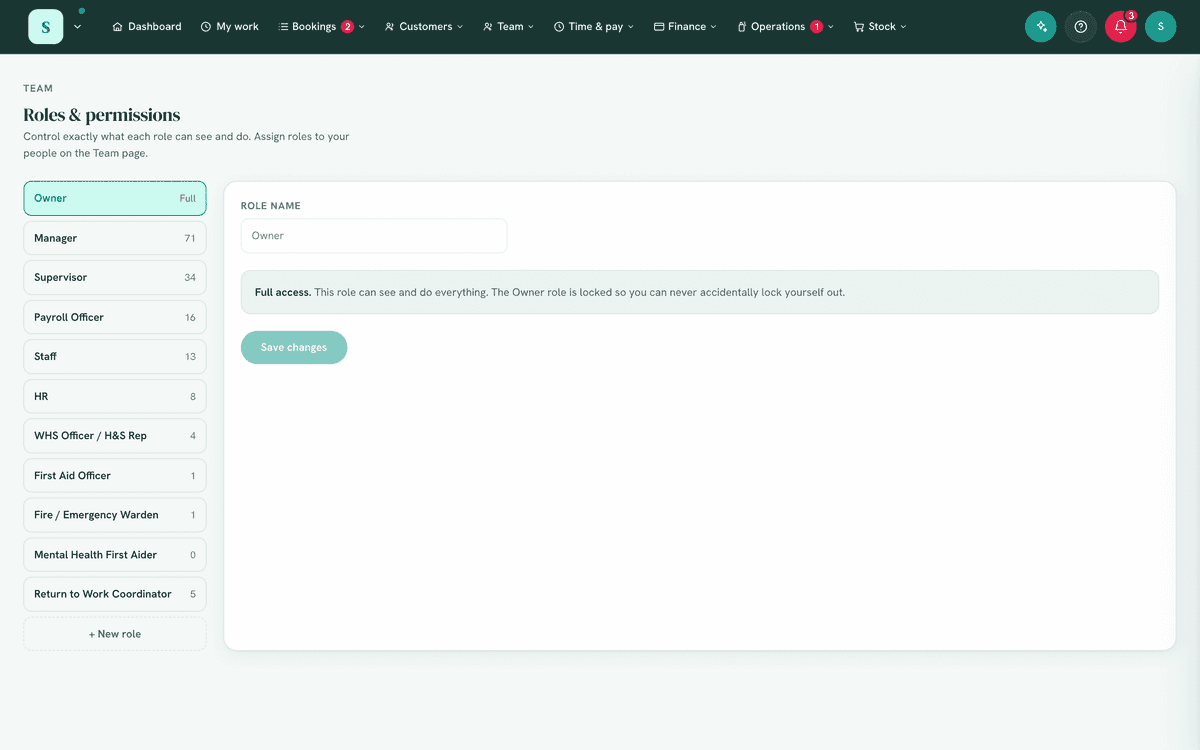
Purpose: Adjust what each role can do, or create your own roles.
When to use it: When the default roles don't match how your business is run, e.g. you want a "Front desk" role that can take bookings and payments but not see marketing.
Required permission: Manage roles & permissions.
Navigation path: Team → Staff list → Roles & permissions.
Each role in the list shows how many people hold it, so you can see who an edit or a delete reaches before you make it.
Step-by-step, edit a role:
- Go to
Team → Staff listand choose Roles & permissions. - Select the role you want to change.
- Tick or untick individual permissions. Sections you see reflect the modules you have on.
- Save. The change applies immediately to everyone with that role.
Deleting a role. Built-in roles (Owner, Staff) can't be deleted. Delete a base role and the people on it become Staff; delete an add-on and the people wearing it lose it, along with the access it gave them. The confirmation says how many people that is.
Step-by-step, create a custom role:
- On the Roles screen, choose to add a new role.
- Give it a clear name (e.g. Front desk).
- Tick the permissions it should have.
- Save, then assign it to team members in
Team → Staff list.
Step-by-step, assign a role to a person:
- Go to
Team → Staff list. - Open the team member.
- Pick their role and confirm. It applies straight away; you don't need to press Save. Add-on roles are the tick boxes below it, and adding one asks you to confirm too.
Example use case: A salon wants stylists to manage their own appointments and take payment, but not change prices or see business finances. Create a Stylist role with View/Create/Edit bookings, View customers, Take / charge payments and View roster, and nothing else.
Common mistakes:
- Editing the Owner role, you can't; it's always full access. Use a Manager or custom role for people who need almost everything.
- Forgetting a module gate, a permission won't take effect if the related module is switched off. Turn the module on first (Settings), then grant the permission.
- Narrowing your own role, untick Manage roles & permissions on the role you hold and you can no longer change roles. You can't change your own role at all; keep one trusted Owner.
- Using the job title to give access, a title of Manager gives nothing. Change the role.
Troubleshooting:
| Problem | Fix |
|---|---|
| A staff member can't see a page they should | Check both the module is on and their role has the matching permission. |
| A permission section is missing on the Roles screen | The module it belongs to is switched off, enable it in Settings. |
| Someone has too much access | Move them to a more limited role, or untick specific permissions on their role. |
| "… includes N things you don't have access to yourself …" | You tried to hand out access you don't hold |
| "… has access you don't have yourself, so ask an owner …" | You tried to give a login, send an invite or reset two-step for someone with more access than you |
| The role picker on your own card is greyed out | Nobody changes their own role |
Next: The dashboard & navigation.