
Module · Invitations & day plan
Where to find it in the app
- Use it: Bookings → Day plan
- Turn it on/off: your business name (top-left) → Settings → Modules → Bookings → Invitations & day plan
Plan: Business · Module group: Bookings & schedule · Navigation:
Bookings → Day plan(plus invite controls on each booking)
1. Overview
Purpose. Two related extras for businesses that run events, weddings, functions, parties, corporate events, catering:
- Invitations & RSVPs, your customer (the host) gets a shareable link to invite their own guests, who RSVP. You get a guest list and a privacy-safe headcount.
- Day plan, a timed, day-of run-sheet for each booking (a timeline of what happens when), shown side by side for the whole day.
It's deliberately general, not just kids' parties.
2. When to use it
- When the person who books brings guests and you want them to RSVP.
- When a booking needs a timed schedule the team runs to on the day.
3. Required permissions
- View the day plan (
runsheet.view). - View bookings (
bookings.view) to see a booking's invitation and its guest list; Edit bookings (bookings.edit) to turn an invitation on or off. Roles without those permissions cannot read guest names or dietary notes at all. - The host manages their own invitation from the public manage page, no permission involved: the booking reference and email, or the link in their confirmation, is their authorisation.
4. Navigation path
- Day plan:
Bookings → Day plan. - Invitations (per booking): open a booking in
Bookings→ the Invitations panel in the drawer. - Host self-service: the customer uses the public manage link for their booking.
The old "Parties" configuration page is retired, packages and extras now live on a group experience in Experiences.
5. What you'll see
Day plan screen, a date you can step through or jump to with the date picker.
To make today, at the top, is everything the day needs got ready, added up across every booking: Party Bags 40 across 3 bookings, Ice Cream Cake 2 across 2 bookings. It is the list the kitchen works from, so nobody has to read four bookings and total the platters in their head.
It counts three kinds of thing: the paid extras they ticked, anything they chose off one of your own pick-many questions, such as "which three platters would you like", and everything on that offering's Prepared for every booking list. A party package's own food usually arrives the second way, so leaving it off would give you a list with no lunch on it; the third is the water, the cordial and the baskets that go out every time and that nobody ever picks (set it up on the offering, see Bookings › create an experience, step 12b). Something that arrives two ways (a platter included in the package and bought again) is counted twice, because that is two lots to make.
What they booked is not on the list: the package or the service itself is the booking, not something to make on top of it. It only appears when there is something on it, it never shows prices, and it counts only bookings that are actually happening.
Getting ready for later, under the day, is the same totalling for the days still to come, one dashed block per day, nearest first. It exists because the day you do the prep is usually not the day of the booking: a cafe that runs two parties on the Saturday makes the food on the Friday. Each block names the day, lists its bookings one line each (time, theme, headcount, room) so you know what you are making it for, then totals what that day needs with a tick box each, and Open that day steps you across to the full board.
You do not have to remember to look. The prep day is the one day nobody opens the Day plan, so the morning email and your dashboard both carry a line of their own: 3 things to get ready for tomorrow. It counts everything that day needs, the totals and the advance steps together, and it clears by itself when there is nothing behind it. Switch it off like any other notification in Settings → Notifications, or just for yourself on My work.
It appears even when nothing is booked on the day you are looking at, which is
exactly what a prep day looks like, and Print works on such a day too. How many
days it looks ahead is yours to set (see 6 below); one day to begin with, and 0
turns it off for a business that preps on the day.
Below it, every booking for that day side by side, each showing:
- its timeline (the run-sheet steps), with the step that is happening now highlighted when you are looking at today,
- kitchen timing (if used),
- check-in / guests with RSVP status,
- the customer's name (which links straight to the booking), their phone, any allergies, the booking reference, the extras they paid for with their quantities, and an Every time line holding that offering's standing prep (already multiplied out for this booking's headcount), so the platters, the party bags and the cordial are on the same card as the timeline.
Cancelled bookings, declined requests and abandoned unpaid holds are left off: the board is who is actually coming.
Print gives you a paper sheet for the wall or the function folder, with the day's To make today list at the top, a tick box against each thing to make, and a tick box against every run-sheet step. What is already ticked on screen prints ticked, so a sheet printed mid-service is honest about where you are up to. Anything under Getting ready for later prints after the day, in its own dashed block per day, so the prep sheet and the day sheet are one piece of paper.
A note reminds you that hands-on running (tapping guests in, working the door) is in the Check-in view; the day plan is the manager's whole-day overview.
6. Turning it on
Settings → Modules→ enable Invitations & day plan (Business plan).- In the booking settings, switch on the sub-features you want, Digital
invitations & RSVPs, the Day plan, and kitchen timing / check-in, each
is independently toggleable. With the day plan switched off, the menu entry
and the page both go.
2a. Under the day plan sit Days you get ready in advance (0 to 7, one by
default). It decides how many days of Getting ready for later the board
totals underneath the day itself. Set it to how far ahead you actually prep:
1for a kitchen that cooks the day before,2or3for a caterer or an event hire that packs early,0if everything happens on the day. - Then say which of the things you sell actually use invitations, see below.
6a. Which offerings use invitations
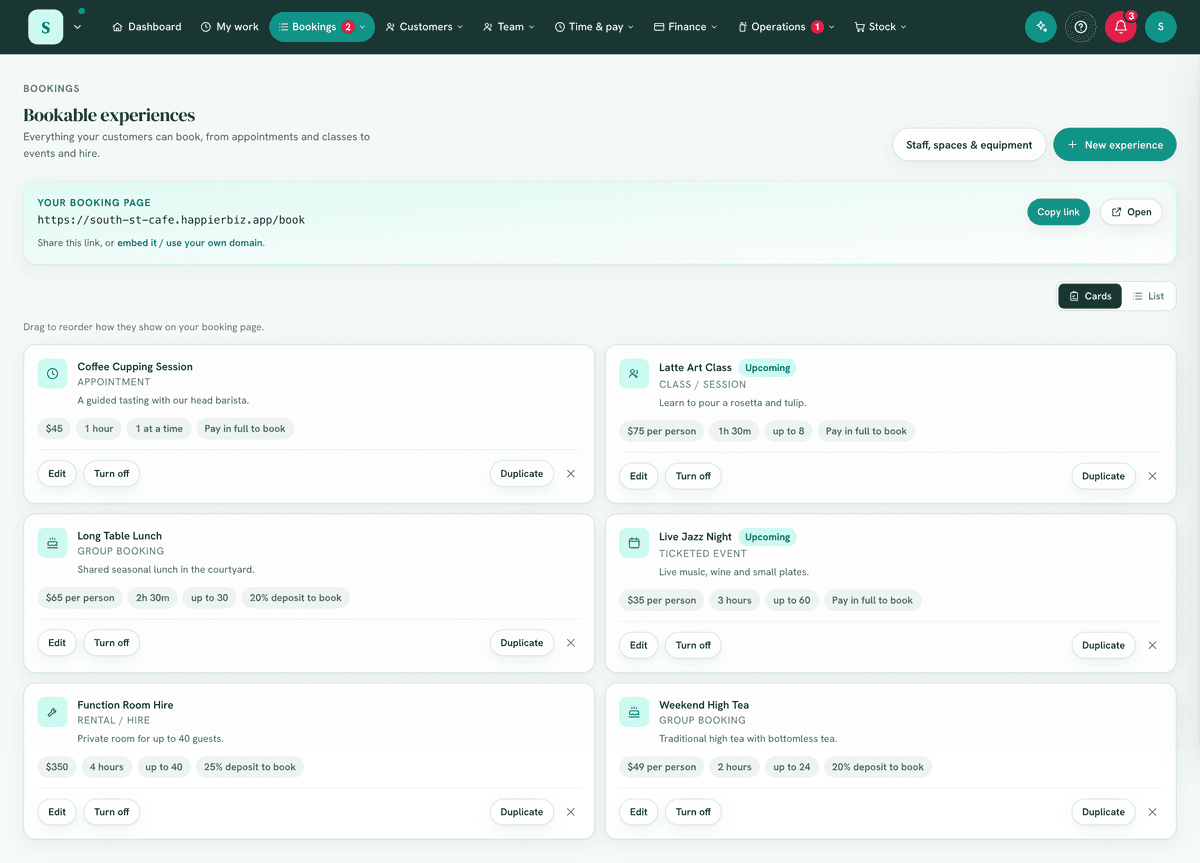
The setting above is the master, "do we do invitations at all". Whether guests get invited is really a property of what was booked, so each offering has its own switch: open the offering in Experiences (whatever you call them), and under Guest invitations turn Offer invitations and RSVPs to whoever books this on or off.
It starts on for everything, so nothing you already had running changes. Turn it off for anything where somebody books a spot just for themselves. A cafe that sells a long table lunch and a one-person coffee cupping session wants it on for the first and off for the second; otherwise the person who booked a single seat is offered an invitation panel for guests they do not have.
The switch only appears once Digital invitations & RSVPs is on for the business, so it is never a control over nothing.
Turning it off closes existing links. Any invitation already shared for a booking of that offering stops taking replies, and guests who open it are told the link is not active. The booking's own Invitations panel says so plainly, so you are not left with a link you think is working. Turn the offering back on and it works again.
7. Step-by-step tasks
7a. Send invitations for a booking
- Open the booking in
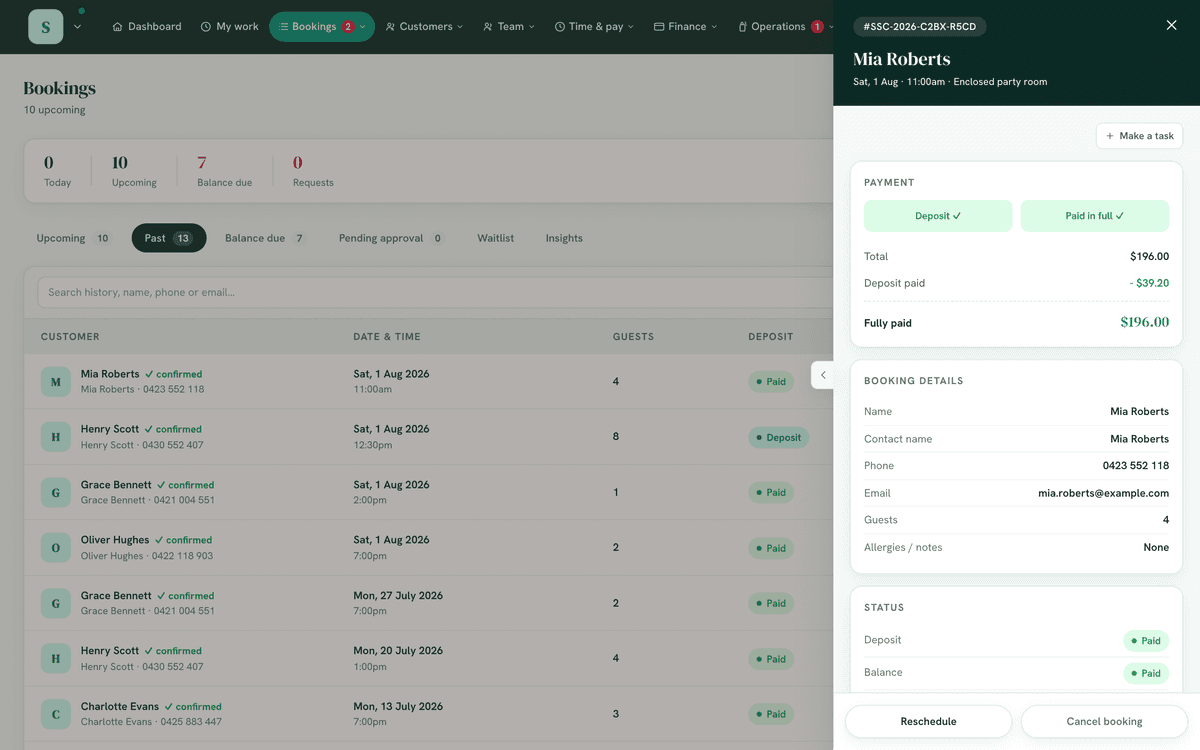
Bookings. - In the Invitations panel, enable invites and share the host link with your customer (or they use their manage page).
- The host invites their guests; guests RSVP via the link.
Most of the time you do not need to do this at all: your customer is offered invitations on their own booking page and can set them up themselves. Turn it on from here when they have asked you to do it for them.
7b. Host-managed invites (your customer)
Your customer is offered invitations, they are not switched on behind their back. On their manage page they see a short panel headed Invite your [guests], marked Included, which tells them:
- their booking comes with digital invitations at no extra cost,
- they get one link to send however they like, and their guests reply with their names and anything worth knowing, like an allergy,
- every reply comes back to them, name by name,
- and that you will see how many are coming and whatever their guests type in, so you can have it ready on the day.
Only then is there a button. Nothing is collected until they press it, and they can turn it off again whenever they like. Wording follows your own words for a booking and for guests, and the panel names your business, so it reads as your offer rather than ours.
If you turned the invitation on first, they still get that explanation, worded for a link that already exists, with Yes, let me use it.
7b-0. Knowing your customer has taken it up
The Invitations panel on the booking tells you which of you started it. It is only on bookings of an offering that uses invitations (or with an invitation still live), so a car service or a haircut that never sends invitations shows no panel at all.
| What it says | What it means |
|---|---|
| Your customer set this up themselves on ... | They read the offer and accepted it. Their guests are replying to you, so watch that list for numbers and dietary needs. |
| Switched on from here, not by the customer | Somebody in the back office turned it on. Your customer has not taken it up yet. |
| Off | No invitation. Either of you can start one. |
| Not used for [offering] | Seen only just after turning off a live invitation on an offering that has invitations switched off (see 6a). Close and reopen the booking and the panel is gone. |
| Invitations are switched off for [offering], so this link no longer works | The invitation went out and the offering has been switched off since. Turn the offering back on, or turn this invitation off. |
Turning off an invitation your customer set up asks you to confirm first, because they have probably already sent the link and anyone who opens it will be told the invitation is not active.
You see the guest list and a count, without exposing guests' personal details unnecessarily. Reading it needs View bookings; turning an invitation on or off needs Edit bookings.
7b-i. What the invitation tells guests
The invitation is built from the booking, so there is nothing for you or the host to retype. A guest sees:
- When, the date with its weekday, and the start and finish time. For a children's party that finish time is the pick-up time, which is the question most guests actually have.
- What, the name of what was booked, how long it runs, and your own description of it. That description is the one on the offering, so editing it in the builder updates every invitation.
- Where, the address, a map and a Get directions button. For an offering marked we come to you, the address shown is the one the host gave instead.
- Who, how many have said yes so far. A count only, never the guest list.
- Add to calendar, for Google and for Apple / Outlook.
- Your business name and phone number, so a guest who cannot find the place can ring someone.
Two things a guest never sees: the guest list itself, and the access notes the host gave you about getting in (gate codes, where the key is). Those stay between you and the host.
Once the booking's finish time has passed the invitation stops asking for replies and says so, rather than collecting RSVPs for something that has already happened. Cancelling a booking, or declining a request, closes its invitation immediately.
7b-ii. The host can hide the address
Under Share this link on their manage page, the host has Show the address on the invitation, with the address printed underneath so they can see exactly what their guests will get. It is on to begin with. If they turn it off, the invitation carries no address and tells them so, because their guests then have to be told some other way.
This matters most when the address is the host's own home, which is the case for anything marked we come to you: an invite link gets forwarded, and it is their call whether their address travels with it.
If your own address is switched off in Settings → Booking & pricing ("Do customers come to
you?"), no invitation shows it, whatever the host chooses.
7b-iii. A waiver for each guest
A form set to Each guest, from their invitation in Forms (see Forms & workflows, 7a12) is asked of every guest's parent or guardian right after they reply that they are coming: one signature for the children their reply names. The booking's Forms card shows who is signed for, Check in names anyone still to sign, and Sign on this device lets a parent sign at the door. The host sees Signed or Not signed yet beside each guest, never the answers.
7c. Set up your day, on one sheet
The quickest way in. Day plan → Settings → Set up your day, or the prompt on the board itself while anything is still unanswered. It is one sheet, in two halves: what turns up, and what somebody does about it.
What turns up is read off your own bookings, with the numbers: Party Bags 12, Mini Pizzas 3. Nothing to set up and nothing to type. Underneath it, and what you always need is for the things no customer ever orders, such as cups and plates. Type a name you also sell and you are told on the spot, because the day's totals add up by name and would otherwise count it twice.
What happens is your running order. Every line in either list has a + Step beside it, so a thing becomes a job with one tap: tap + Step on Birthday cake, call it make the birthday cake, and put it on the day before.
Every step says which day it happens on, so one plan covers both halves of the work: make the pancake batter the day before, cook the pancakes on the day. On an earlier day a step takes a clock time, because there is no booking start to count from, and it shows once for the whole day however many bookings that day is for. On the day it stays minutes from the start.
Whose job is it? Each step can be given to a department, a role or a person, and that name prints on the sheet beside the step. It is a caption, not a lock: anybody working the board can still tick it off. A department is the safest choice, because it does not go stale when somebody leaves.
One thing can be two steps. A birthday cake is made on one day and carried out at noon on another. Tap + Step twice and word each one for what actually happens.
A step made from something they order only runs when they order it. Your plan is the same for every booking and your orders are not: if one party in five buys party bags, a step about party bags would be noise on the other four. So a step made with + Step from the top list is marked only when they order <that thing>, and it appears on the run sheet for exactly the bookings that have it. The step itself says so, and Every time instead removes the condition if you want it on every booking after all.
Steps you write yourself, such as set up the room or cake and singing, have no condition and run every time. That is the default and it does not change.
If you rename or stop selling something a step was waiting for, the step says so on the sheet rather than quietly never appearing again.
There is no separate "how many days ahead do you prep?" question any more. Put a step on the day before and your lists show up on the day before, because the one answer decides both.
Everything is written straight to the settings the app already reads, so you can close it half way and nothing is lost, and reopening it shows what is actually saved rather than a blank form. It never overwrites a running order you have already built: it opens on the one your board is drawing.
7c-i. Build / customise your run-sheet by hand
- On the Day plan screen, click Settings (top right). You need Manage settings to see it.
- Choose which day each step happens on.
- On the day, the step is timed in minutes from the booking's start,
not a clock time, so one sheet fits every start time. A negative number is
before the start:
-15 Set up,0 Customer arrives,60 Wrap up. - The day before (or two, or three), the step gets a clock time instead, because there is no booking that day to count minutes from. It shows once for the whole day, however many bookings that day is for, under Getting ready for ... on the earlier day's board.
- On the day, the step is timed in minutes from the booking's start,
not a clock time, so one sheet fits every start time. A negative number is
before the start:
- Optionally say whose job each step is: a department, a role or a person. The same picker the setup sheet uses, so the two screens cannot disagree.
- Give every step a name. A step left unnamed is not saved, and you will be told which one.
- Save. If you edited more than one kind of booking, all of them save together.
The preview underneath shows the earlier days first, then how the rest lands for a booking starting 10:00am, and it is exactly what the board will draw.
One sheet, or one per kind of booking? Most businesses need one. Your run sheet is the catch-all and covers everything. If a particular kind of booking runs differently, the tabs beside it let you give that kind its own sheet; you are only offered the kinds you actually sell, plus + Another kind if you want one you have not set up yet.
Reset to default deletes the sheet you built for the kind of booking you are looking at and goes back to the starting steps. It asks first, and tells you how many steps you are about to lose; there is no undo.
7d. Just this one: a line, or an extra step
Everything else on the board is a pattern: the standing list on the offering, the running order on its kind, what the customer chose. Every so often one booking is different. + Anything else for this one on the card takes a line about that booking alone, and it lands on the printed sheet with the rest.
Anyone who can see the Day plan can write one, the same as ticking a step, and it saves when you click away. Use it for what nobody has ordered and nobody will order again: grandma is bringing the cake, so one platter only. It is not a priced extra and it changes nothing the customer owes.
And when it is a job rather than a fact, use + Add a step just for this one under the run-sheet. A customer asking for balloons to be hung is something somebody has to do, at a time, and tick off. Give it a name and a clock time and it sorts into the running order where it happens, marked just this one, and prints with the rest. Remove it and no other booking changes: your standing running order is never touched.
Because it is stored as a time from that booking's start, moving the booking moves the step with it. A booking with no start time (a walk-in) has no timeline to put it on, so it is not offered one.
7e. Run the day
- Use the Day plan for the overview. On today's board the current step is highlighted and everything already past is dimmed.
- Print the day if your team works off paper; every step gets a tick box.
- Use Check-in to tick guests in as they arrive and work the door (see Bookings → Check-in).
8. Examples
- Beginner (kids' party): the parent gets an invite link, friends RSVP, and staff follow a simple arrive → play → food → cake → home day plan.
- Real-world (wedding/function): the couple manage their own guest list and RSVPs; the venue builds a detailed timed day plan with kitchen timing.
- Advanced (corporate event): multiple bookings on one day each have their own timeline, shown side by side so the team can see the whole day at a glance.
9. Reports & exports
Print on the Day plan produces a one-page-per-day paper sheet: each booking's
time, customer, headcount, allergies and full timeline, with a tick box against
every step, then, for any days you get ready in advance, what to do that day and
the totals to make. A link with ?date= on it opens a specific day, so you can send
Saturday's plan to whoever is running it. The guest list and RSVP counts sit on
each booking; guest arrivals are recorded via Check-in.
10. Common mistakes
- Expecting invitations without the sub-feature on, enable Digital invitations & RSVPs in booking settings.
- Looking for packages here, they moved to Experiences (group type).
- Editing the run-sheet on the day and not telling the team, it's a shared board; communicate changes.
- Expecting a timeline on a booking with no start time, a walk-in has none, so the card says so rather than inventing one.
- Reading step numbers as clock times, a step on the day is minutes from the start. Only a step you have put on an earlier day carries a clock time.
- Putting the food on the day it is eaten, if you make it the night before, put those steps on the day before and they appear on the day you do the work.
11. Troubleshooting
| Problem | Fix |
|---|---|
| The Day plan link isn't in the nav | The module or its day-plan sub-toggle is off, or your role lacks View the day plan. Opening the page directly does the same thing, by design. |
| The Invitations panel isn't on a booking | Enable Digital invitations & RSVPs and ensure the module is on. If it is, the offering booked has Guest invitations switched off, so its bookings carry no panel: turn it on in the offering, not on the booking. |
| The panel says "Not used for ..." | You have just turned off a live invitation on an offering with Guest invitations switched off. Nothing more to do; the panel is gone next time the booking opens. |
| A customer says the invite link stopped working | Check Guest invitations on the offering they booked. Switching it off closes every link for that offering. |
| Guests' details aren't fully visible | By design, the count is privacy-safe; you don't need every guest's personal data. |
| The panel says "You do not have permission to view this booking" | Your role is missing View bookings. Guest lists are not open to the whole team. |
| Your customer says they never turned invitations on | They may not have. Check the line under the switch: it names whichever of you started it. |
12. Error messages
Run-sheet edits and invite actions confirm inline. The host's manage page guides them through inviting and collecting RSVPs.