
Approvals & payroll sign-off
Where to find it in the app
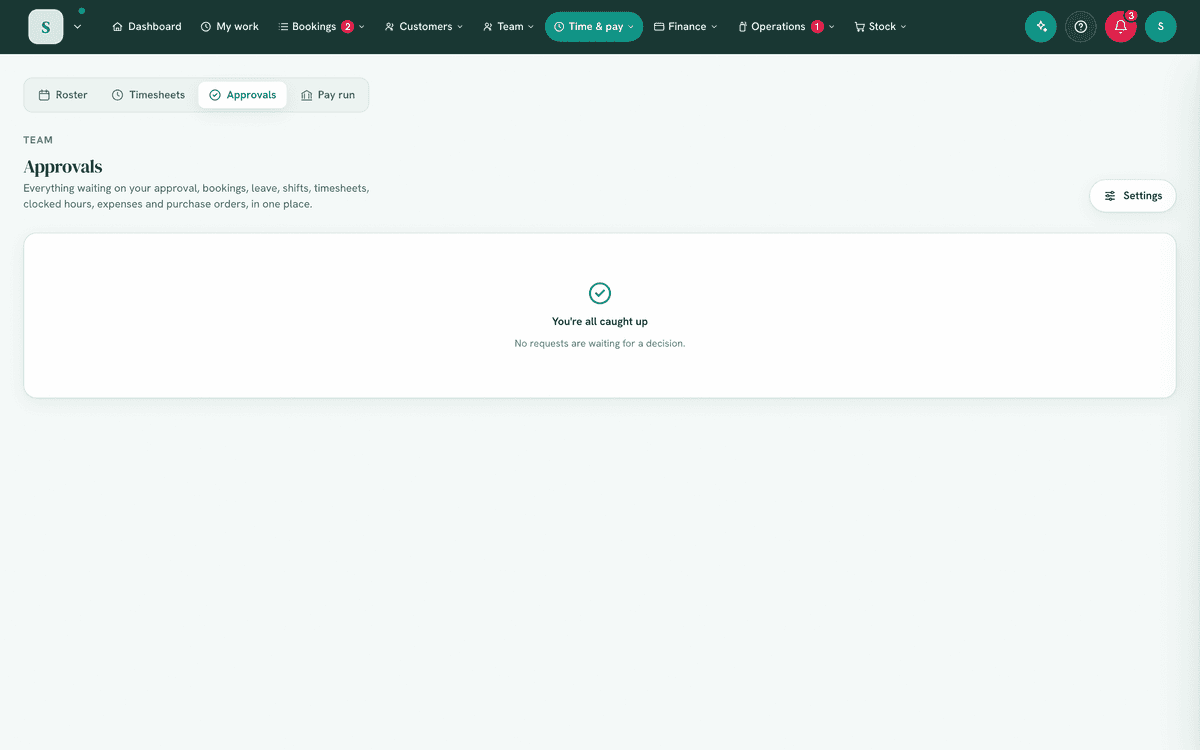
- The inbox: Time & pay → Approvals
- The settings: Time & pay → Approvals → the Settings button (top-right)
- Assign a Payroll Officer: Team → Staff list → open the person → Add-on roles
Plan: Solo and Business · Navigation:
Time & pay → Approvals
1. Overview
Approvals is one inbox for everything waiting on a decision, so you don't have to hunt through separate screens. It gathers leave, shift requests, booking requests, customer enquiries, timesheets, expense claims and purchase orders, and shows each approver only the items they're allowed to action.
On top of that inbox, HappierBiz offers an optional two-step approval chain: the requester's direct manager confirms the context first, then a Payroll Officer does the final sign-off that releases the money or pay. It's built for separation of duties, the person who understands why something happened isn't necessarily the person who should release the payment.
Two-step is off by default. With it off, every approval is a single decision, exactly as it always was. Nothing changes until you turn it on.
2. The Approvals inbox
Where: Time & pay → Approvals. Anyone who can approve any of the surfaces above
sees the inbox, and it's scoped to exactly what they can action, a person who can
only approve expenses sees only expenses.
Each row shows who it's from, what's being asked, and helpful context (for leave: the projected balance, booking clashes and who else is off). You can:
- Open a row for the full detail in a side drawer, with a jump to the full record in its own module.
- Approve or Decline (most surfaces let you add a note the requester sees).
- Select several and Approve selected in one go.
- Approve N clean clocked approves every week of clocked hours with nothing to look at. A week is held back for you to open when its hours differ from the roster, a clock-out is missing, it goes over the overtime trigger, or a day was worked with nothing rostered (Worked a day not on the roster).
3. Two-step approvals, how it works
When two-step is on, a request that needs approval travels through two stages before it's finalised.
Stage 1, the manager check. The request goes to the requester's direct manager (set as their "Reports to" in Team → Staff list). If no direct manager is set, it goes to everyone who can approve that kind of request. In the inbox it carries a grey "Manager check" tag. The manager confirms the context (for a timesheet, that the hours are right; for leave, that the time off is fine) and approves.
At this point nothing is paid. No hours are written to the payroll export, no time in lieu is banked, and the requester is not told it's approved yet. The item simply moves to the next stage. The approver sees a clear message: "Approved… it now needs the final payroll sign-off."
Stage 2, the payroll sign-off. The item now waits on a Payroll Officer (anyone who holds the Final payroll sign-off permission). It shows in their Approvals inbox with a teal "Payroll sign-off" tag, and they get an email. When they approve, the money side finally happens: the hours flow into the payroll export, any time in lieu banks, the expense becomes owed, or the purchase order is cleared to send. The requester gets their outcome email only now.
Declines and send-backs. Either person can decline at their stage; the requester is emailed and it's recorded in the Activity Log, exactly like a normal decline.
Worked example, a staff member works back
- A team member confirms a timesheet with two extra hours.
- It lands in their direct boss's Approvals inbox ("Manager check"). The boss knows they stayed back to finish a job, so they approve. Nothing is paid yet.
- It moves to the Payroll Officer's inbox ("Payroll sign-off"). Payroll checks it against the pay rules and approves, and only now do the hours go into the payroll export and the staff member get their "approved" email.
4. The Payroll Officer
Payroll Officer is an add-on role (a "hat") you assign on top of a
person's normal role, at Team → Staff list → open the person → Add-on roles. You
can give it to one or many people, and any of them can perform the final
sign-off.
Holding it grants the Final payroll sign-off permission plus read access to the time-and-money approvals (timesheets, leave, expenses, purchase orders), without full manager reach, no customer data, no bookings, no settings. This lets a bookkeeper or payroll person release pay without seeing the rest of the business.
Owners and managers already hold the sign-off permission by default, so turning two-step on doesn't lock anyone out. If you want strict separation (a manager checks, but only a payroll person releases), remove Final payroll sign-off from the Manager role on the Roles & permissions screen (
Team → Directory), and assign the Payroll Officer hat to whoever should hold the pay gate.
5. Turning two-step on (or off)
- Go to
Approvalsand click the Settings button (top-right). - Tick Two-step approvals and Save.
- Assign the Payroll Officer hat to at least one person (Team → Staff list → Add-on roles), so there's someone to do the final sign-off.
Turning it off again returns every pending item to a single decision, no request is ever stranded, the app re-reads the setting on each action.
6. Which surfaces use the chain
| Surface | Stage 1 (manager check) | Stage 2 (payroll sign-off) |
|---|---|---|
| Timesheets | The submitter's direct manager confirms the hours. | Payroll releases the hours to the export. |
| Clocked hours | A manager approves them, in this inbox or with Approve on the Timesheets grid (Sent for payroll sign-off). | Payroll signs them off here; the person who did the first check cannot. |
| Leave | The direct manager confirms the time off. | Payroll signs off (and any time-in-lieu draw happens here). |
| Expenses | A manager confirms the claim. | Payroll releases the reimbursement. |
| Purchase orders | An approver confirms the order. | Payroll clears it to send. |
For expenses and purchase orders, an approver who submits their own claim or order has already supplied the manager context, so it skips straight to the payroll stage (unless they also hold the sign-off permission, in which case, like an owner or manager, it clears in one step, matching today's behaviour).
Everything else (shift swaps, booking requests, customer enquiries) is a single decision and never enters the chain. A shift swap does move rostered hours from one person to another, so its card shows the pay effect before anyone approves it: each person's hours that week before and after, overtime by your weekly threshold, contracted hours, public holidays, and the wage change at base rates for people who can see pay. Approving one that creates overtime, or takes somebody past their contracted hours, asks you to confirm. See Shift requests.
⚠️ What the chain does not cover. Typing a day's hours on the Timesheets grid, or Rostered / Clocked on a row, sets that day's pay directly. It is a pay decision by somebody with Edit / approve timesheets, and it does not wait for the payroll sign-off. Keep that permission to the people you trust to set pay.
7. What each person needs
- Do a manager check (stage 1): the module's own approve permission, Edit / approve timesheets, Approve leave, Approve & reimburse expenses, or Approve purchase orders.
- Do the payroll sign-off (stage 2): Final payroll sign-off (release pay), held by owners and managers by default, and by the Payroll Officer hat.
- Change the two-step setting: Edit business settings & branding.
8. Common mistakes
- Turning two-step on with no Payroll Officer assigned. Owners and managers can still sign off (they hold the permission by default), but if you removed it from managers for strict separation, be sure to assign the hat to someone, or nothing can reach final sign-off.
- Expecting a manager's approval to pay it. Under two-step, the manager check is context only. Pay is released at the second step. The "now needs payroll sign-off" message tells you the item is still open.
- Looking for the payroll-stage item as a plain manager. A payroll-stage item only shows to people who can do the final sign-off, not to every manager.
9. Troubleshooting
| Problem | Fix |
|---|---|
| I approved a timesheet but it's still in the list | Two-step is on. Your approval was the manager check; it now waits on payroll sign-off. |
| Nobody can do the final sign-off | Assign the Payroll Officer hat (Team → Staff list → Add-on roles), or check managers still hold Final payroll sign-off in Roles. |
| A request went to the wrong person for the first check | Set the requester's "Reports to" manager in Team → Staff list; stage 1 routes there first. |
| I want to go back to one decision | Approvals → Settings, untick Two-step approvals. Pending items revert to a single decision. |
| The Payroll Officer can see too much / too little | Adjust the Payroll Officer role on the Roles & permissions screen (Team → Staff list); it's editable like any role. |
Related: Roles & permissions · Roster & timesheets · Leave · Expenses · Invoicing