
Module · Documents
Where to find it in the app
- Use it: Operations → Documents
- Turn it on/off: your business name (top-left) → Settings → Modules → Operations → Documents & policies
Plan: Business · Module group: Operations · Navigation:
Operations → Documents
1. Overview
Purpose. A secure library for your business's policies, standard operating procedures (SOPs) and manuals, with optional read-acknowledgement so you can prove staff have read the important ones.
Security. Documents are stored in private storage and only ever opened through a short-lived signed link, never a public URL. A link can't be shared to give outsiders (or ex-staff) lasting access.
2. When to use it
- To publish a child-safety policy, food-safety SOP, staff handbook or emergency procedure that everyone must read.
- To keep manuals and reference material in one findable place.
3. Required permissions
- View documents (
documents.view), read and acknowledge. - Upload / manage documents (
documents.manage), upload, categorise and delete. - See every document & set who can access what (
documents.admin), the document super user: sees everything regardless of access rules and edits folder and centre rules. The Owner always has this.
4. Navigation path
Operations → Documents
5. What you'll see
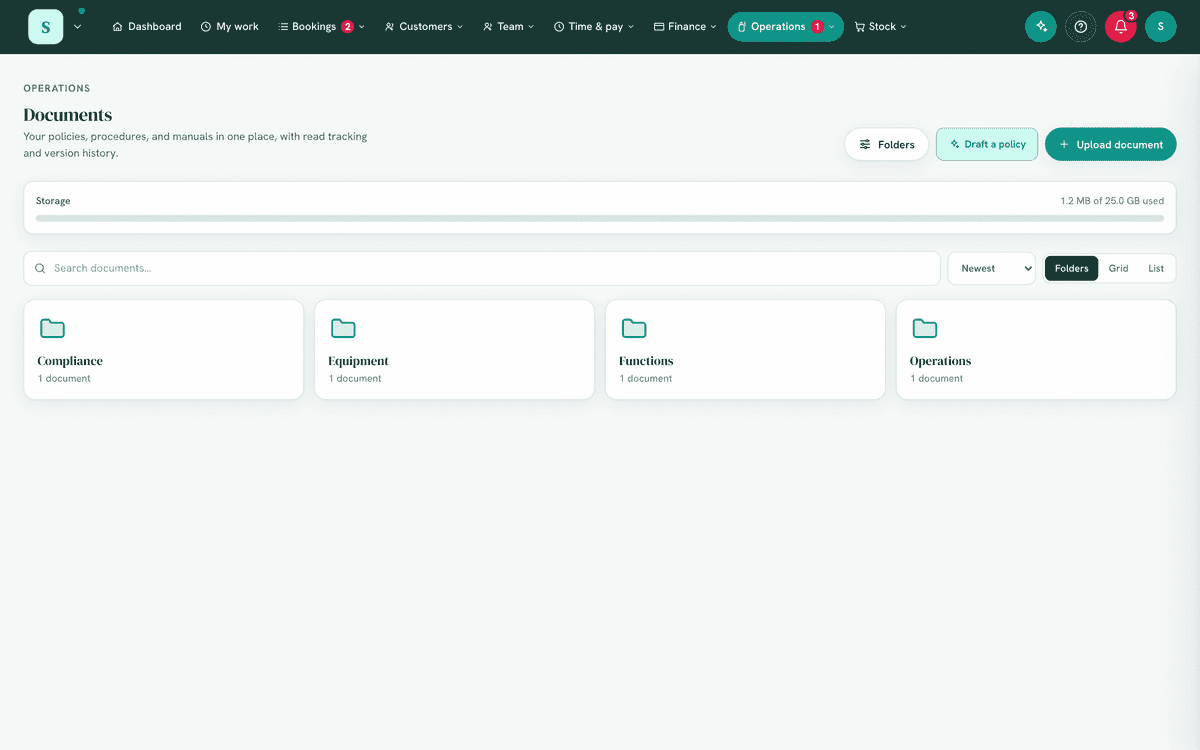
- Folders view (the default): a card per folder showing how many documents it holds (folders inside included) and how many are still for you to read. Open one to see the folders and documents inside it, like a file browser, with a clickable trail back up. Managers get a New folder button at the top of the page and a tile at every level (a fresh workspace starts with the tile, folders come before files), and each folder card has a settings icon for rename, remove and access.
- A Grid / List toggle for a flat view of every document, with folder chips, search and sort.
- A card (or row) per document: title, optional version, who added it and when, file size, a Must read badge where acknowledgement is required, and a Restricted padlock where it has an access list of its own.
- For "must read" docs, an "I've read this" button (for the reader) and, for managers, a count of who is yet to read it.
- An Upload button (managers) and a storage usage indicator against your plan's quota.
- On a document you can edit, the settings icon opens Edit details, New version, Who can access, and Delete. Only the actions your access level allows appear.
- On a document HappierBiz created itself (a filed form record, a report, a blank form, an AI-drafted policy) the same menu also offers Print or save as PDF and Download as Word. Anyone who can open the document can use both.
6. Turning it on
Settings → Modules → Operations & compliance → Documents.
7. Step-by-step tasks
7a. Upload a document
- Select Upload (needs Upload / manage documents).
- Enter a title (e.g. Child Safety Policy).
- Choose or type a category (e.g. Safety) and an optional version.
- Optionally pick a customer to file it against, for a signed waiver, a quote or a contract. It then also shows on that customer's own record.
- Turn on requires acknowledgement if everyone must read it.
- Choose the file and upload.
Expected result: the document appears in the library; if you marked it must- read, staff get a "documents to sign" prompt in their notifications.
Linking a customer does not change who can open the document. That is decided by the folder, exactly as it is for every other document. Somebody who cannot see the folder does not see the document on the customer's record either.
The customer shows as a tag on the document, and you can change or remove it at any time under Edit details.
7b. Read & acknowledge (staff)
- Open
Operations → Documents. - Select a document to open it (it opens via a secure, expiring link).
- For a Must read document, choose I've read this to acknowledge.
7c. Upload a new version
- When a policy changes, select the settings icon on the document's card, then New version (needs Can edit on that document, so a Safety Officer can keep the safety policy current without being a centre manager).
- Pick the replacement file and add an optional version note.
Expected result: the new file supersedes the old one, it's what everyone opens from now on. The old file isn't lost: it stays in the document's version history, marked replaced [date], so staff always open the current version and you keep the paper trail.
7d. Draft a policy with AI
- As a manager, choose Draft a policy.
- Describe the policy you need in plain English (e.g. "a mobile phone policy for floor staff").
- Review and edit the draft, then save, it lands in the library like any other document, ready for categories and must-read acknowledgement. Drafting uses your business's shared AI allowance, and a draft is a starting point, read it properly before you publish it.
7e. Keep a form submission here
A completed form can be filed straight into this library, so a signed waiver, a completed client intake or an incident report sits with your policies rather than only in Forms.
- Go to Operations → Forms, open the form's Submissions, and open the one you want.
- Select File a copy in Documents. It confirms the folder it went to, which is named after the form.
The copy is a web page rather than a PDF, because your browser makes the PDF on your own machine. Open the copy and print it and you get the same PDF. It is self-contained: a signature is stored inside the file, so it still shows years later.
⚠️ The folder decides who can see it, exactly as it does for anything else here, so if the form collects personal or health details, set that folder's access before you file into it (see 7i). Filing needs both the forms permission and permission to add documents to that folder.
7f. Add a file to the record it belongs to
The paperwork for a job does not have to be added from here. A booking, a customer, an overdue invoice and a maintenance issue each carry an Add button, and choosing File uploads a file into this library without leaving the record: the waiver signed for a party, a contract, a certificate. It adds a file you choose; the record itself is not turned into a document.
- Open the record and select Add, then File.
- The title is filled in from the record and the folder is suggested (a customer's paperwork goes to Customers, a booking's to Bookings). Both can be changed, and New folder makes one on the spot.
- Choose the file and select Add file. It confirms which folder it went to.
Added from a customer's record, the document also appears on that customer's own record under Documents, so their contract and their signed forms sit with their history.
⚠️ The folder still decides who can see it. The list only offers folders you are allowed to add to, and the same access rules apply as anything else here (see 7i). If your role cannot see customer records, the document is still filed and it says that it will not appear on the customer's record.
7g. Print one, or download it as Word
Works on documents HappierBiz created: a form record filed here, a form report, a blank form, and a policy drafted with AI. An uploaded PDF, photo or Word file is left as it is, so neither option appears on one.
- Find the document and open its settings icon.
- Print or save as PDF opens it in its own window with a Print button. Choose your printer, or "Save as PDF" in the print dialog, which every browser and phone offers.
- Download as Word saves a
.docxyou can edit: headings, answers, totals, lists and any signature come across. Pages on a Mac opens.docx, so there is no separate Pages download.
Charts are not pictures in the Word file, the figures behind them are written out as lines instead, so you can edit them.
7h. Delete a document
- Select the settings icon on the document card, then Delete, and confirm. Deleting needs Full access on that document, and removes its whole version history.
7i. Choose who can access a folder or document
You may not need this at all. Out of the box, everyone on your team who can see Documents sees all of them, and whoever manages documents can do everything. That suits most small businesses. This section is for the day you keep something that is not for everyone: employment contracts, a pay review, a doctor's certificate, a supplier agreement.
Never set up access before? Do this
You do not need to understand permissions to do this. Three steps:
- Put the private files in their own folder (say HR). Upload them with
Folder set to
HR, or change the folder later. To make a folder, select New folder at the top of the page, or the tile at the end of the folder grid. - On the
HRfolder's card, select the settings icon in its top corner, then Who can access. - In the box that says Describe who should access this, type it the way you would say it out loud. For example: "Only HR and me should see these. Managers can look but not change them. Staff shouldn't see them at all." Then choose Suggest access rules.
You will get a small table: each role, what they would be able to do, and why. Change anything you disagree with, then press Save access. If you would rather see it first, select Check who can see this, which lists every person by name with the access they would end up with.
Nothing is saved until you press Save access, so you cannot break anything by looking.
What the five levels mean
| Level | What that person can do |
|---|---|
| No access | Cannot see the document at all. It is not in their list, not in their search, not in their must-read count, and the file will not open for them. |
| Can view | Open it, read it, and tick "I've read this". |
| Can edit | Everything above, plus upload a new version. |
| Can edit & set access | Everything above, plus change who else can access it. |
| Full access | Everything, including delete. |
You can give a level to Everyone, to a role (Manager, HR, or any role you made up yourself), or to one person by name.
Doing it by hand
- A folder: the settings icon on its card → Who can access (or open the folder and choose Folder access). Needs the super-user permission.
- One document: the settings icon on its card → Who can access. Needs Can edit & set access on that document, or the super-user permission.
- Add a rule, pick who, pick what they can do, and Save access.
A document with its own rules wears a Restricted badge in the list, and a folder with rules wears the same badge on its card, so you can see at a glance what is not for everyone.
One thing a rule can't do: open the Documents tool for a role that has no document permission at all. The View documents permission (Team → Staff list → Roles & permissions) opens the door; rules decide what is on the shelves inside. If you add a rule for such a role, it is kept but waits, and the access panel says so.
Folders inside folders
Folders nest, like on a PC. Open a folder and select New folder (the
button at the top, or the tile), or type the path in one go wherever a folder is typed:
HR/Contracts while uploading creates both levels. Up to four levels deep.
Access rules flow down the chain: a rule on HR covers HR/Contracts and
everything deeper, until something closer speaks, a subfolder or a document
with rules of its own, and then the nearest one wins. So locking HR locks
the whole filing cabinet drawer in one move, and one subfolder can still be
opened up (or tightened further) on its own.
Renaming a folder
The same settings icon on a folder's card has Rename folder. The name
becomes editable on the card itself: type, then Enter to save or Escape to
cancel. Renaming changes the name where it is, it never moves the folder, so
the new name can't contain /.
Everything filed under it comes with it: older versions, every folder inside it, and its access rules, so a folder you have restricted stays restricted under its new name. If the new name is already in use you are told which folder has it and nothing is changed, because quietly merging two folders would move documents you never asked to move. Renames are recorded in Settings → Activity.
Removing a folder removes the folders inside it too, and its access lists are removed with it: the documents follow the rules of whichever folder you move them to. Because that deletes rules, removing a folder that has an access list anywhere inside it takes a document super user, an ordinary manager is refused.
If two rules disagree
The more specific one wins, always, and in this order:
- A rule on the document beats a rule on its folder, which beats a rule on the folder above it (and so on up the chain), which beats a rule on the whole document centre. The nearest rule wins.
- At the same level, a rule for the person beats a rule for their role.
- Someone wearing two roles (for example Staff who is also the First Aid Officer) gets the more generous of the two.
- No access is a real answer, not a gap: it hides the document rather than falling back to a wider rule.
Two safety nets. Use only this list, on a single document, ignores its folder and centre rules completely, for something like a confidential pay review sitting in an otherwise ordinary folder. And the Owner, plus any role you have given the super-user permission, always keeps access, so no rule can lock you out of your own files.
Every change is written to Settings → Activity: who changed it, when, what it was before, what it is now, and whether an AI suggestion was approved for it.
Expected result: someone with No access does not see the document anywhere: not in the library, not in search, not in their must-read count, and its file cannot be opened.
Two exceptions: a safety check and an onboarding step. A document linked to a safety check opens from that check for everyone who does it, on the tablet too, and one linked to an onboarding step opens for each new person working through the checklist, whatever their access here. Only somebody who can open the document can link it, and removing the link takes that away. See Safety & cleaning and the onboarding checklist in the administrator guide.
7j. Edit a document's details, or move it to another folder
The settings icon on a document's card (or list row) opens Edit details: title, description, version label, the must-read switch, and, if your access allows it, the folder it lives in.
- Fixing the wording needs Can edit on the document.
- Moving it to another folder needs Can edit & set access, because the folder decides who can see it, so a move IS an access change. Someone who can only edit sees the folder shown but not changeable.
- The file itself is never touched here, publish a New version for that.
- Reads already recorded are kept when you toggle must-read.
Expected result: the document (and its whole version history) now sits in the new folder and follows that folder's access rules, unless it has Use only this list switched on, in which case its own list still decides. If you move it somewhere your own access can't see, the app says so as it goes.
8. Examples
- Beginner (café): upload the Food Safety Program as must-read so all staff acknowledge it.
- Nesting (trades): folders
Jobs/2026andJobs/2025keep each year's paperwork together; a lock onJobscovers both years in one rule. - Real-world (venue): keep versioned Evacuation Procedure documents; bump the version when it changes and require re-acknowledgement.
- Advanced (multi-site): organise by category (HR, Safety, Operations) and track acknowledgement to satisfy an audit.
- Keeping HR private (café with 8 staff): make an
HRfolder for contracts and pay reviews, open Who can access from its settings icon, and type "Only me and whoever does HR. Nobody else." Save the suggestion. Everyday folders (Safety, Operations) are left alone, so the team still sees everything they had before and the contracts simply are not there for them. - One file inside a shared folder: the
Operationsfolder is for everyone, but one supplier agreement is commercially sensitive. Open Who can access on that document, turn on Use only this list, add yourself and your manager, and save. The rest of the folder is unaffected. - Filed in the wrong place: a contract was uploaded to
Operationsby mistake. Settings icon → Edit details → change the folder toHR, and it immediately follows HR's tighter rules.
9. Reports & exports
Acknowledgement status (who has/hasn't read a must-read document) is visible to managers. Outstanding acknowledgements surface in the notifications bell.
A document HappierBiz created can be printed, saved as a PDF, or downloaded as Word from its settings menu (7g). Uploaded files download as whatever was uploaded.
10. Common mistakes
- Uploading sensitive files elsewhere, keep anything containing personal info here, where access is controlled, not on a public link or shared drive.
- Forgetting "requires acknowledgement", without it, there's no record that staff read the policy.
- Hitting the storage quota, large files count toward your plan's storage; compress big PDFs.
- Locking a folder before anything is in it, the rule is right but people report "the document vanished" when they later file something there and forget. Check who can see this answers it in one look.
- Assuming a rule hid the file from you too, it did not: the Owner and any super user always keep access, which is why your own view is not a test of whether a restriction worked. Use Check who can see this instead.
11. Troubleshooting
| Problem | Fix |
|---|---|
| A document won't open | The signed link expired, reopen it from the library to get a fresh one. |
| Staff can't see a document | They need View documents, the module must be on, and an access rule may be hiding it, check Who can access on the document or its folder, or Check who can see this. |
| Upload fails | Check you're within your storage quota and the file type is supported. |
| Uploading into a folder is refused | That folder is restricted and your access there doesn't allow adding documents. Pick another folder, or ask a super user to widen the folder's rules. |
| Can't delete | Deleting needs Full access on that document (managers have it unless a rule narrows them). |
| I set a rule and nothing changed | Rules are saved but you are a super user, so you still see everything. Open Check who can see this to see it through your team's eyes. |
| I gave a role access and they still can't see Documents | A rule can't open the tool itself. Give that role the View documents permission (Team → Staff list → Roles & permissions); the rule then applies. |
| Someone still sees a restricted file | A more specific rule may be overruling yours (a rule on the document beats one on its folder), or they hold the super-user permission. Check who can see this names the rule that decided it. |
| Renaming a folder is refused | Another folder already has that name (or the new name contains "/", and renaming never moves a folder). The message says which. |
| Can folders go inside folders? | Yes, up to four levels: open a folder and use New folder inside it, or type the path (HR/Contracts) when uploading. A parent folder's access rules cover everything inside it until something closer has rules of its own. |
| Removing a folder is refused | It has its own access list, which is removed with the folder, so that takes a document super user. |
| I want one file locked down inside a shared folder | Open Who can access on that document and turn on Use only this list. |
| Can't move a document to another folder | Moving changes who can see it, so it needs Can edit & set access on the document, and a restricted destination folder also needs your access to allow adding there. |
12. Error messages
Inline messages confirm success ("Document uploaded"). Upload errors explain the cause (e.g. quota or file issue). Opening always routes through a fresh signed link rather than failing silently.
Related: Safety & cleaning · Forms & workflows · Team comms